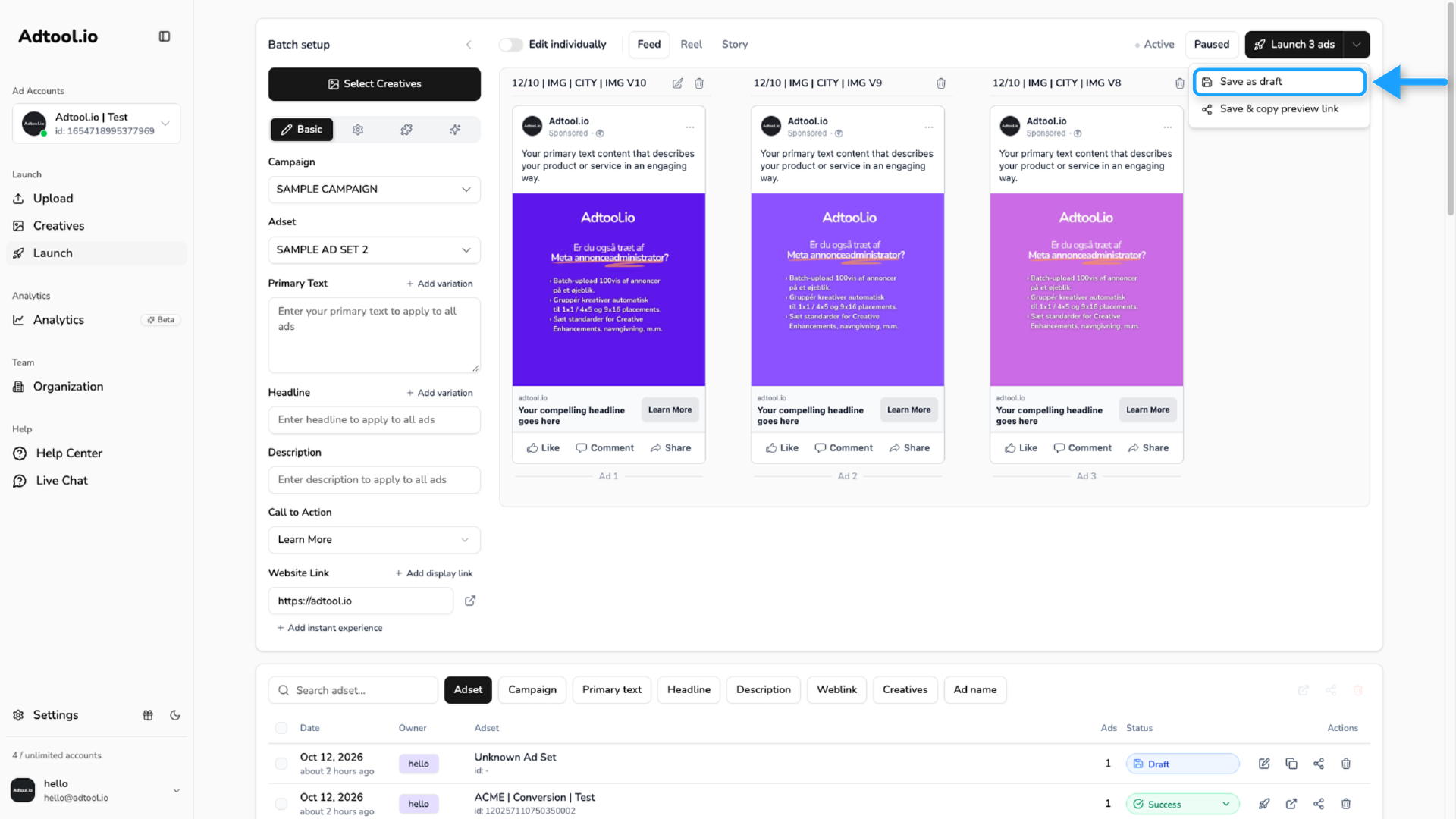
Save as draft
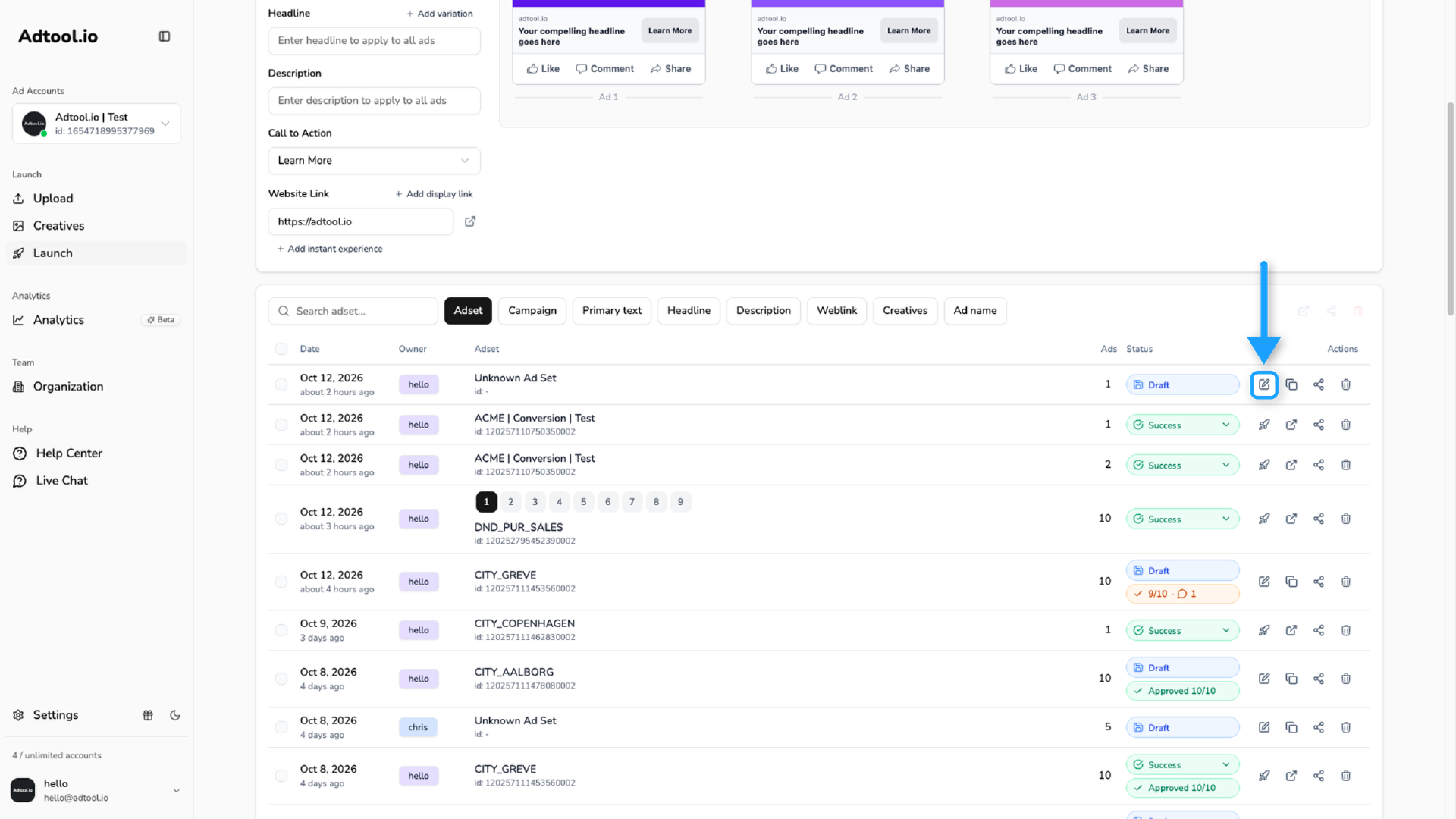
Learn how to save a launch batch as a draft and return to it later.
Save a batch as a draft when you want to finish the setup later before launching.
Step-by-step guide
Go to Launch and create your batch
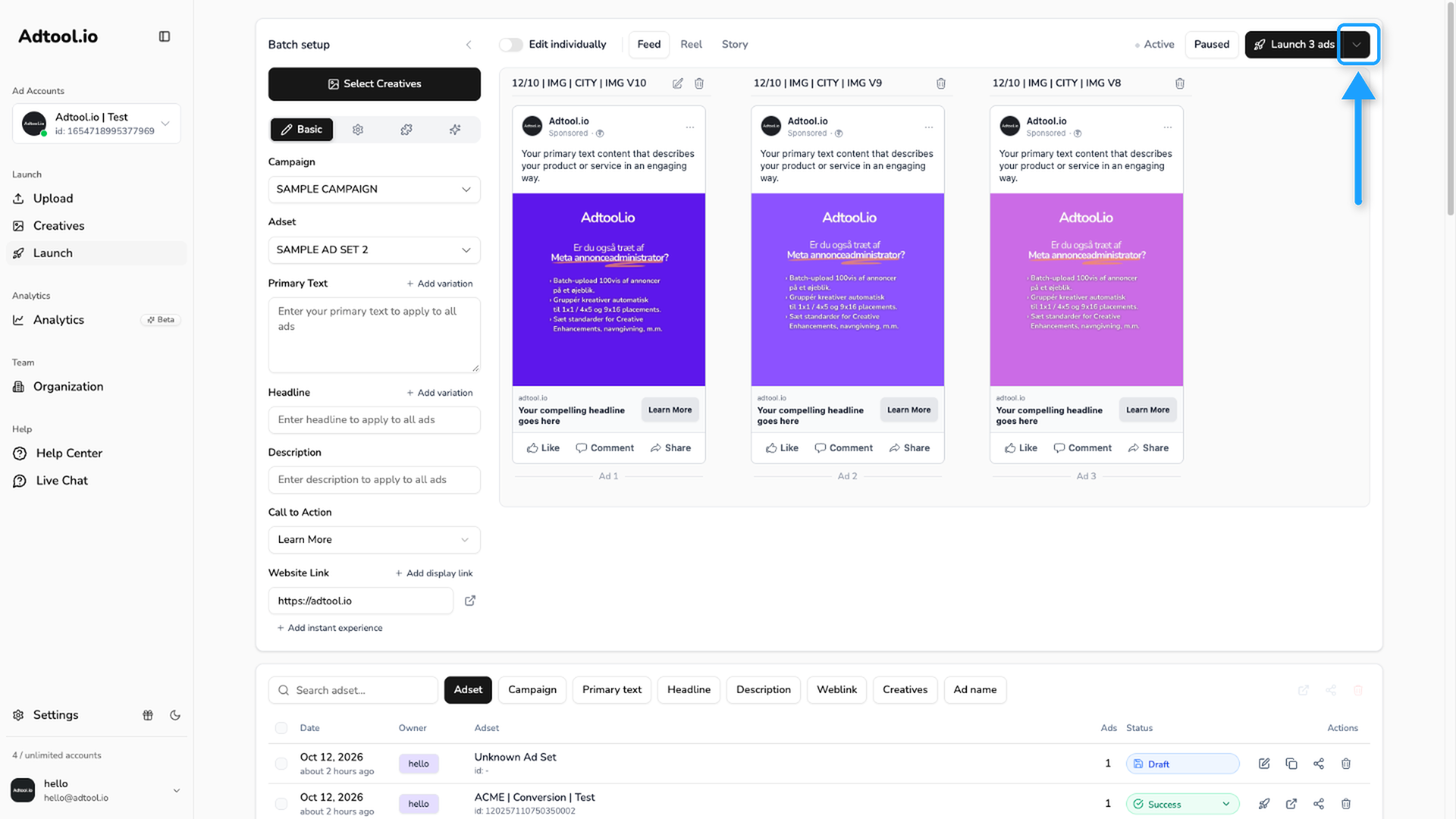
When the batch is ready to save, click the arrow next to the launch button.
Video guide
Was this helpful?
Still need help? Ask the team