Preview links
Learn how to create a preview link for one batch or multiple batches.
Create a preview link when you want to share draft or launched ads with a client, teammate, or stakeholder.
Create a preview link
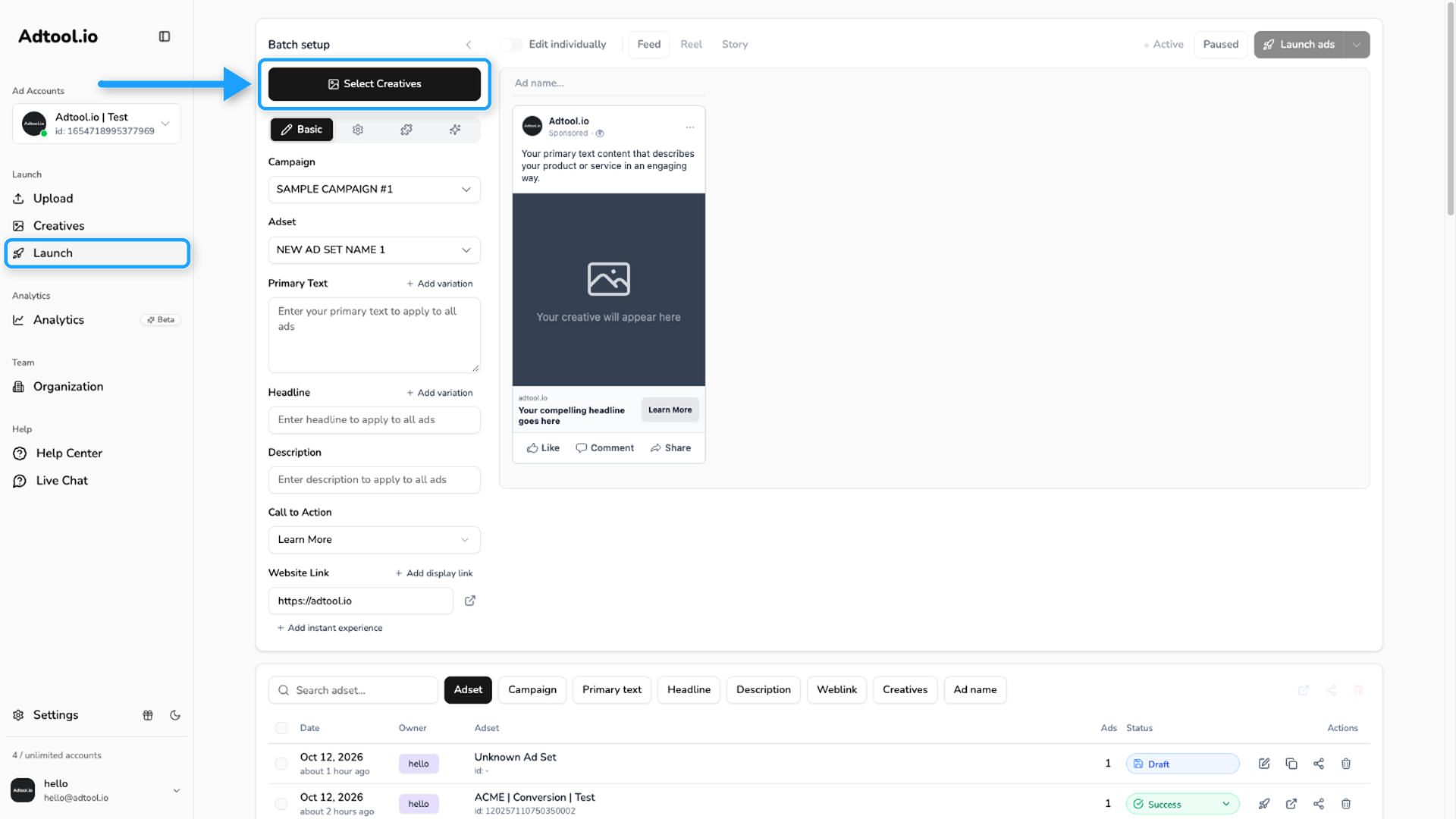
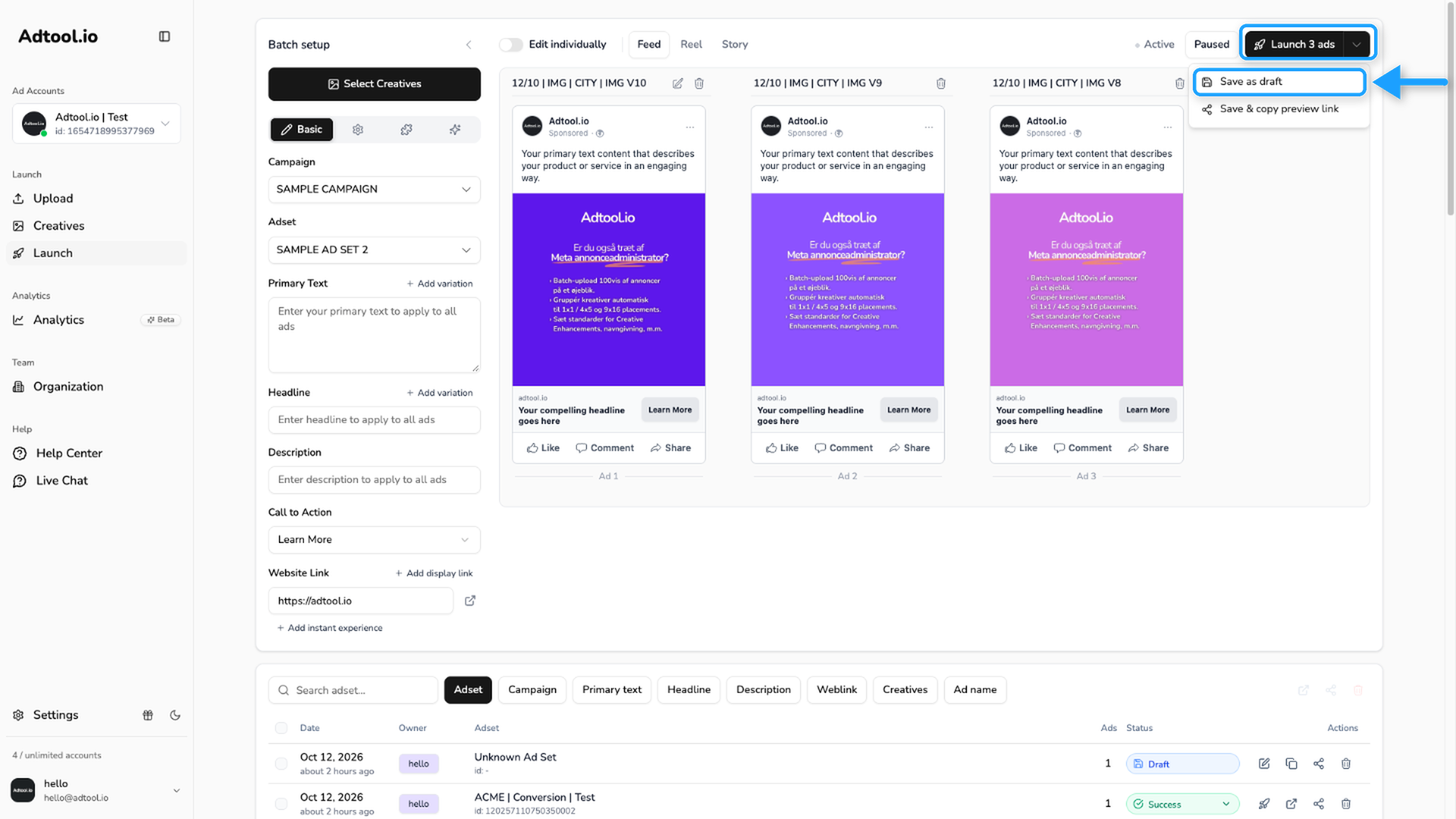
Launch the batch or save it as a draft
Click the launch button to launch the batch. To save it as a draft, click the arrow next to the launch button and select Save as draft.
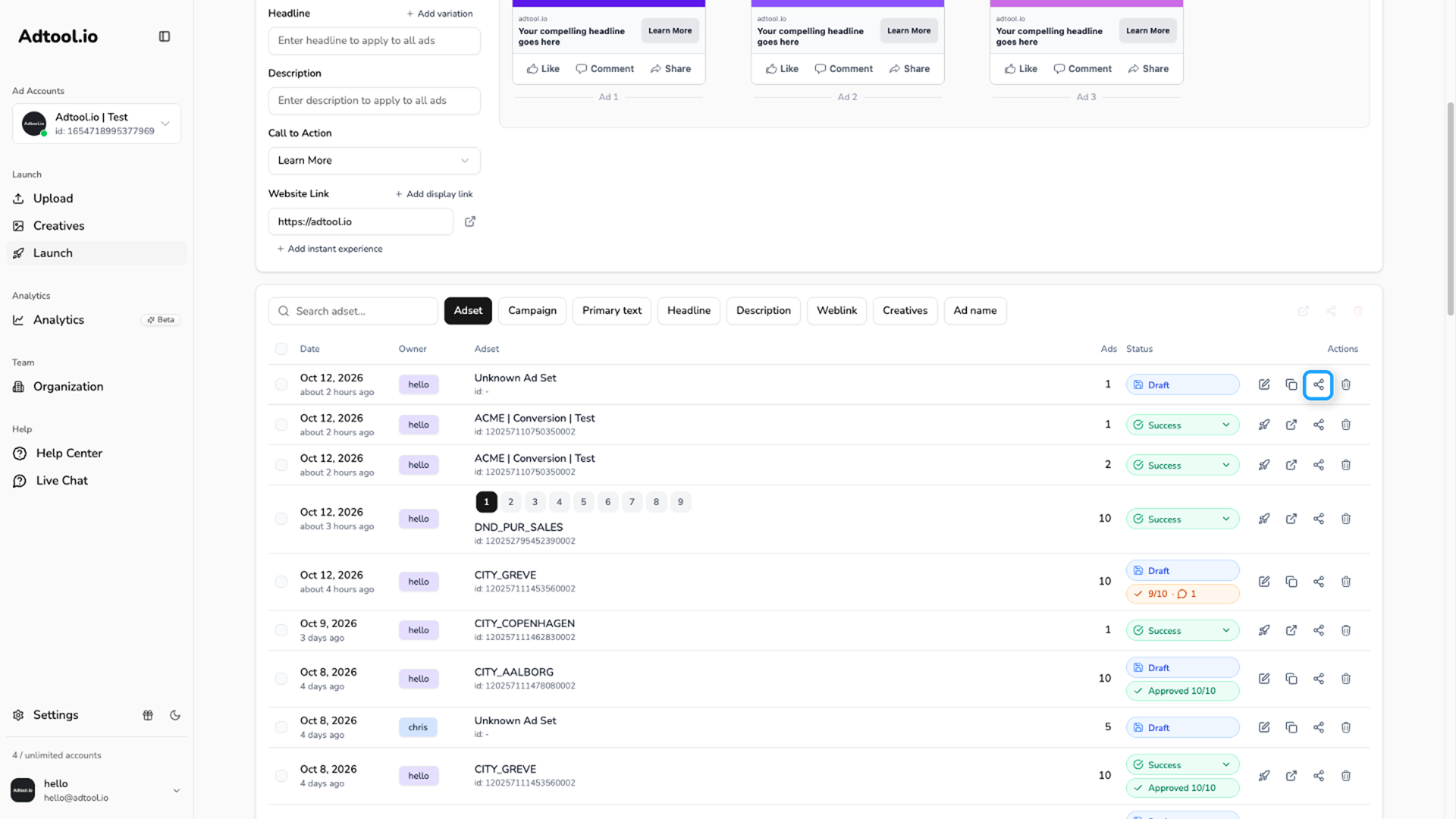
Copy the preview link
Scroll to the batch history. For one batch, click the preview link icon on that row. Adtool copies the preview link for the batch.
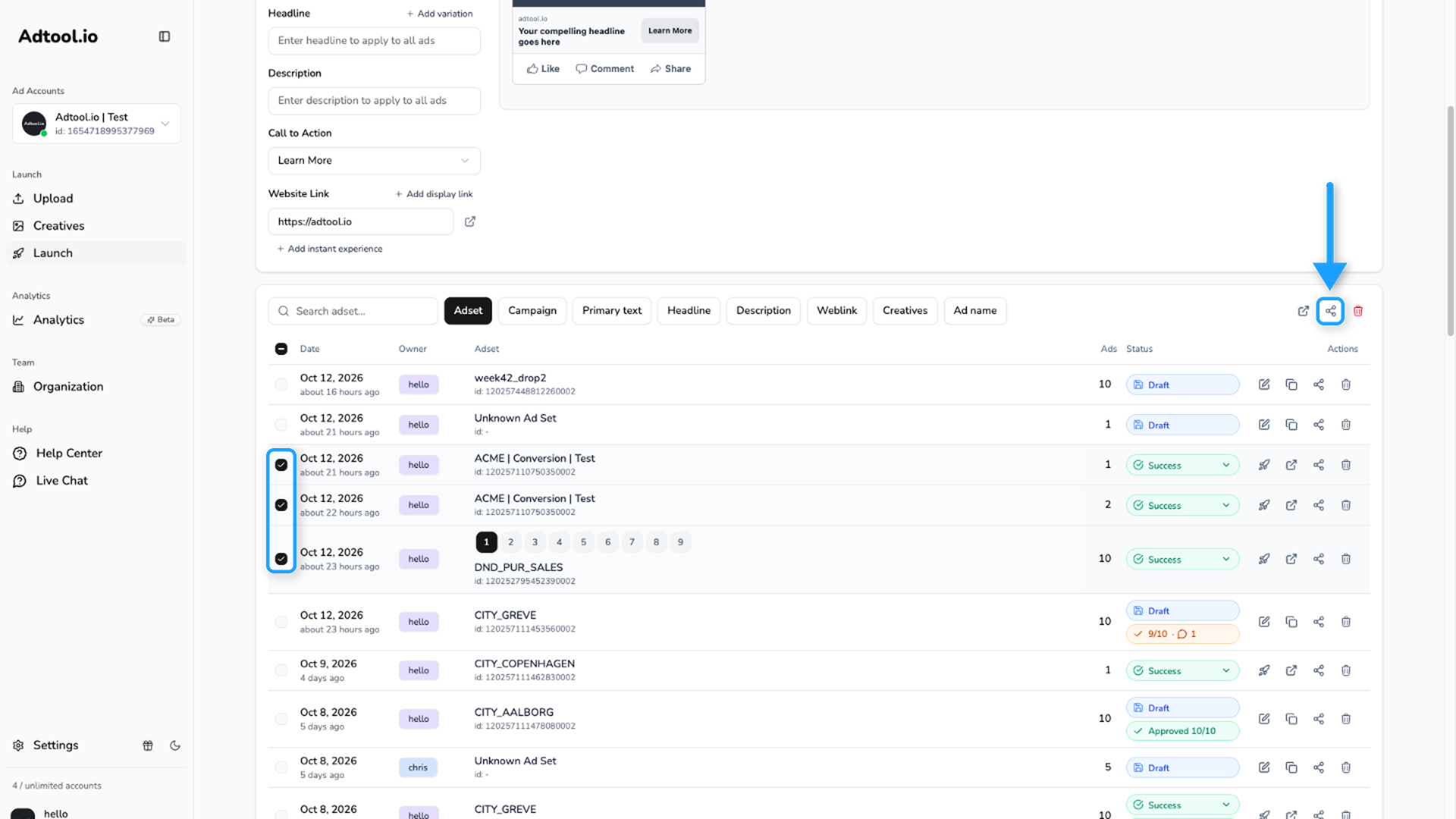
For several batches, select the checkbox on each batch, then click the preview link icon at the top right of the table. Adtool copies one link that shows all selected batches in the same preview. Use this when you want to share several draft or launched batches without sending separate links.
Share or open the link
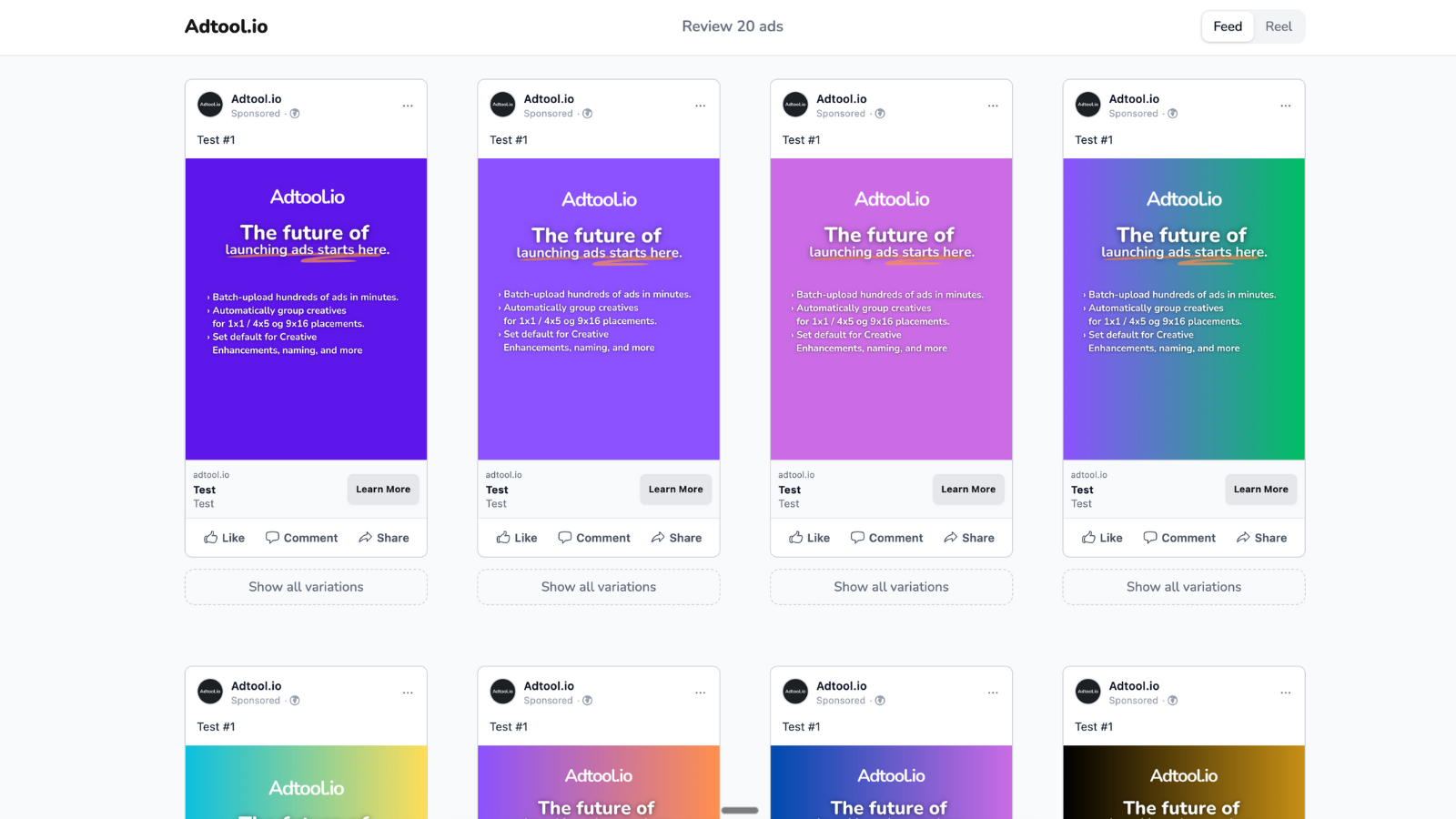
The preview shows all ads from the batch. You can view the preview in feed or reel format. If the batch includes multiple text variations, each ad includes a Show all variations option.
Your client can approve or comment on each ad in the preview. See Client review.
Video guide
One preview link for several batches:
Create and share a preview link:
Was this helpful?
Still need help? Ask the team