Partnership ads
Learn how to launch partnership ads from an existing creator post or create a new partnership ad from scratch.
Use partnership ads when you want an ad to run with a creator or partner identity. In Adtool, you can launch partnership ads in two ways: by boosting an existing creator post with a post ID or URL, or by creating a new ad from scratch with the partner as the sender.
Launch partnership ads from existing posts
Use this method when the creator has already published an organic post and you want to boost that existing post as an ad.
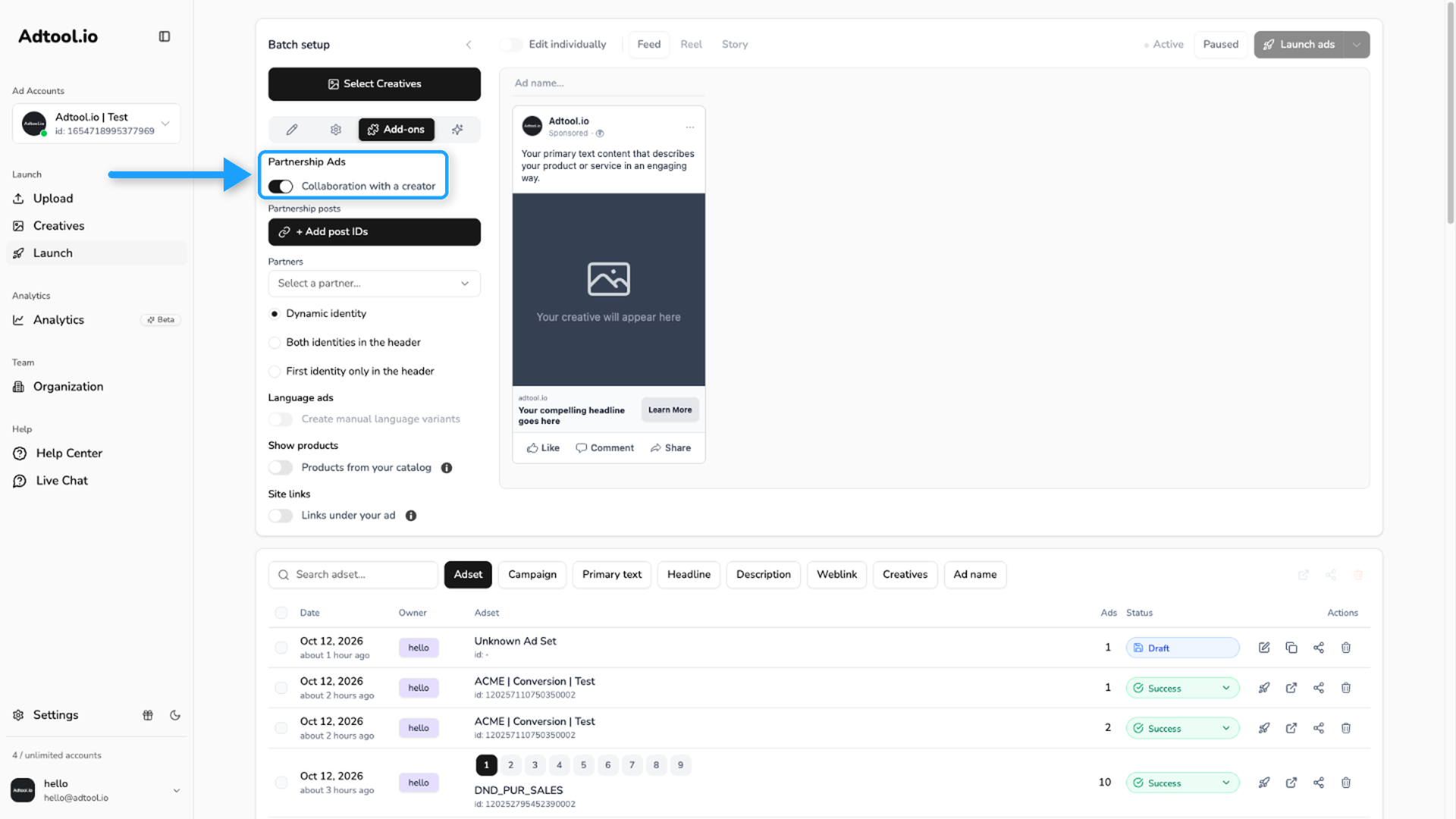
Enable Partnership Ads
Turn on Partnership Ads. Once enabled, Adtool shows the partnership ad options for the batch.
Add the post ID or URL
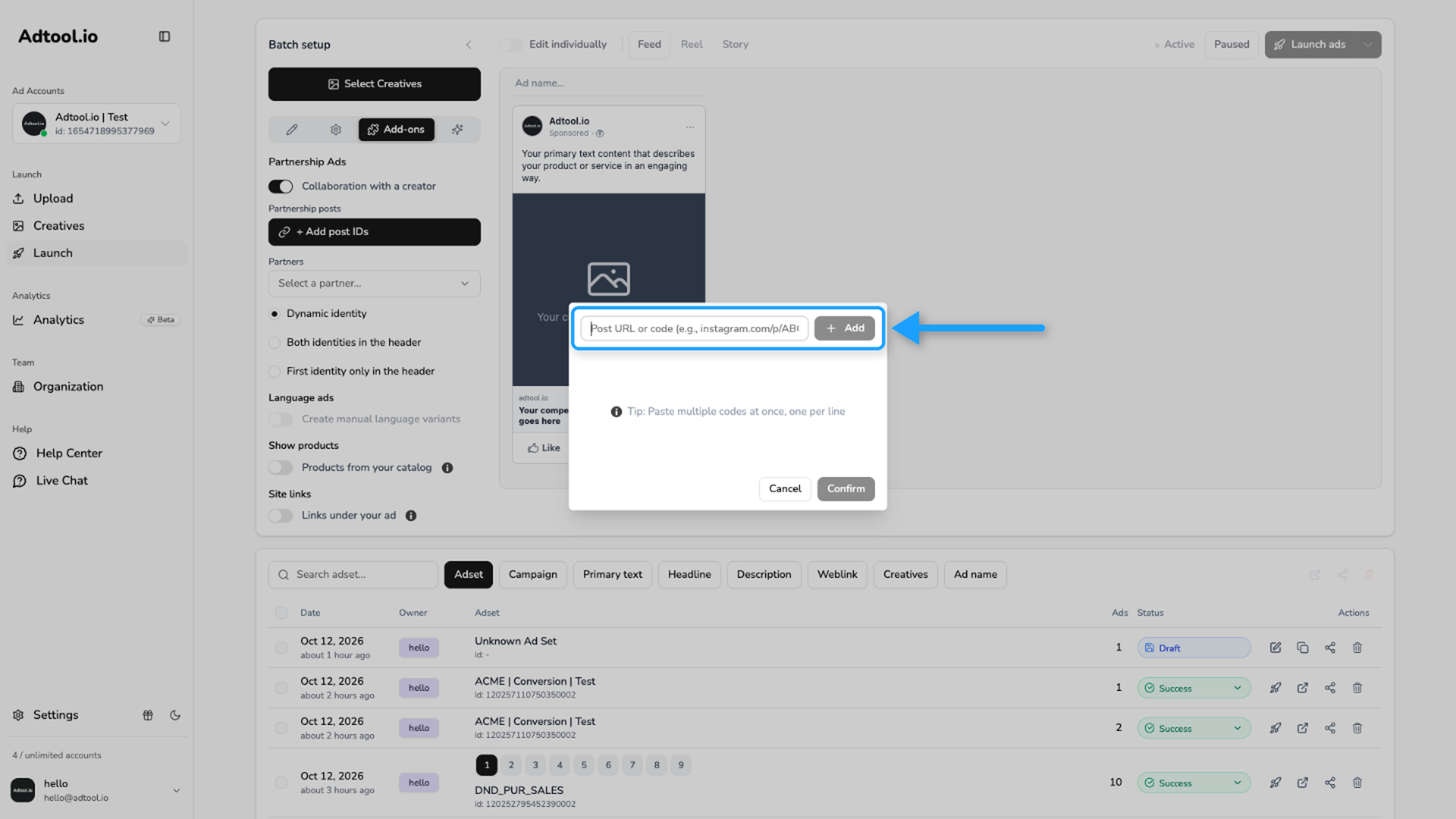
Click + Add post IDs. Paste the post ID or post URL into the input field, then click Add. Adtool resolves the post and adds it to the launch.
The creator must be an approved partner before Adtool can use the post ID or URL for a partnership ad.
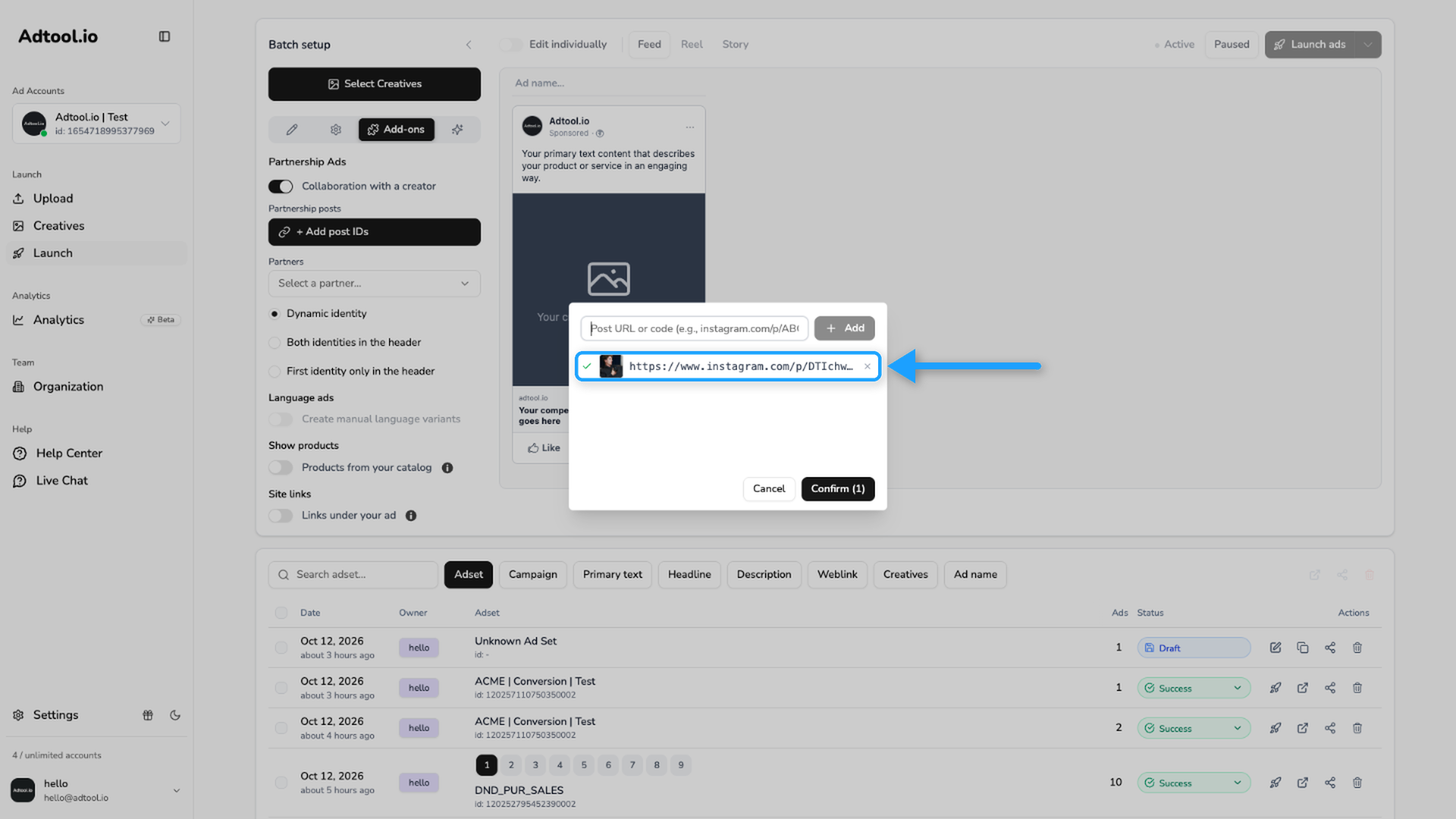
Review the resolved post
Confirm that Adtool resolved the correct post before continuing. The existing post is used as the ad content, so you do not need to select your own creative for this method.
Complete the launch details
Fill out any remaining required launch settings, including destination and CTA when needed.
Launch partnership ads from scratch
Use this method when you want to create a new ad with your own creatives and copy, while using the partner as the sender.
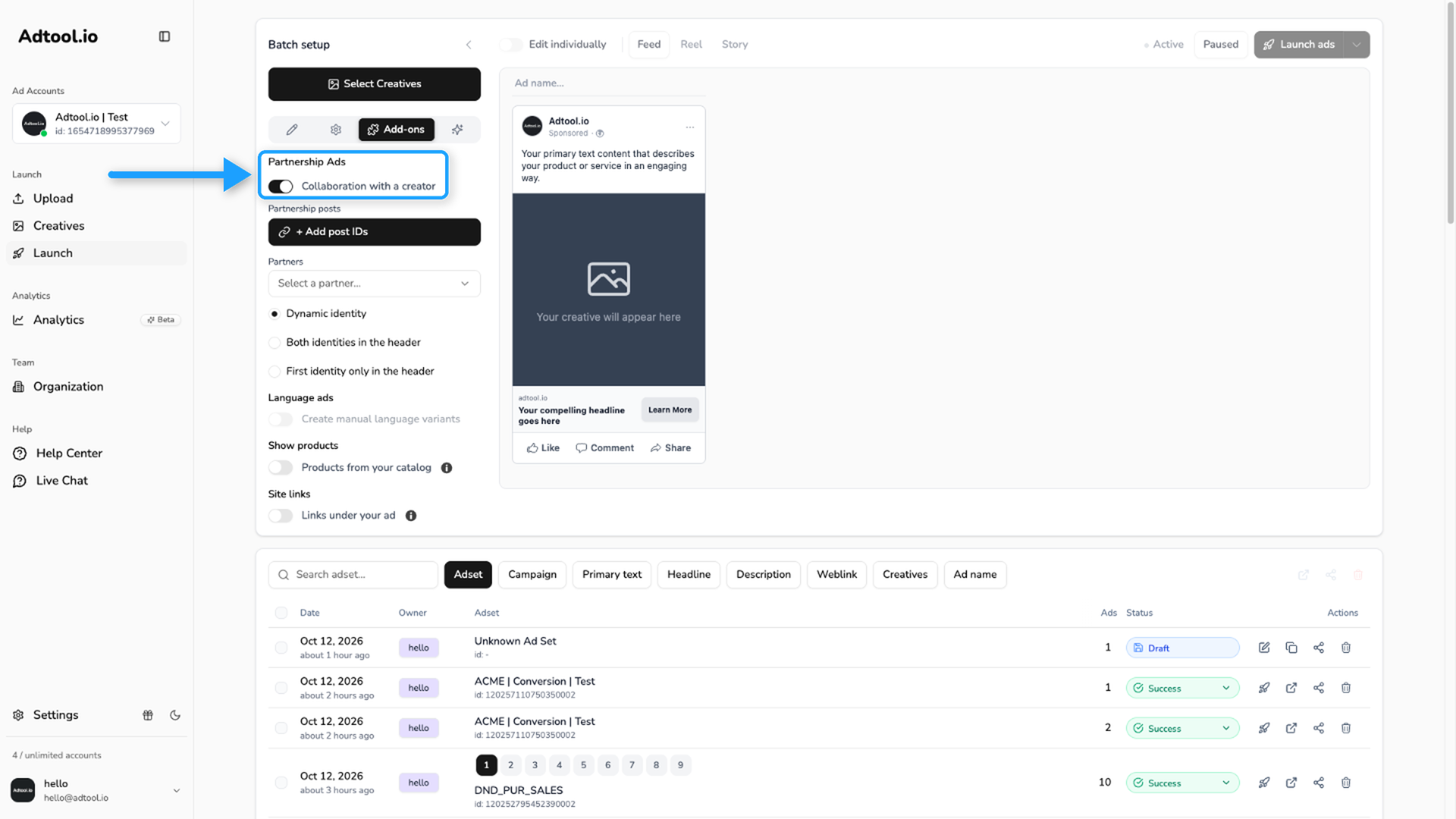
Enable Partnership Ads
Turn on Partnership Ads. Once enabled, Adtool shows the partnership ad options for the batch.
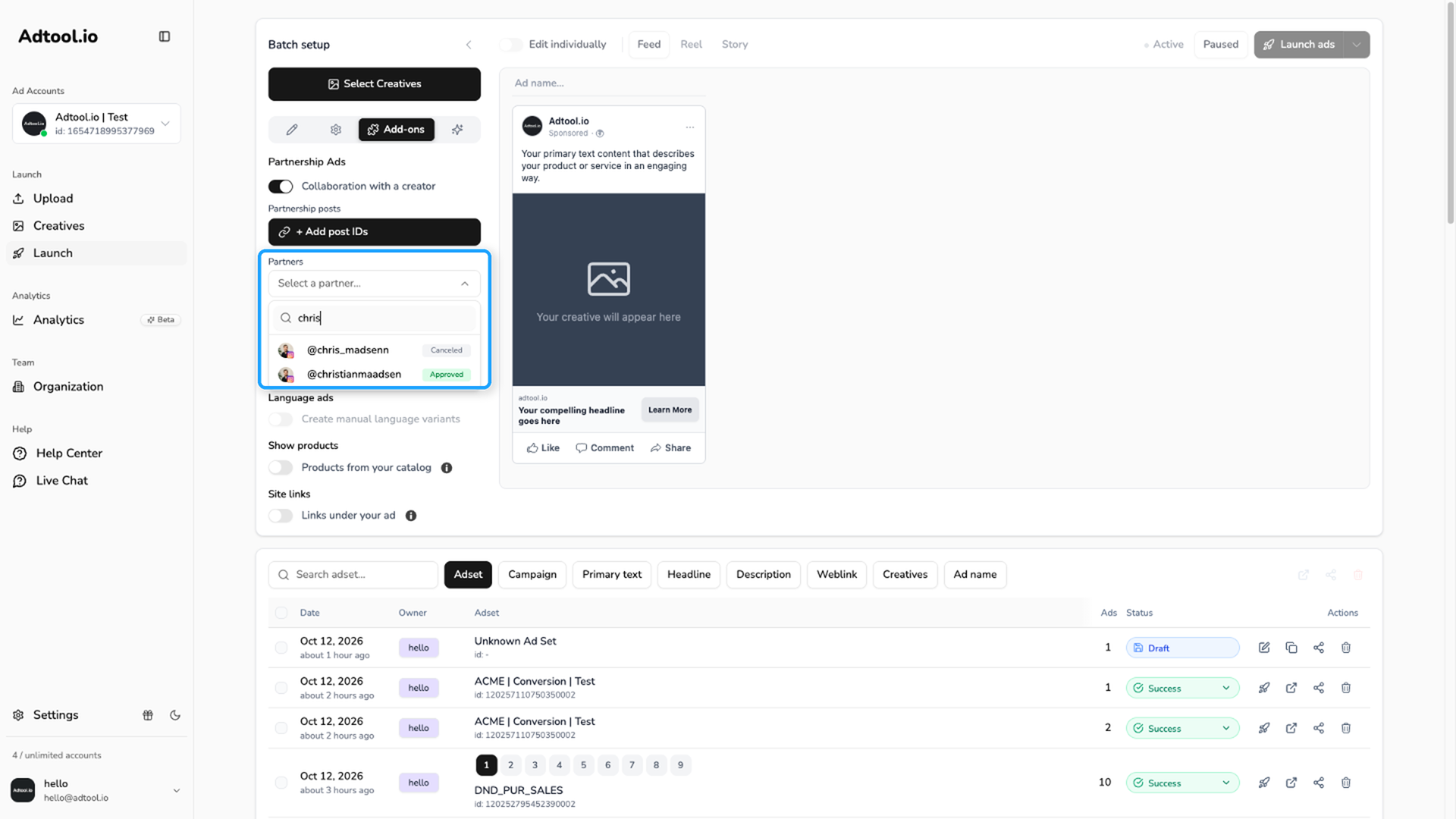
Select the partner
Open the partner selector and choose the partner you want to use as the sender. To use a different partner for one ad, turn on Edit individually and open the Add-ons tab on that ad card.
Click Select Creatives
Click Select Creatives, then select every creative you want to include in the partnership ad launch. You can select creatives across different placement formats, such as 1x1, 4x5, and 9x16.
Use filters, Select all, or click and drag to select faster.
Group matching placements
Adtool automatically groups creatives when their names match and the placement size is the only difference. If the creatives are not grouped automatically, drag them into the correct group manually before continuing. For a deeper explanation of supported placement tags and matching rules, see the auto-grouping guide.
How grouping works for partnership ads created from scratch
How grouping works for partnership ads created from scratch
Each group represents the creative assets that belong to the same ad. A group can contain one creative, or multiple versions of the same creative made for different placements.
Add ad details
Click Confirm, then fill out the remaining ad information, including primary text, headline, description, CTA, destination, and any other required launch settings. Review the previews for each placement before launching so you can confirm the partner identity, creative, and text look correct together.
Launch partnership ads and regular ads in one batch
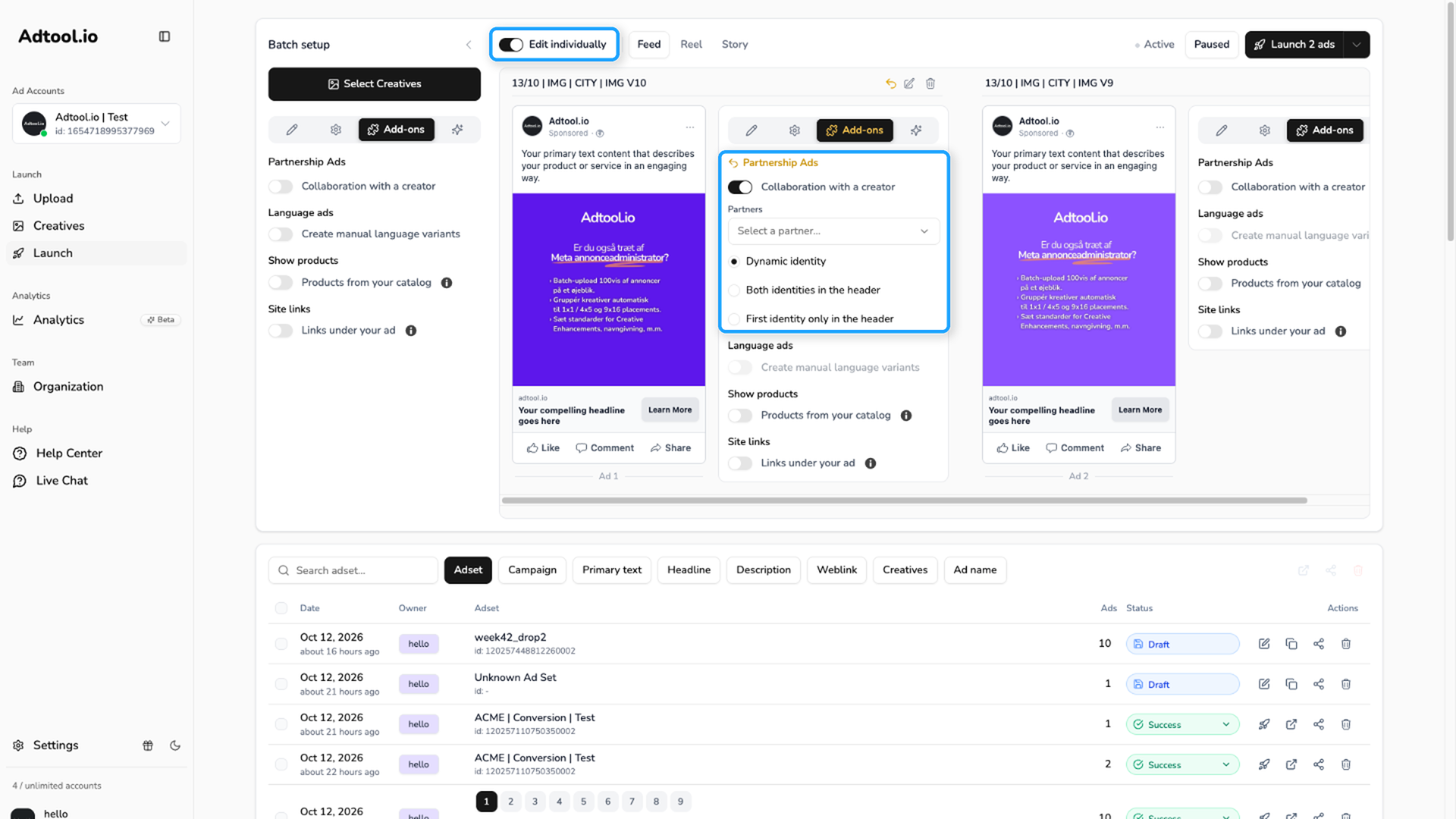
Partnership ads do not have to apply to the whole batch. You can turn them on for single ads, so regular ads and partnership ads launch together.
Turn on Edit individually
Leave Partnership Ads off on the main form. Each ad card then shows its own tabs.
Video guide
Was this helpful?
Still need help? Ask the team