Custom thumbnails
Learn how to update the preview thumbnail for video creatives before launching them.
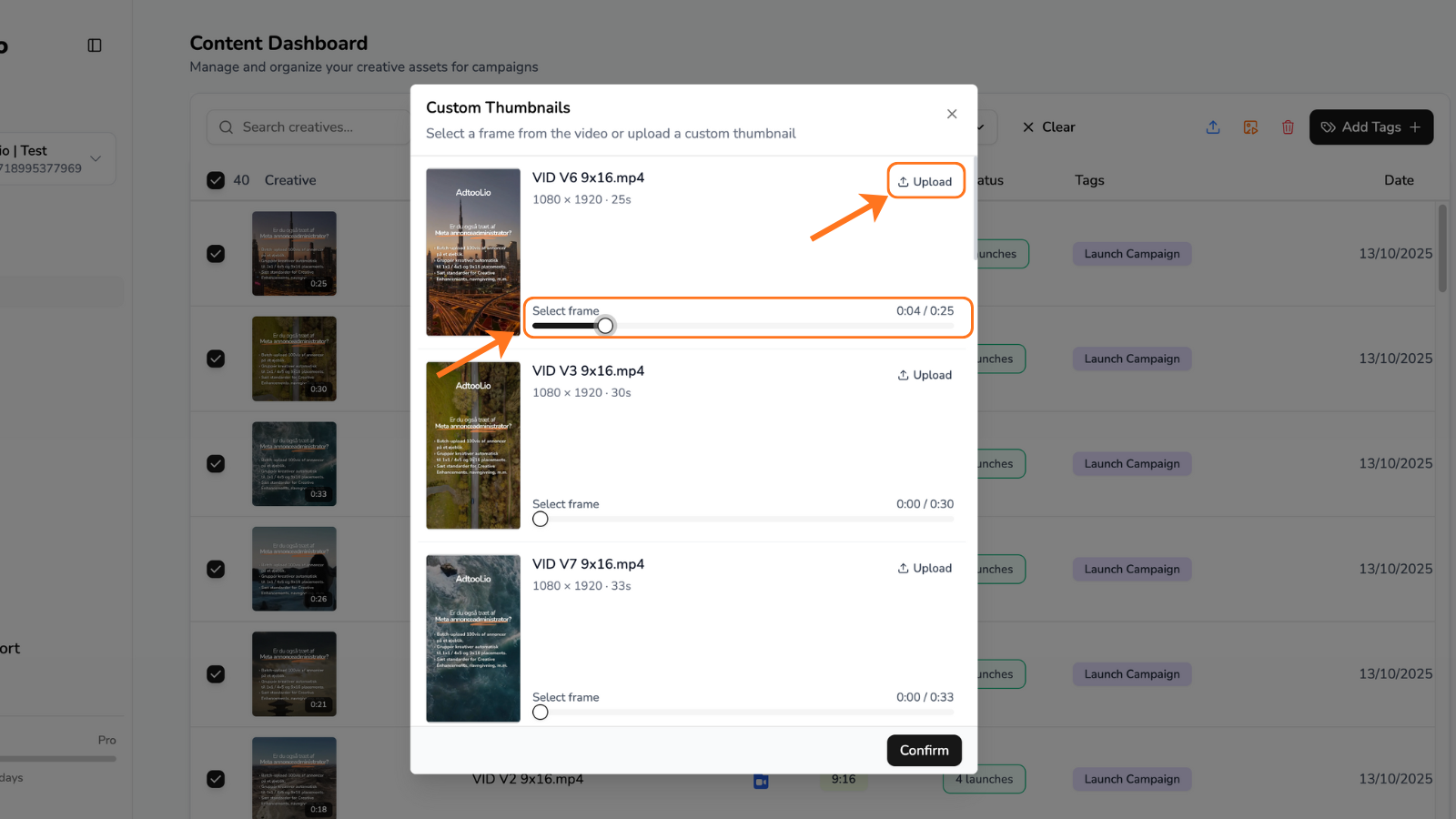
Custom thumbnails control the preview image shown for video creatives before you launch them. You can either choose a frame from the video or upload a separate thumbnail image.
Step-by-step guide
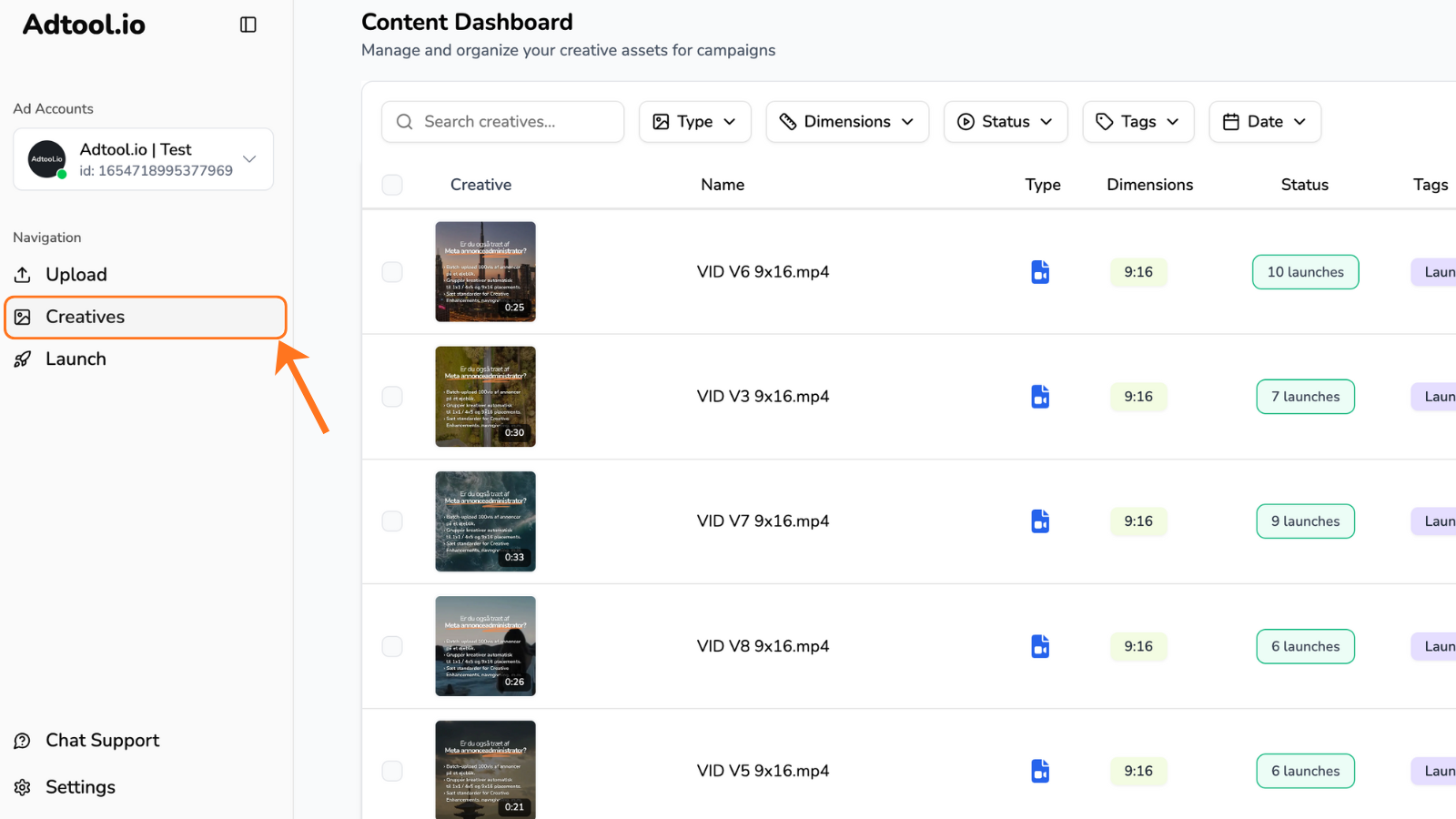
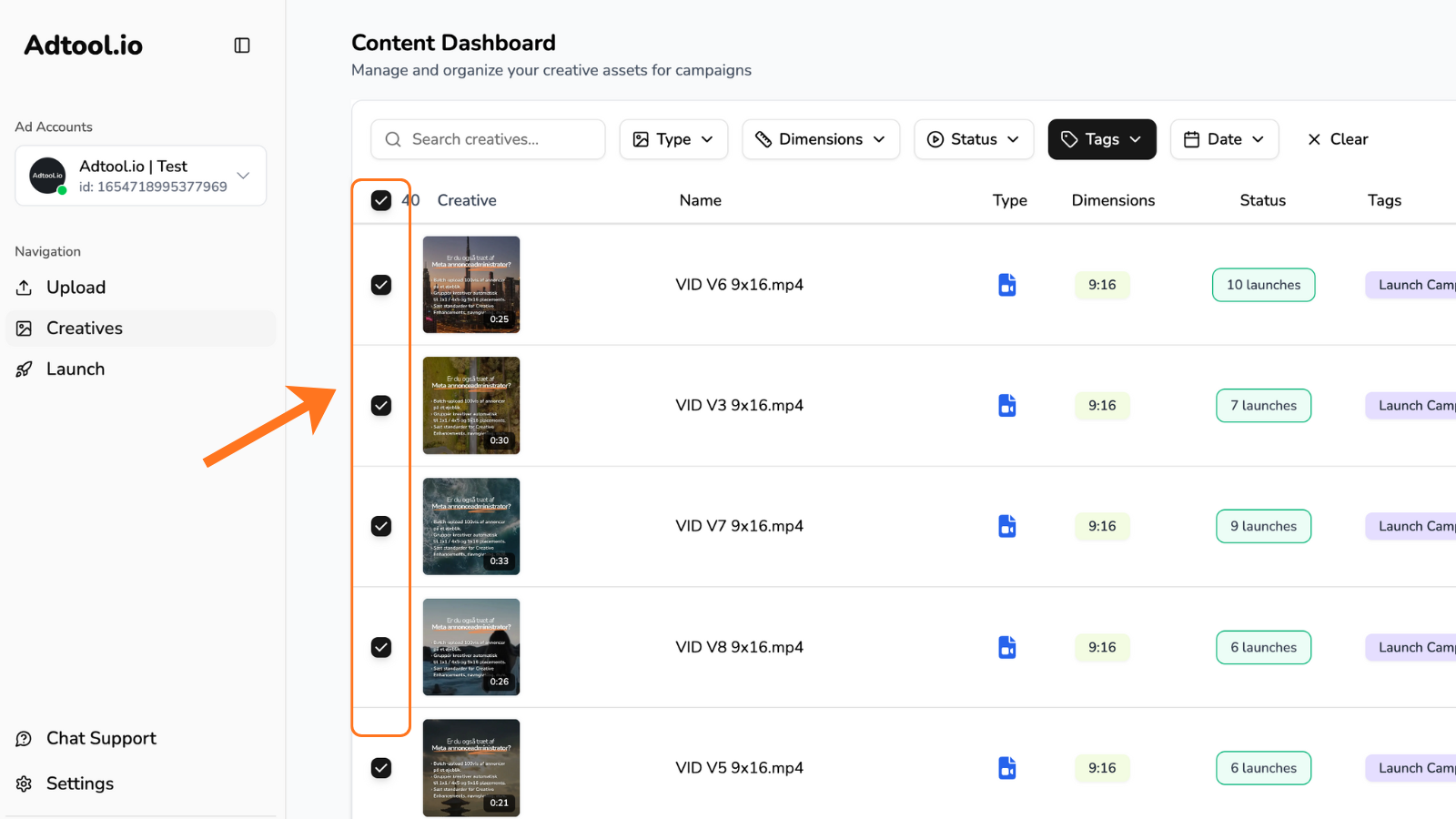
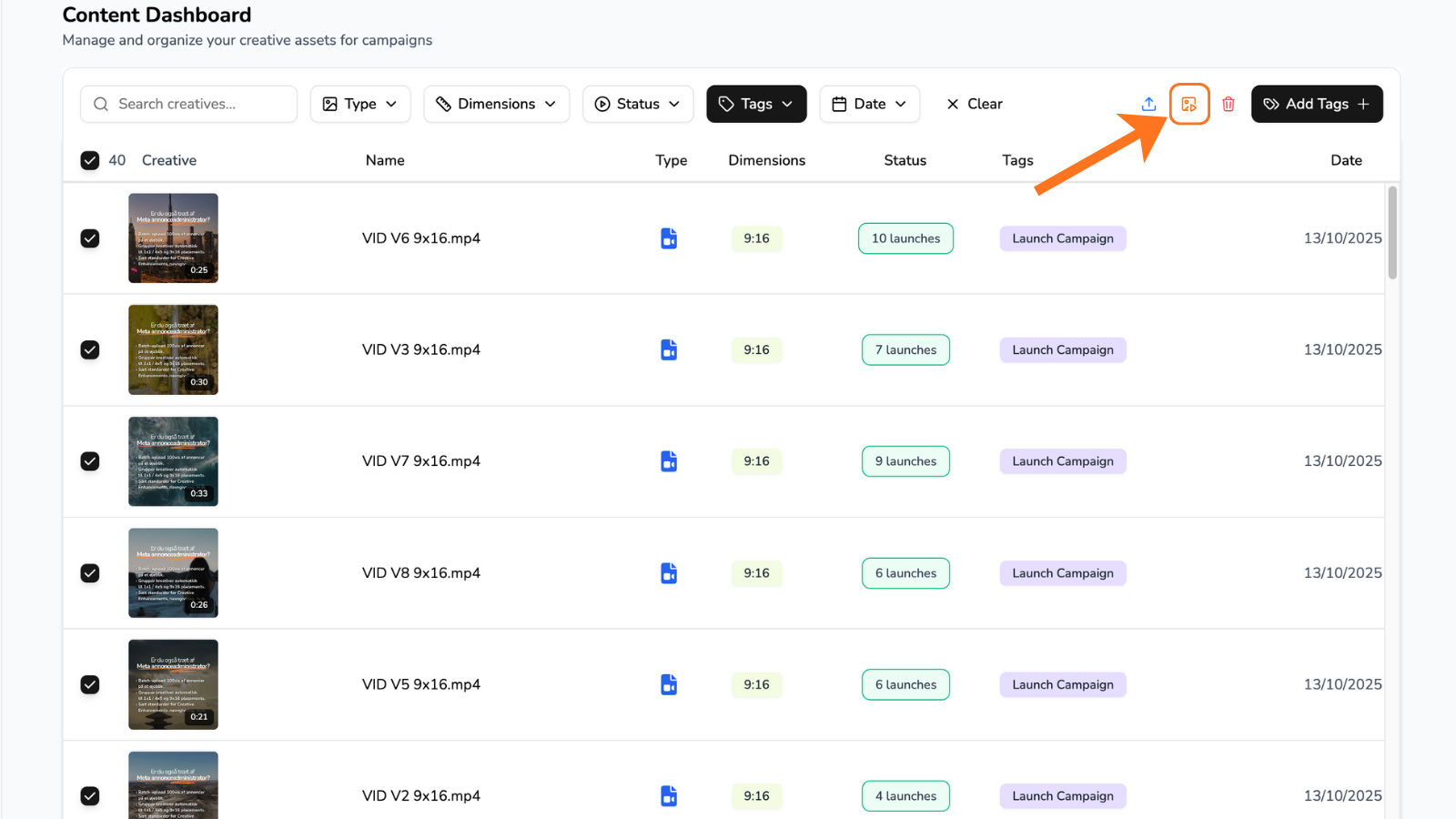
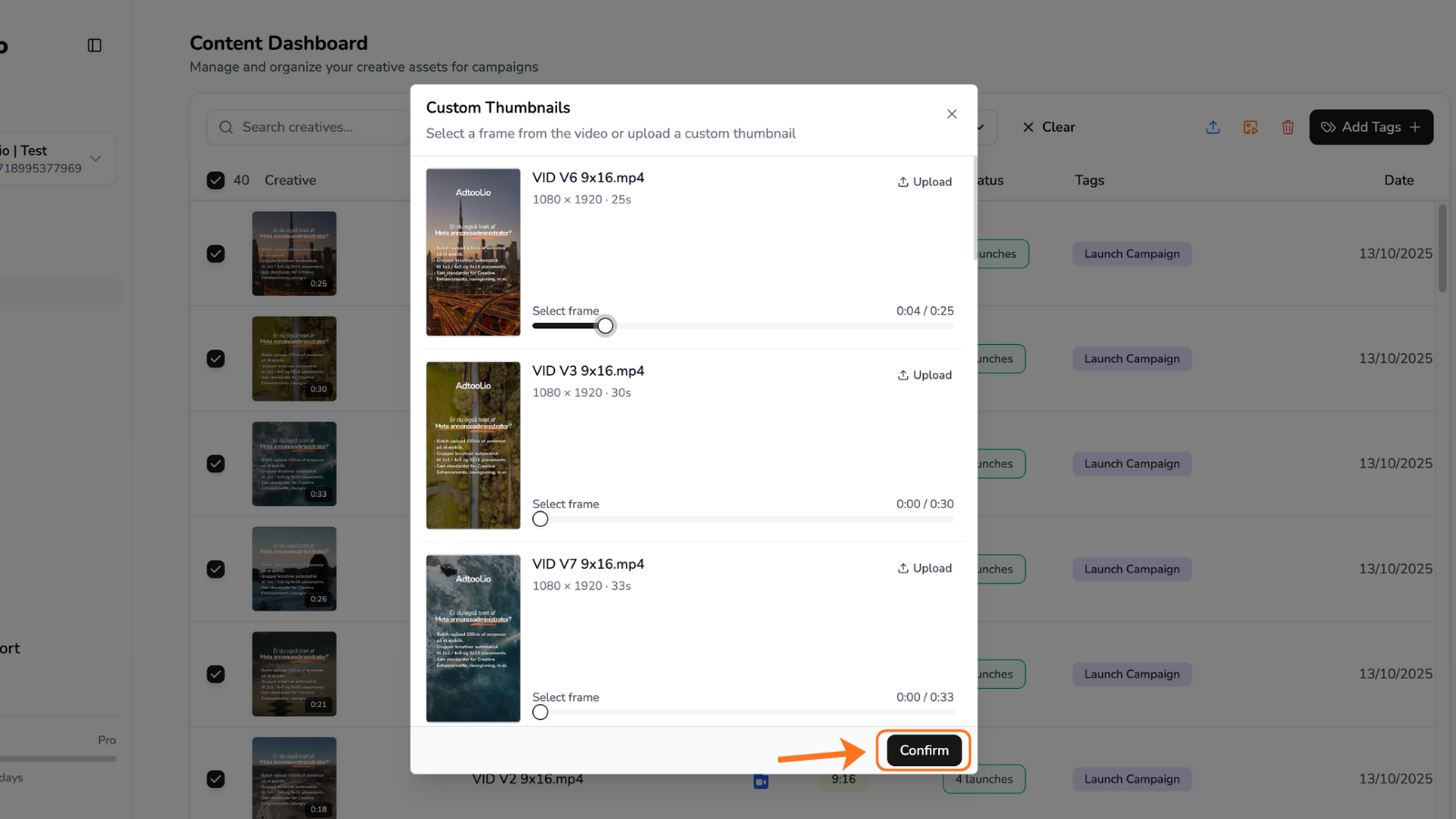
Thumbnail options
You can update video thumbnails in two ways:
Choose a frame from the video: Select one of the frames from the video and use it as the thumbnail.
Upload a custom thumbnail: Upload a separate image file and use it as the thumbnail for the selected video creative.
Recommendation
If you upload a custom thumbnail, use the first frame of the video when possible. This keeps the preview consistent with the video and avoids manually creating a separate thumbnail for each video.
Video guide
Was this helpful?
Still need help? Ask the team