Ad defaults
Set organization-wide ad defaults and selected ad account defaults for CTA, ad status, and website link.
Use ad defaults to make new launch batches start with the settings your team normally uses. Adtool has two default layers: organization-wide default settings and selected ad account settings.
Organization-wide ad defaults set the baseline default CTA and default ad status for your workspace. Selected ad account defaults are more specific and can set the default ad status, default CTA, and default website link for one ad account. The default website link belongs to selected ad account settings only, so use the ad account layer when different ad accounts should send traffic to different websites.
How the default layers work
When a new launch batch is created, Adtool uses the most specific defaults available for the selected ad account. You can still adjust launch settings for an individual batch when needed.
When to use ad defaults
Use ad defaults when:
Your team normally uses one preferred CTA.
You want ads to launch as paused first, so they can be reviewed before going live.
You want ads to launch as active by default, so approved batches can start running immediately after launch.
A specific ad account should use a default website link.
Set organization-wide ad defaults
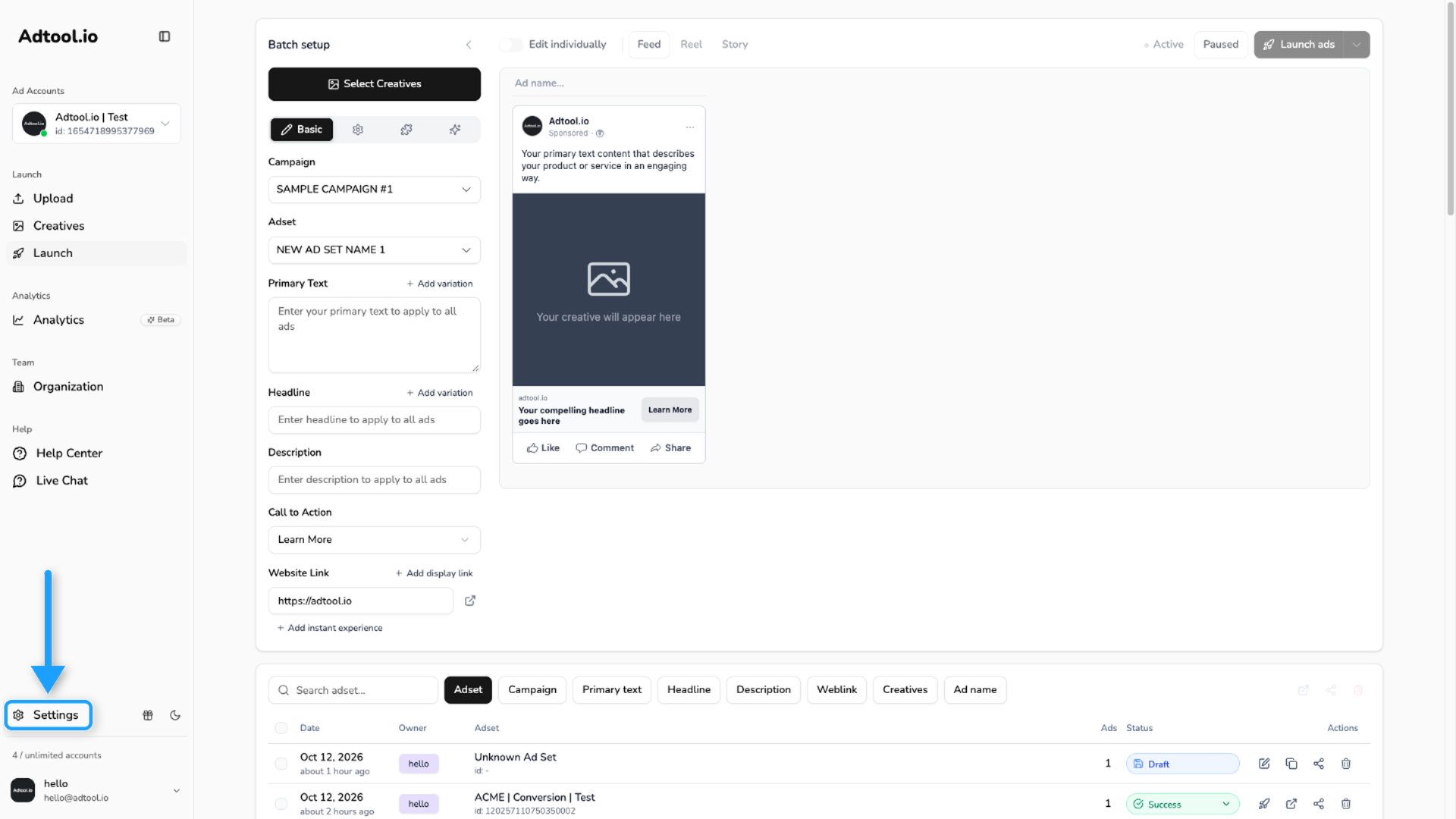
Open Default settings
In the ad account selector, choose Default settings. Then click Ad Defaults in the menu below it.
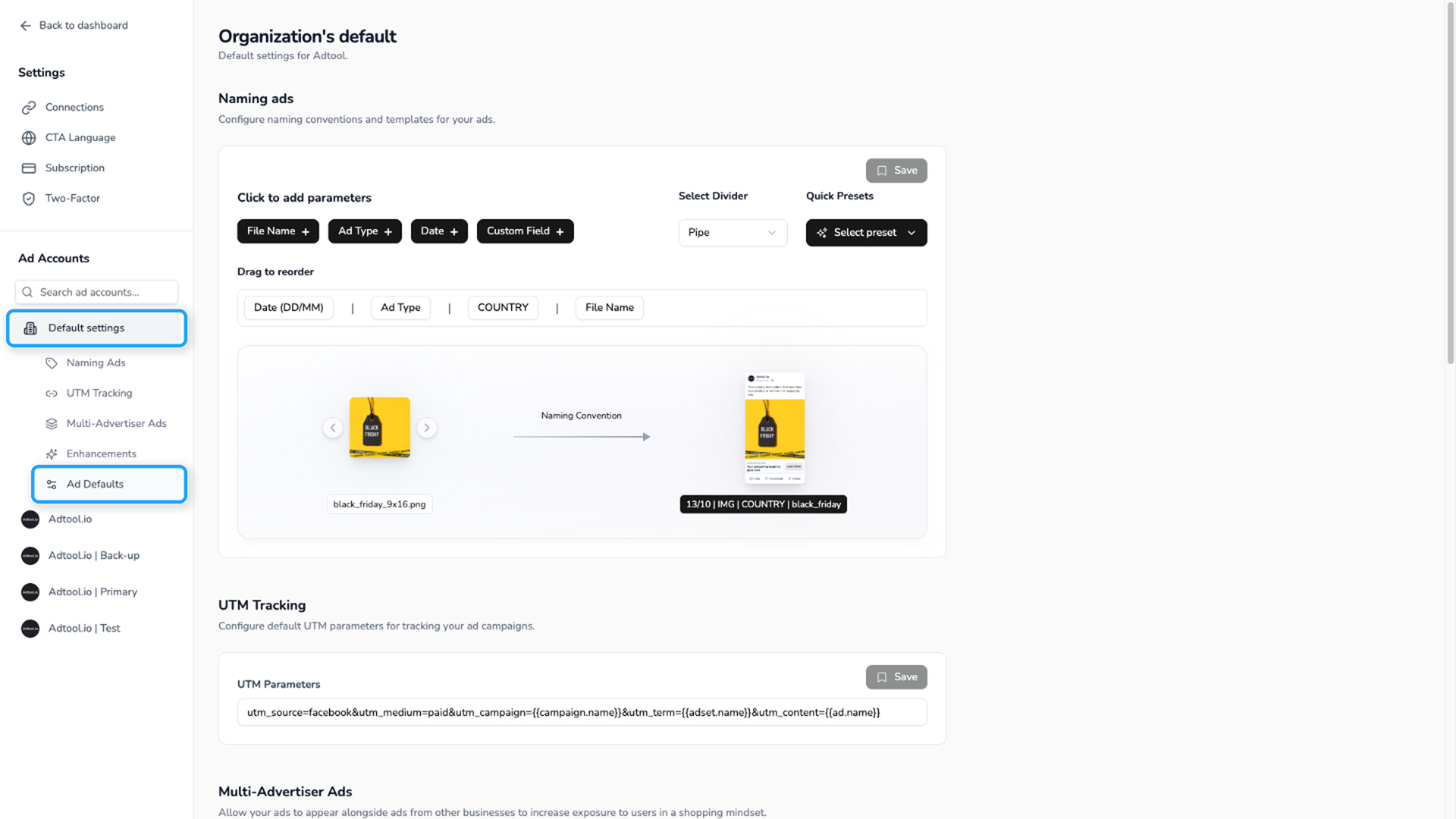
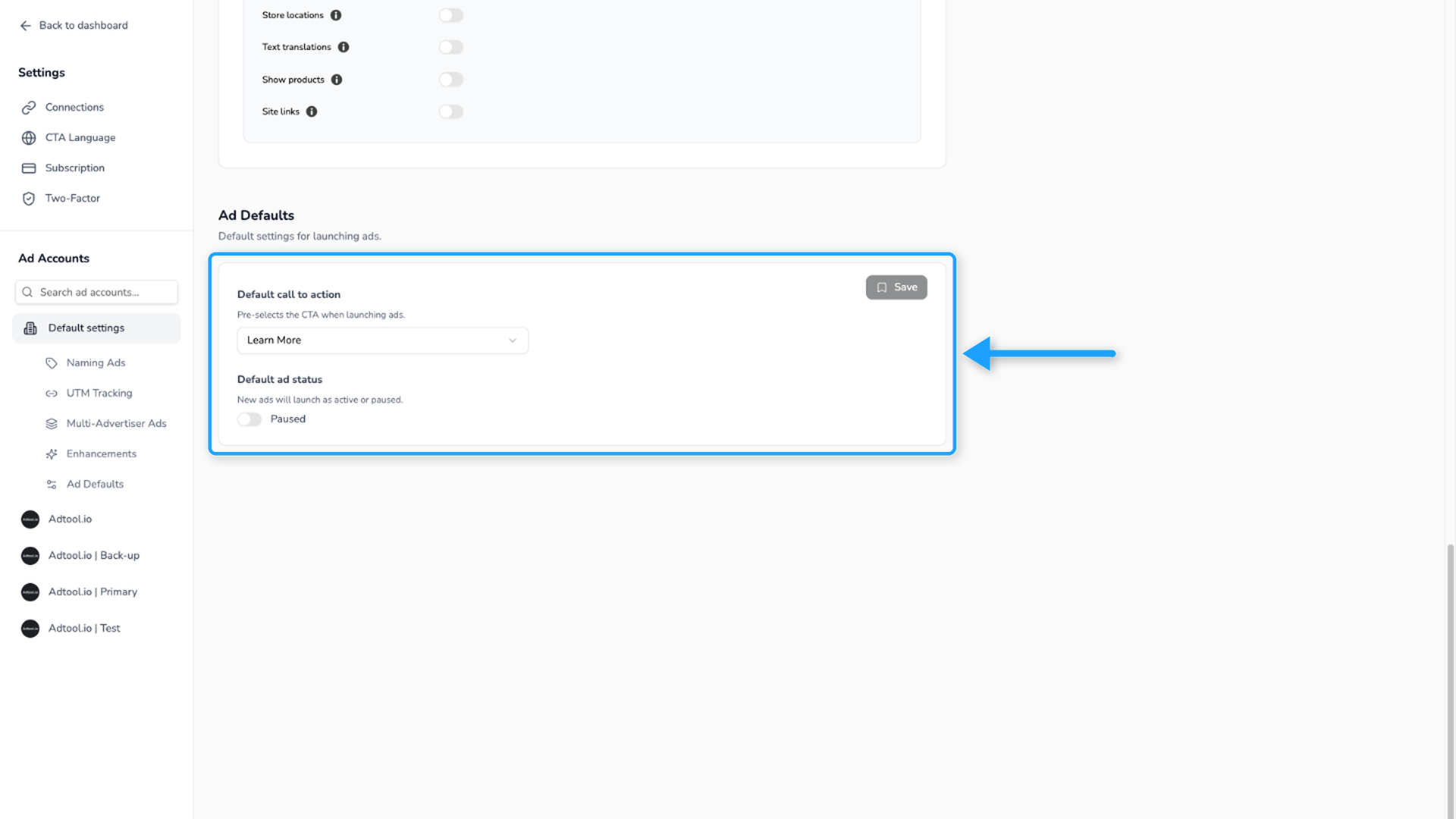
Organization-wide ad defaults can set the default CTA and default ad status for your workspace.
Set selected ad account ad defaults
Select the ad account
In the ad account selector, choose the ad account you want to configure. Then click Ad Defaults in the menu below it.
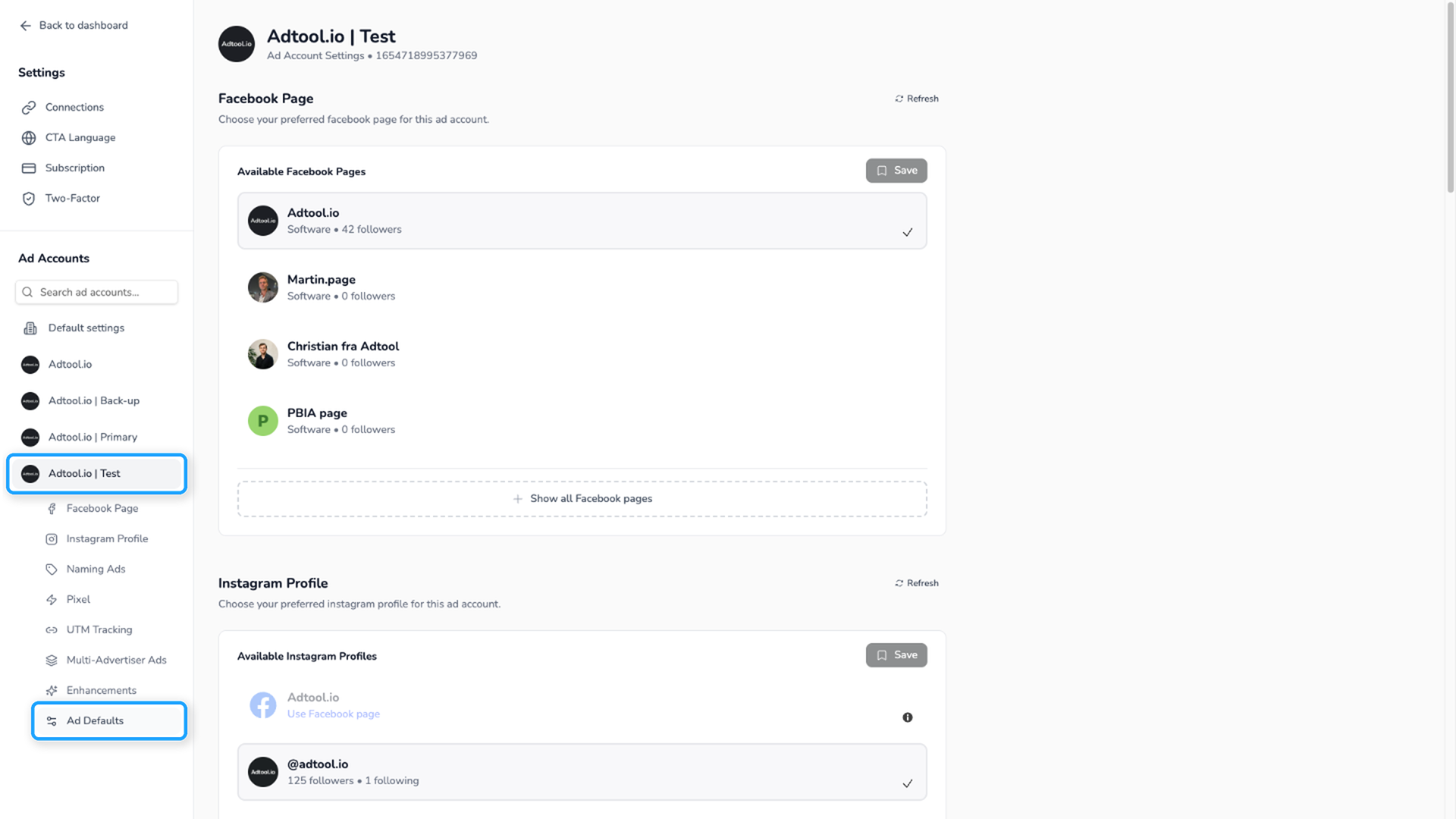
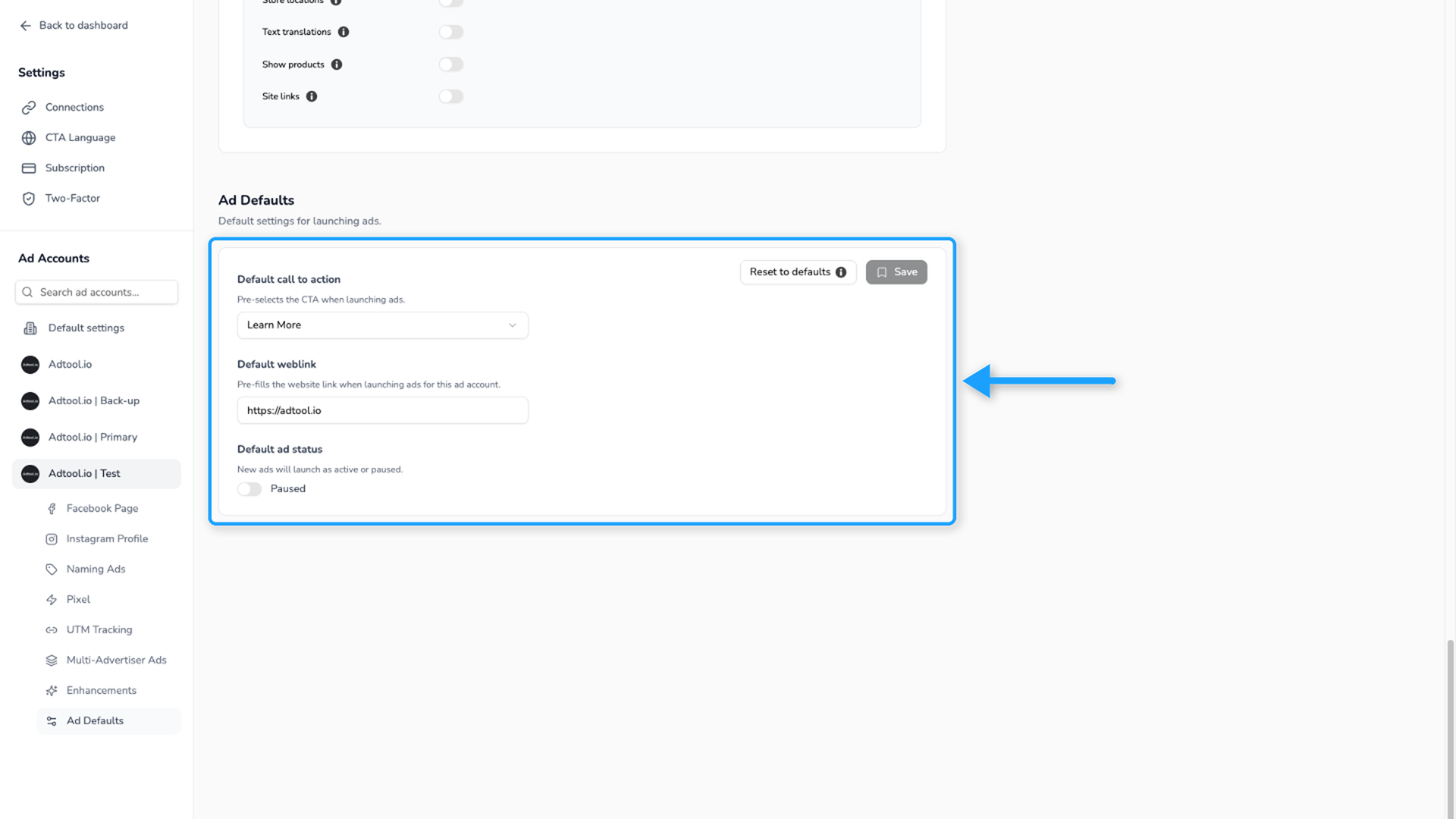
Selected ad account defaults can set the default CTA, default ad status, and default website link for that ad account.
How each default works
Default CTA. The default CTA is the preferred call to action Adtool selects when that CTA is available for the ad setup.
Default ad status. The default ad status controls whether newly launched ads should be active or paused by default.
Default website link. The default website link is the website link Adtool should use when creating new ads for a selected ad account. It is configured on selected ad account settings, not on organization-wide default settings.
Recommendation
If your team reviews ads before they go live, set the default ad status to paused. If your workflow is built around launching approved batches immediately, set the default ad status to active.
For CTA and website link defaults, choose the values your team uses most often. Use organization-wide defaults for shared CTA and status preferences, and selected ad account defaults when an individual ad account needs its own CTA, status, or website link.
Video Guide
Was this helpful?
Still need help? Ask the team