UTM parameters
Set organization-wide, selected ad account, or batch-level UTM defaults so launched ads use the right URL parameters.
Use UTM parameters to add tracking values to ads launched through Adtool. UTM parameters can be set at four layers: organization-wide default, selected ad account default, batch-level override, and ad-level override.
UTMs help analytics tools identify where traffic came from, which campaign generated it, and which ad or ad set was clicked. In Adtool, saved UTM defaults are applied when ads are prepared for launch, unless you adjust the UTM parameters for a specific batch.
How the default layers work
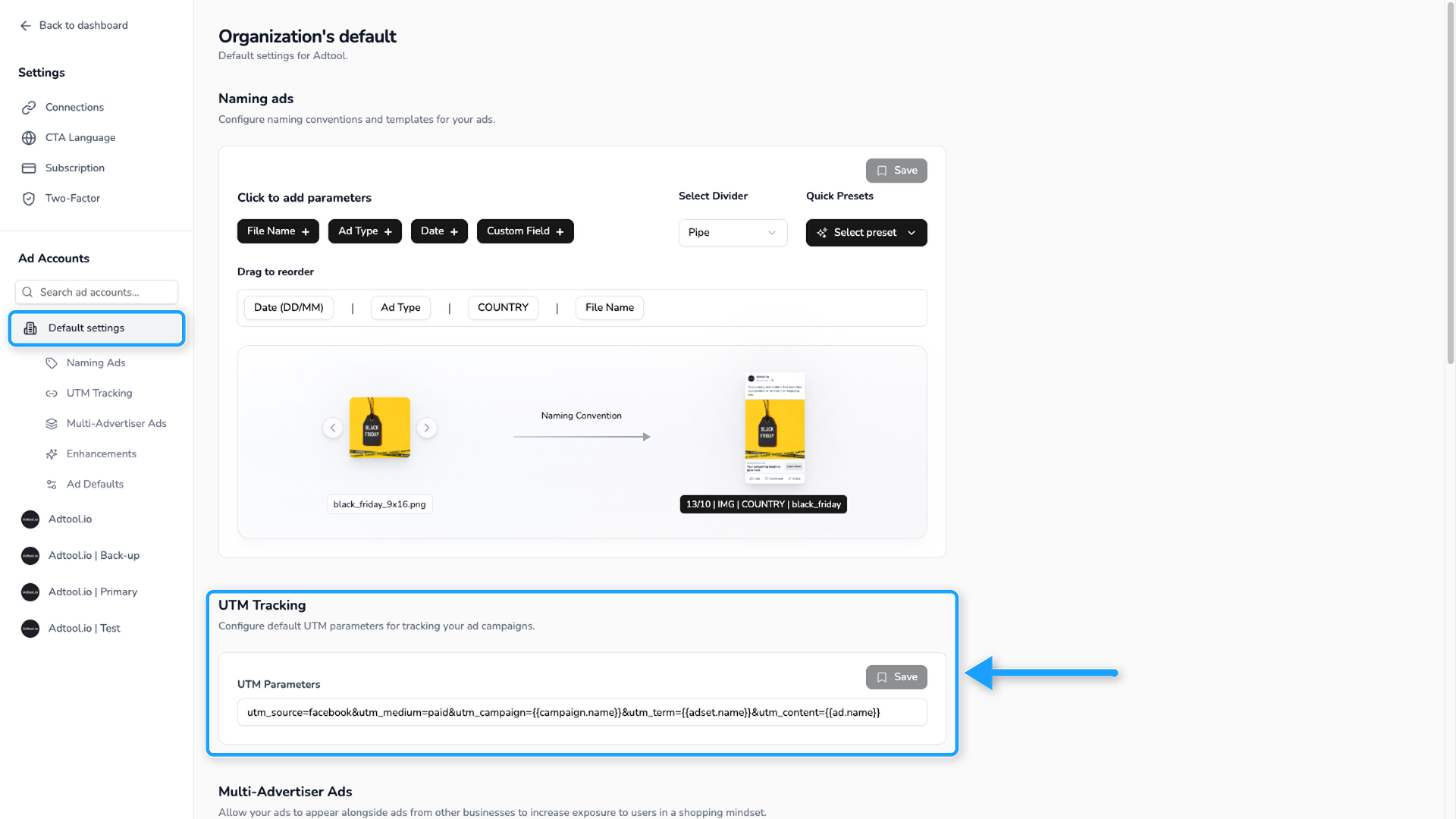
Set organization-wide default
Use the organization-wide default when every current and future ad account in the organization should start with the same UTM setup.
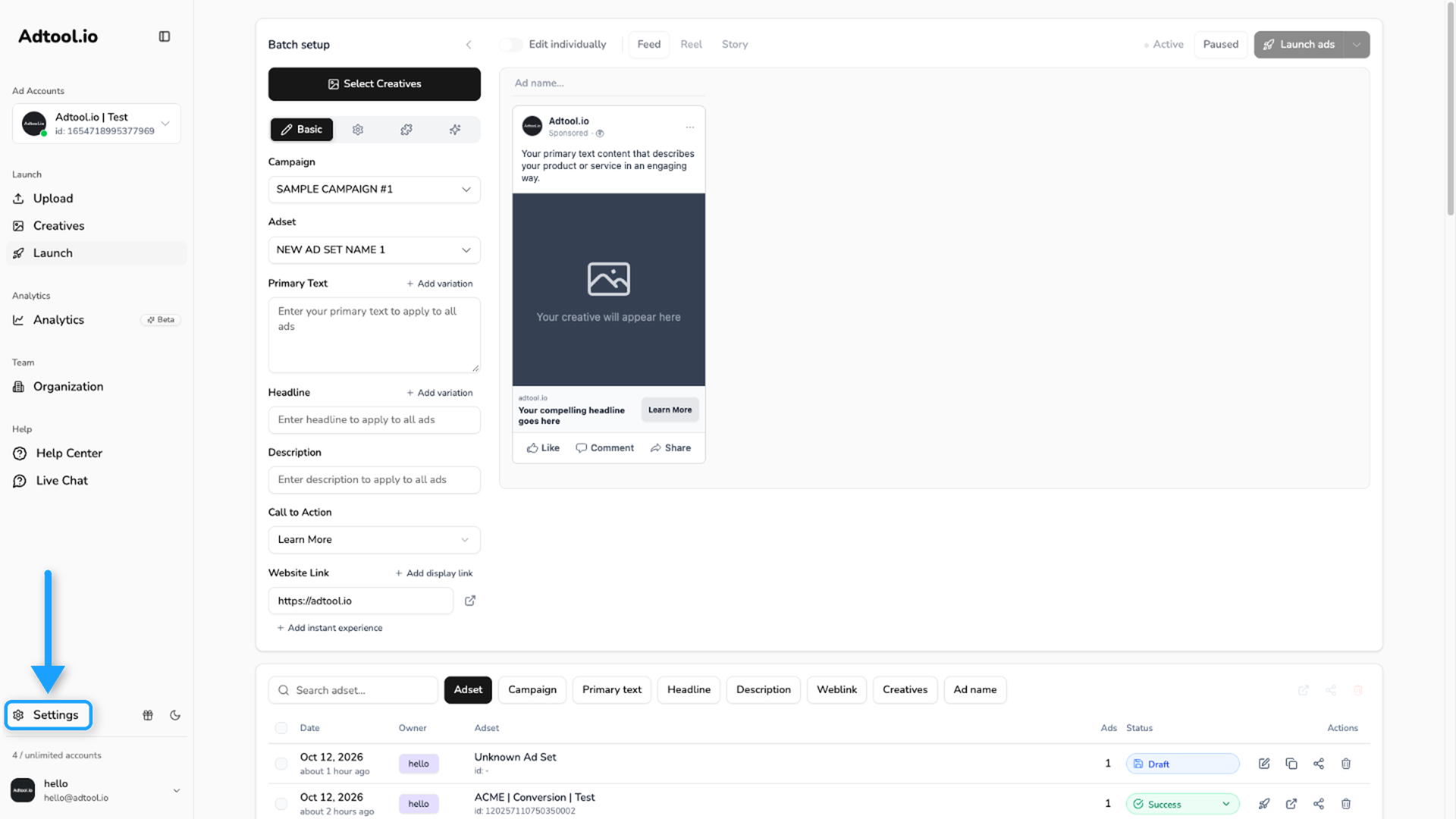
Open Default settings
In the left navigation bar, find the same section where ad accounts are selected. Click the top option, Default settings.
Set ad account default
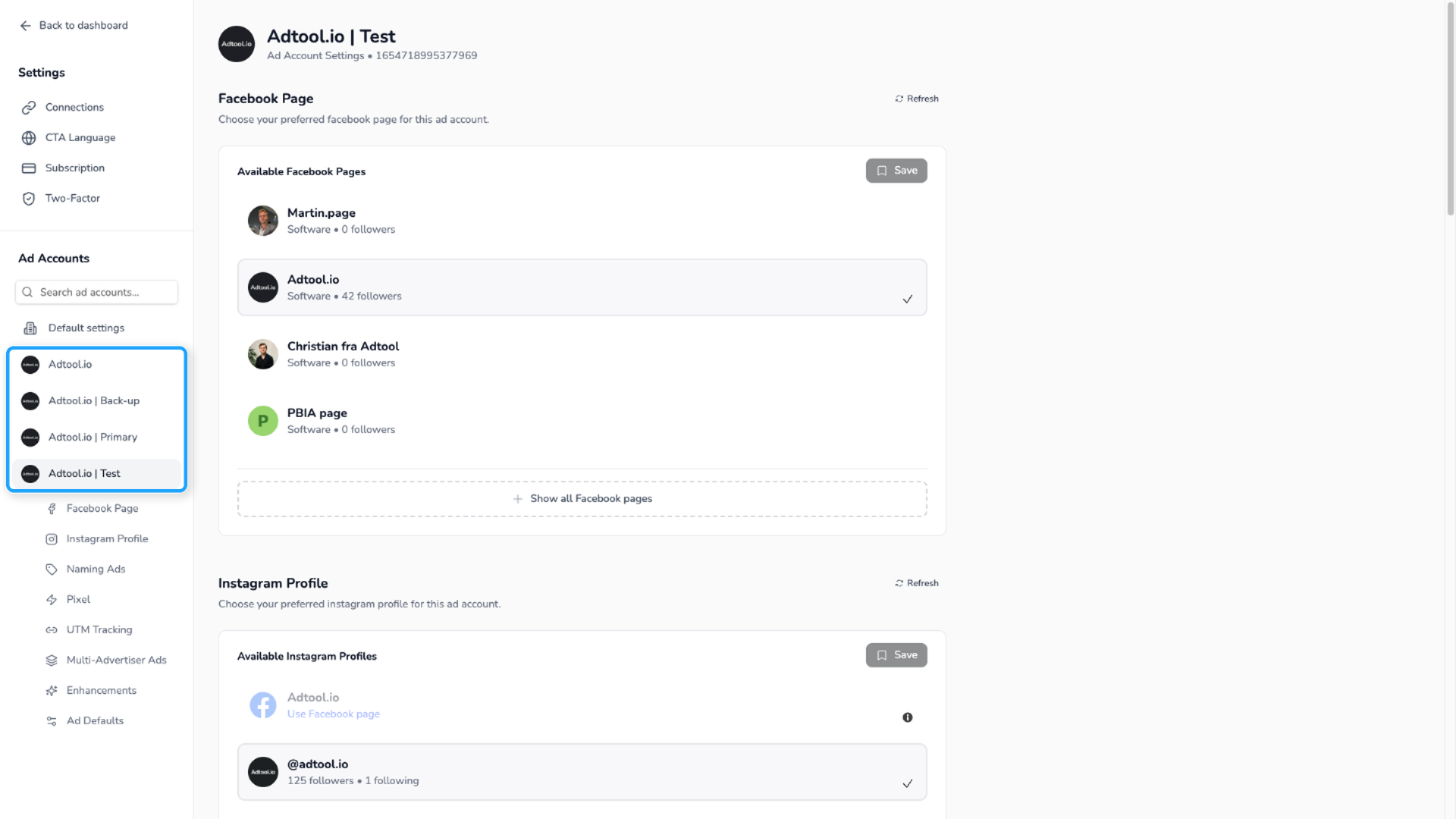
Use the selected ad account default when one selected account should use a different UTM setup than the organization-wide default.
Select the ad account
In the left navigation bar, find the section where ad accounts are selected. Choose the ad account you want to adjust instead of Default settings.
Change UTM for one batch
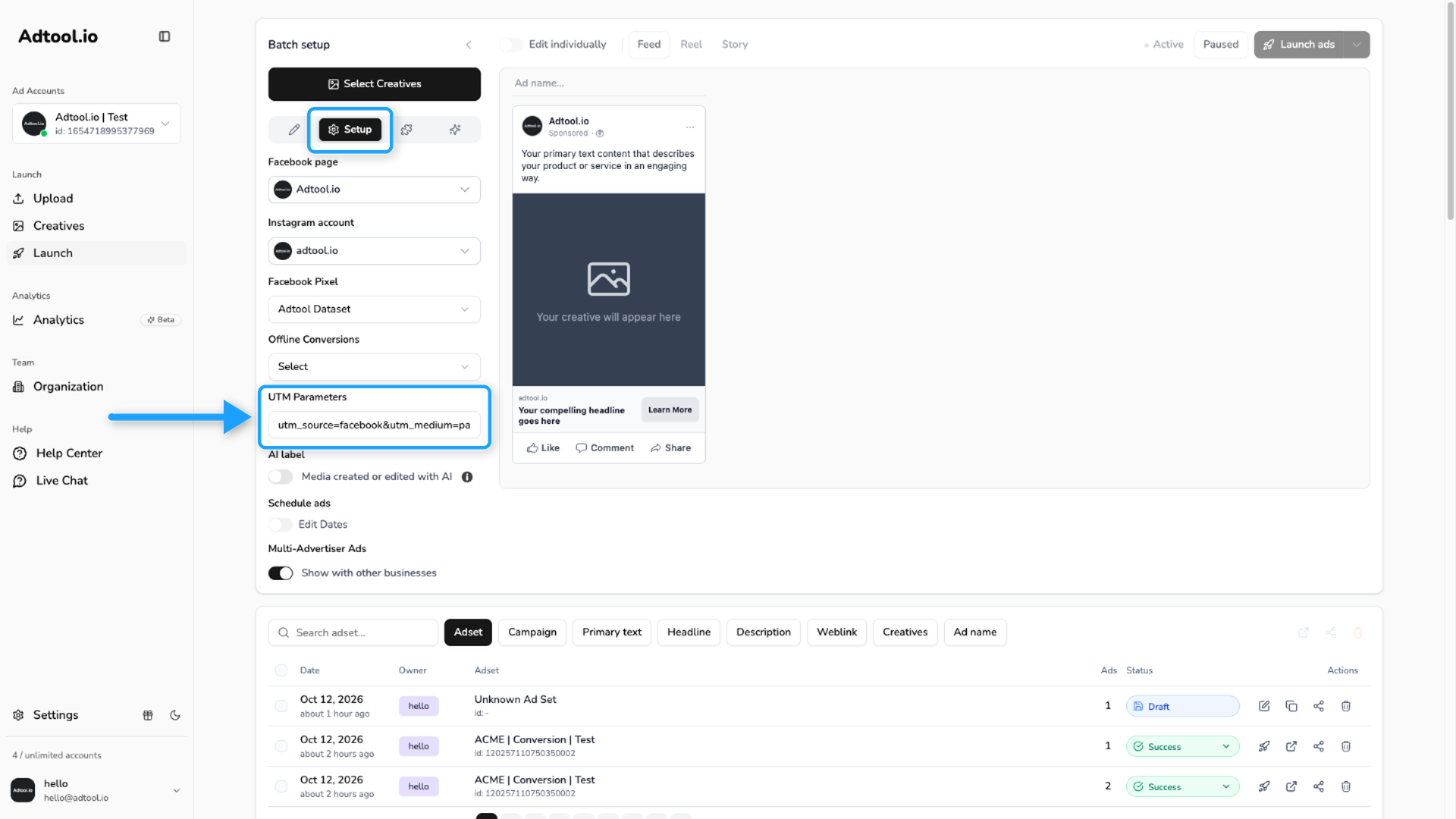
Use the batch-level override when only the batch you are creating should use a different UTM setup.
Change UTM for one ad
Use the ad-level override when a single ad in the batch should use its own UTM setup.
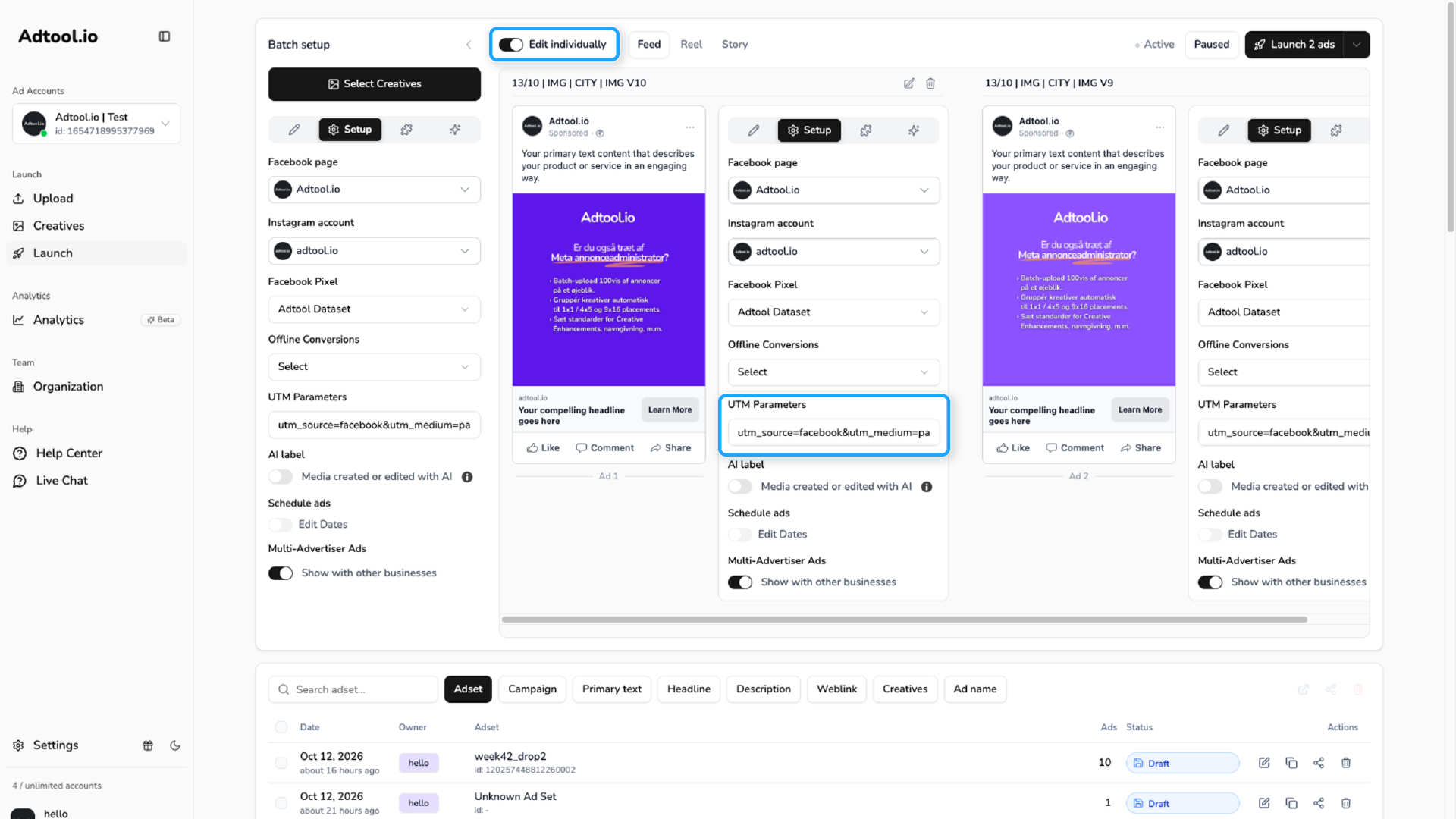
Go to Launch and turn on Edit individually
Go to Launch and turn on Edit individually in the toolbar above the ad previews.
Open the Setup tab on the ad card
Each ad card has its own tabs. Open the Setup tab on the ad you want to change.
What are UTM parameters
UTM parameters are tracking parameters added to ad URLs. They help teams identify where traffic came from, which campaign or ad generated it, and how performance should be grouped in analytics tools.
Common UTM fields include:
For example, a customer could use values like this:
utm_source=facebook&utm_medium=paid_social&utm_campaign={{campaign.name}}&utm_term={{adset.name}}&utm_content={{ad.name}}This is only an example of one possible structure, not an Adtool recommendation. Use the values that match your own analytics setup and reporting conventions.
Before you save
Check these items before saving defaults or launching a batch:
Common cases
I want one UTM setup for every current and future account
I want one UTM setup for every current and future account
Set the organization-wide default from Settings → Default settings → UTM parameters.
I want a different UTM setup for one selected account
I want a different UTM setup for one selected account
Go to Settings, select the ad account you want to adjust, and update UTM parameters for that selected account.
I only want to change one launch batch
I only want to change one launch batch
Do not change the saved defaults in Settings. Go to Launch, open the Setup tab, and adjust UTM parameters for that batch.
Was this helpful?
Still need help? Ask the team