Carousel grouping
Group creatives into carousel cards automatically with card naming, or build the carousel manually on the grouping screen.
Use carousel grouping when one ad should hold several cards that people swipe through. Each card can include its own placement versions, and you can build the carousel automatically with file naming or manually on the grouping screen.
Automatic grouping
Adtool builds a carousel for you when your file names include a card marker such as card 1, card 2, card 3. When the naming is correct, the cards are grouped as soon as you reach the grouping screen. Two naming patterns work:
Shared name + card number:
summer_sale_card_1_9x16,summer_sale_card_2_9x16Card number + per-card name:
card 1 summer 1x1,card 2 winter 1x1
Build multiple carousels in one batch
To build several carousels in one batch, give each carousel its own base name with the shared-name pattern. summer_sale_card_1, summer_sale_card_2 and winter_sale_card_1, winter_sale_card_2 become two separate carousels. The card-number-plus-name pattern pools everything into a single carousel, so use it for one carousel at a time.
Carousel grouping takes priority over placement grouping, so a creative placed in a carousel is not also grouped by placement. For the full file-naming and placement-tag rules, see the Auto-grouping guide.
Manual grouping
If your files are not named with card markers, build the carousel by hand on the grouping screen.
Select the creatives
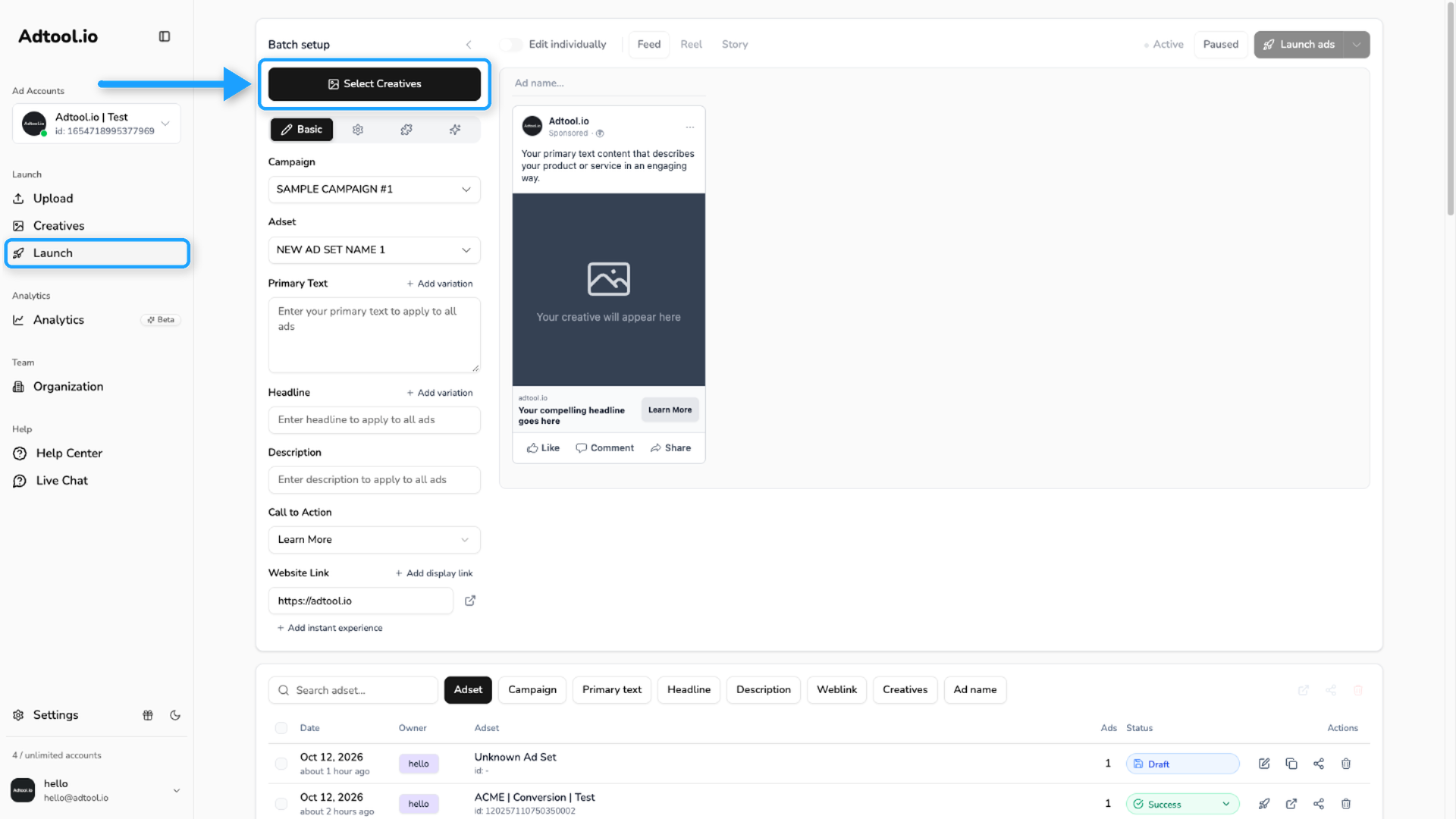
Go to Launch and click Select Creatives. Select the creatives you want to use as cards, then click Continue.
Add the cards in order
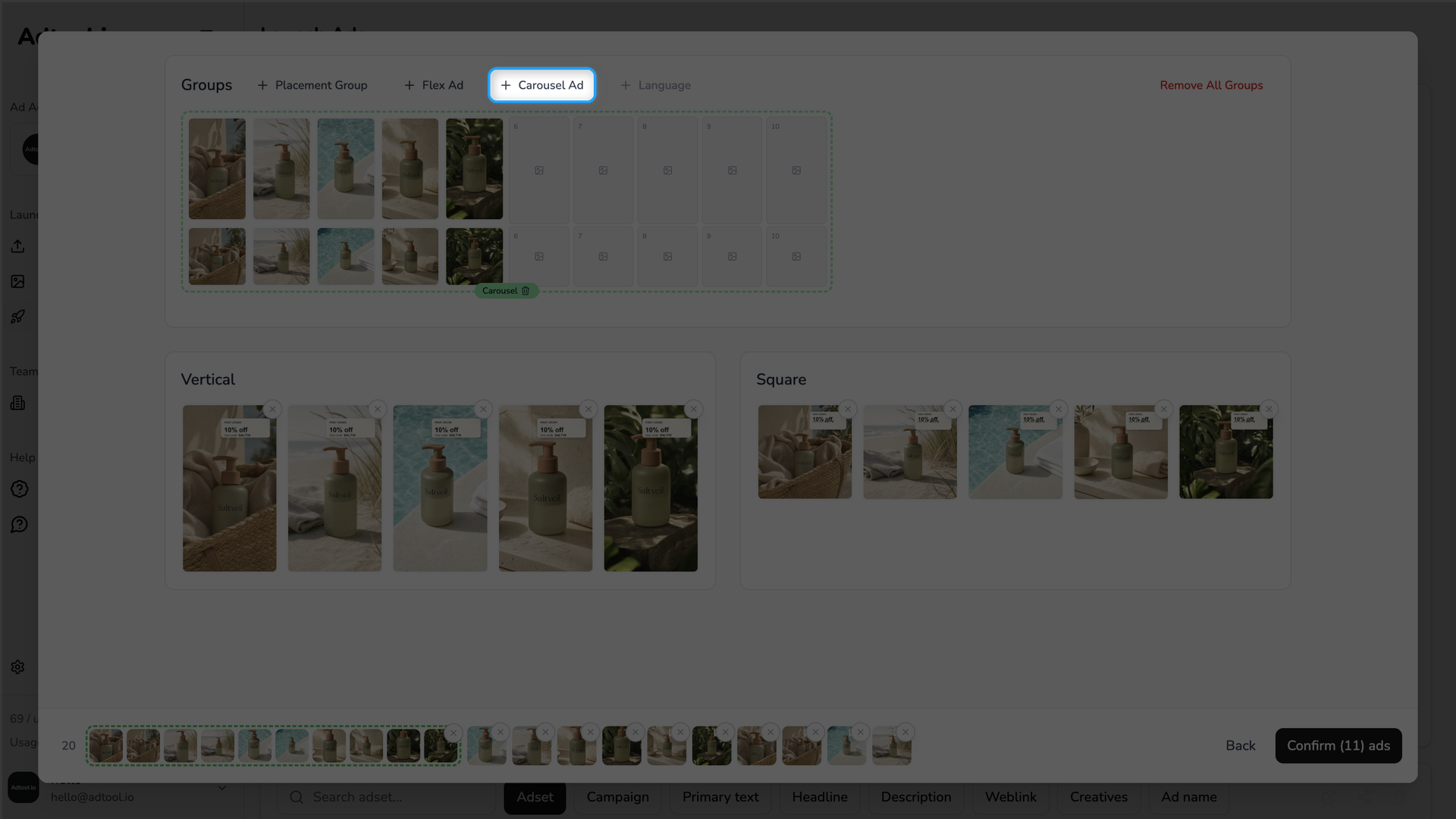
Drag the creatives into the carousel group in the order the cards should appear. If a card has both a story and a feed version, add both to the same card. Click Remove All Groups first if you want to redo an automatic grouping.
Customize each card
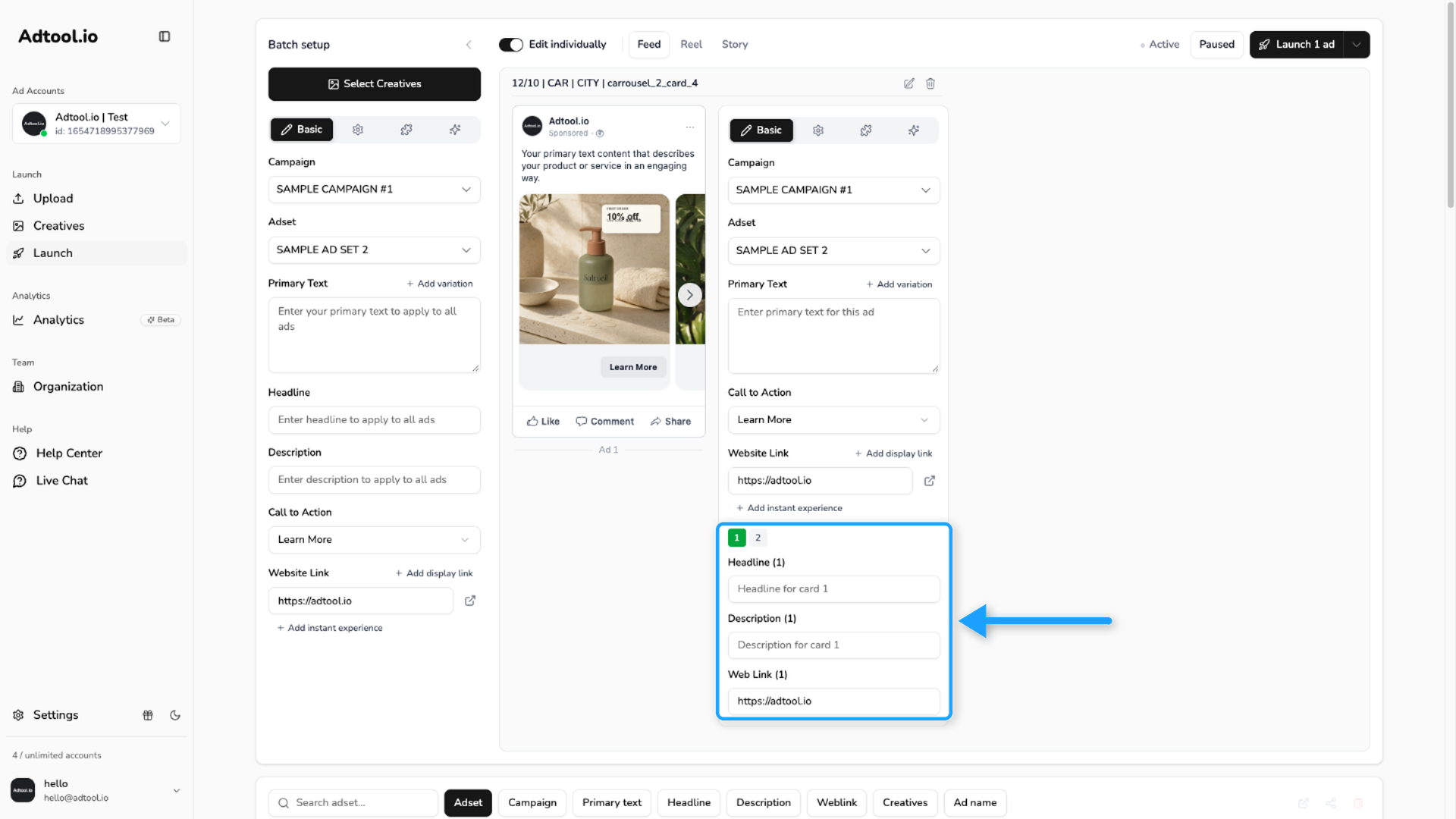
By default, the first headline applies to every card. To give each card its own content, turn on Edit individually. On the ad card's Basic tab, select the card number, then set the headline, description, and web link for that card. The call to action is the same for all cards in the ad.
Was this helpful?
Still need help? Ask the team