Upload creatives from Dropbox
Connect your Dropbox account and import images and videos from your folders into your creative library.
If your team keeps creatives in Dropbox, you can import them into Adtool without downloading them first. You connect your Dropbox account once. Then you browse your folders inside Adtool and import the images and videos you pick.
Step-by-step guide
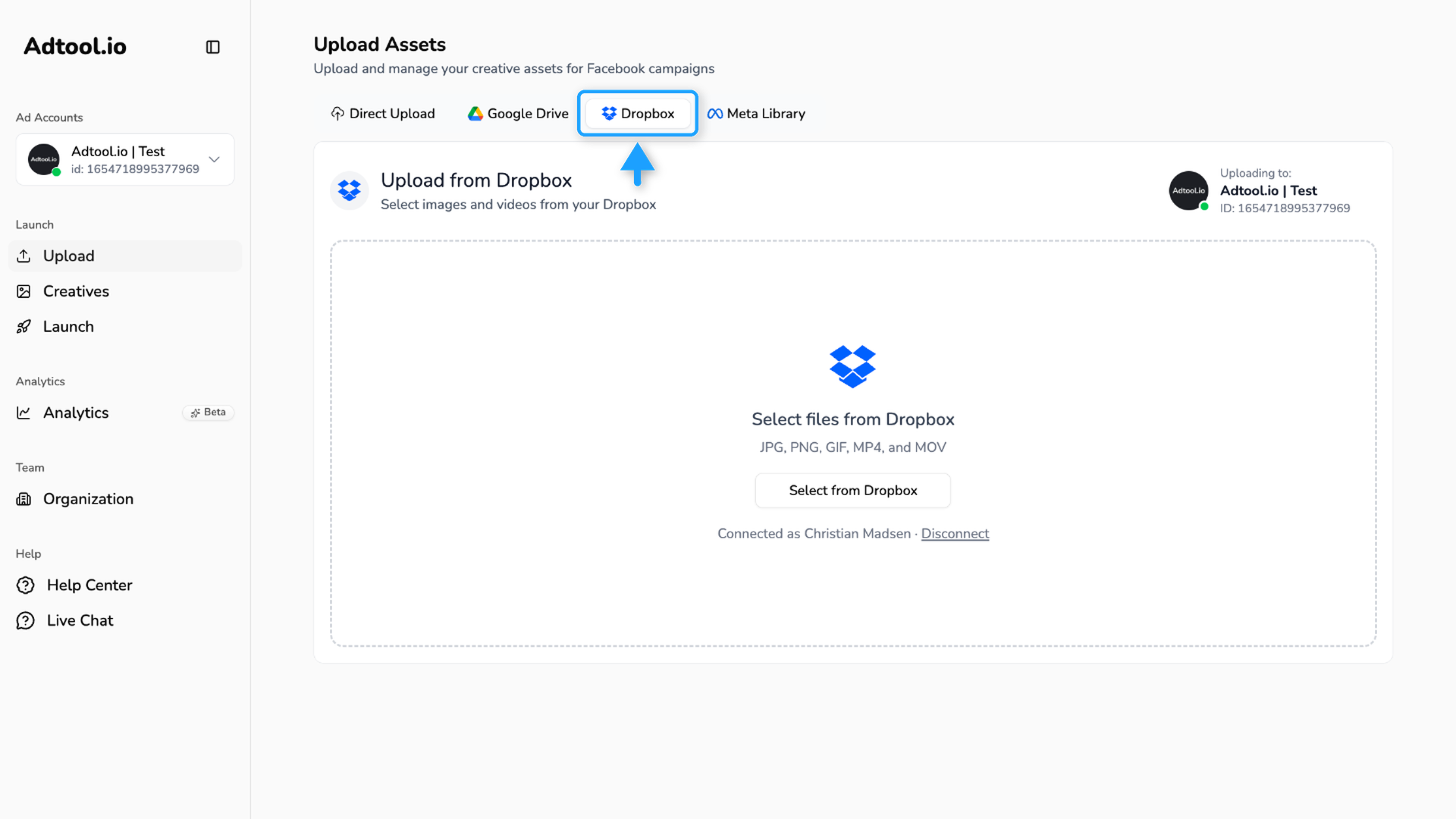
Open the Dropbox tab
Go to Upload and choose the Dropbox tab. The same tab is in the upload window on the Creatives page.
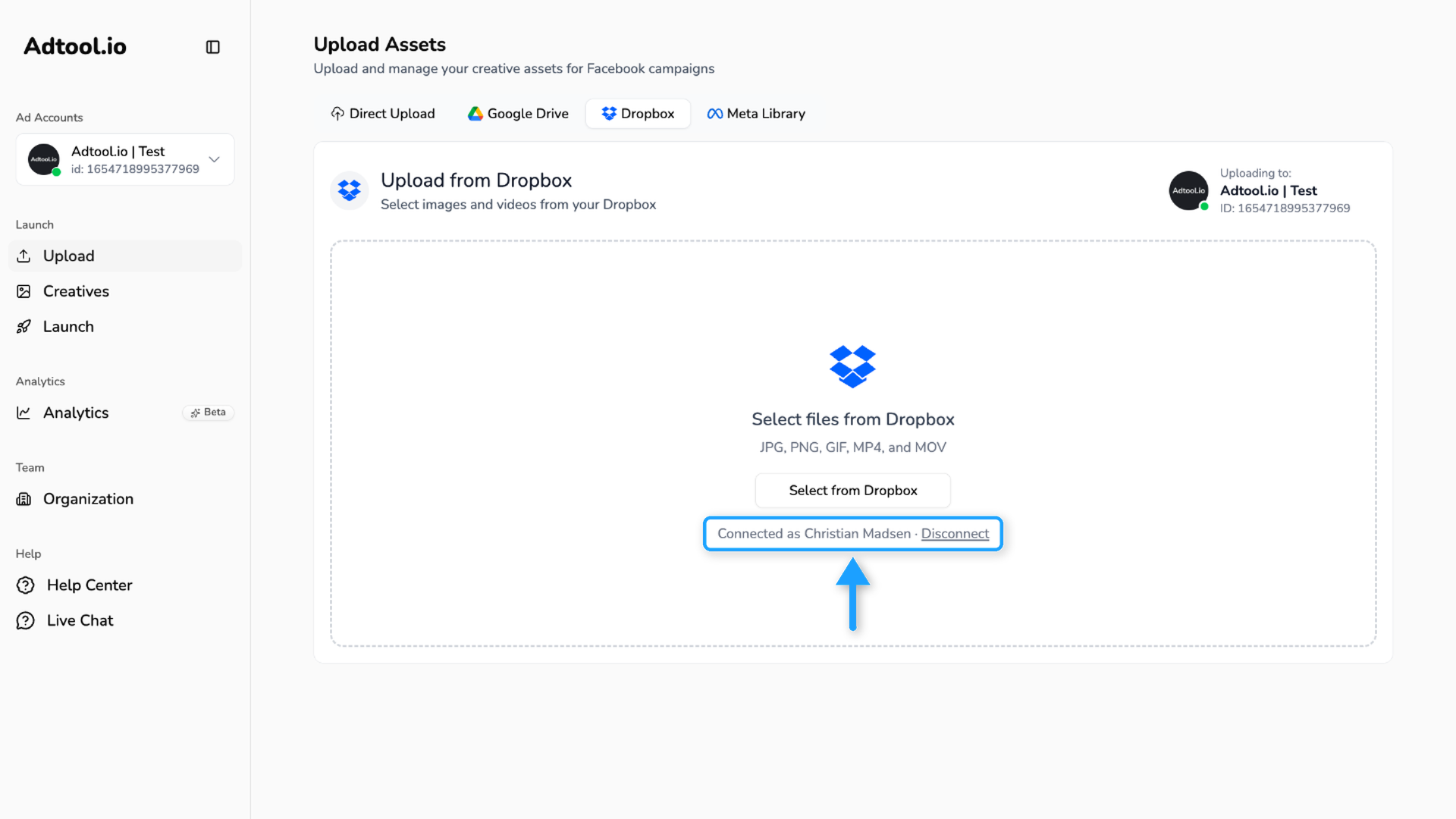
Connect your Dropbox account
Click Connect Dropbox and sign in to Dropbox in the window that opens. Allow Adtool access to your files. You only do this once. After that, the tab shows which Dropbox account is connected.
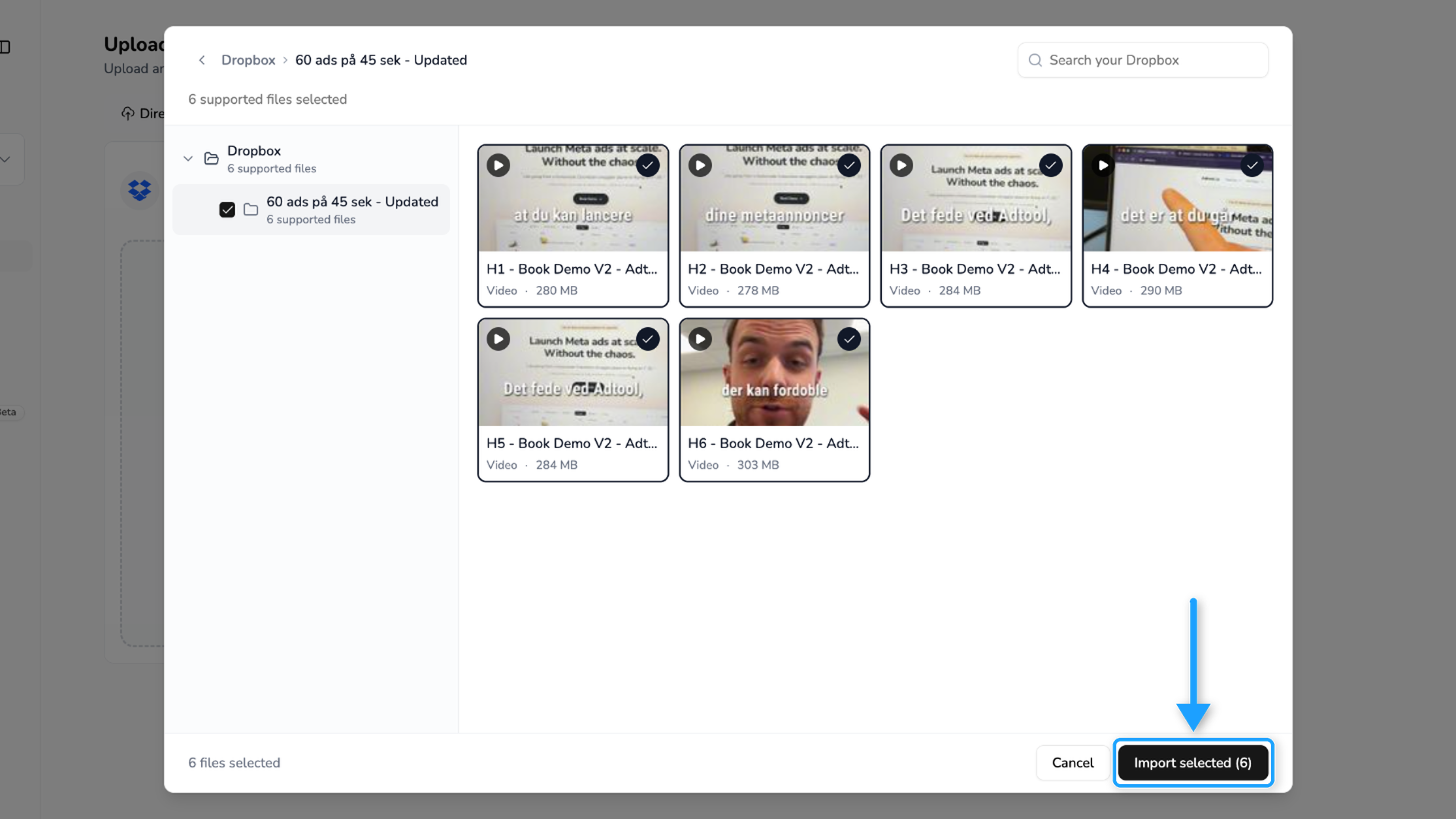
Browse and select your files
Click Select from Dropbox. Your Dropbox opens with your folders on the left and the files on the right, with a thumbnail for each image and video.
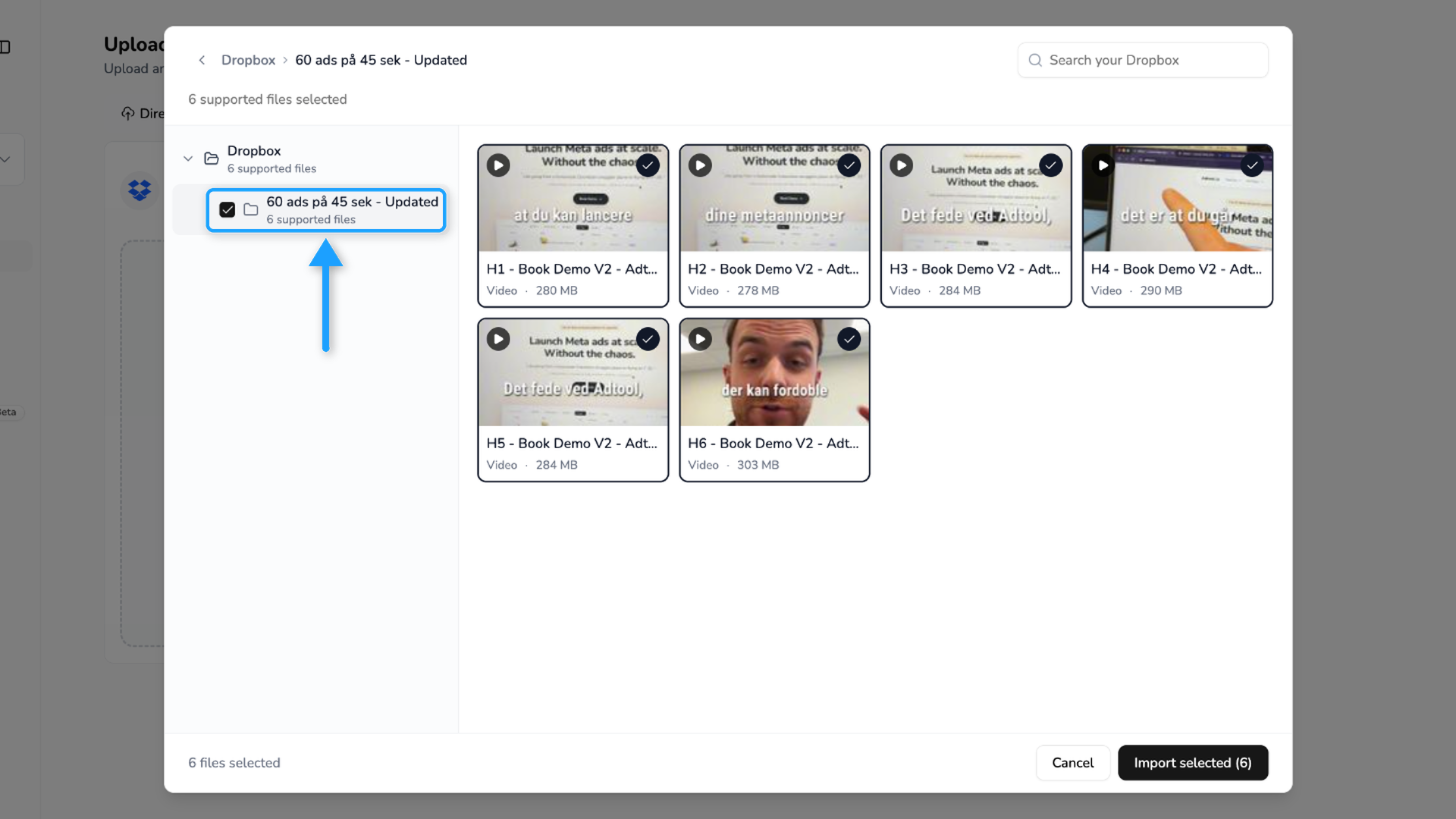
Click a file to select it, or drag across several files to select them together.
Tick the box on a folder to select every file in it, subfolders included.
Use the search box to find files by name.
Supported files and limits
Adtool imports JPG, PNG, GIF, MP4 and MOV files from Dropbox. Other file types do not show up in the Dropbox window.
When you tick a folder, Adtool selects up to 1,000 files from it, subfolders included. If the folder holds more, Adtool tells you that only the first 1,000 were selected. Ticking the same folder again selects the same files. To get the rest, open the folder and tick its subfolders one at a time, or select the remaining files by hand.
Disconnect or switch Dropbox account
To remove the connection, click Disconnect under the connected account on the Dropbox tab in Upload. The Dropbox card in Settings > Connections has no disconnect option. To use a different Dropbox account, disconnect and connect again.
If Adtool asks you to reconnect, click Reconnect Dropbox and sign in again. This happens when the Dropbox connection has expired. You can also click Reconnect on the Dropbox card in Settings, under Connections.
Having trouble importing? See Why won’t my image or video upload? for the most common fixes.
Was this helpful?
Still need help? Ask the team