Find & replace
Change text and settings on many ads in a batch at once before you launch.
Use Find & replace when the same change must go on many ads in a batch, for example a new website URL, a new offer in the primary text or a different call to action. It shows every ad in the batch in one table, so you do not have to open each ad card.
Step-by-step guide
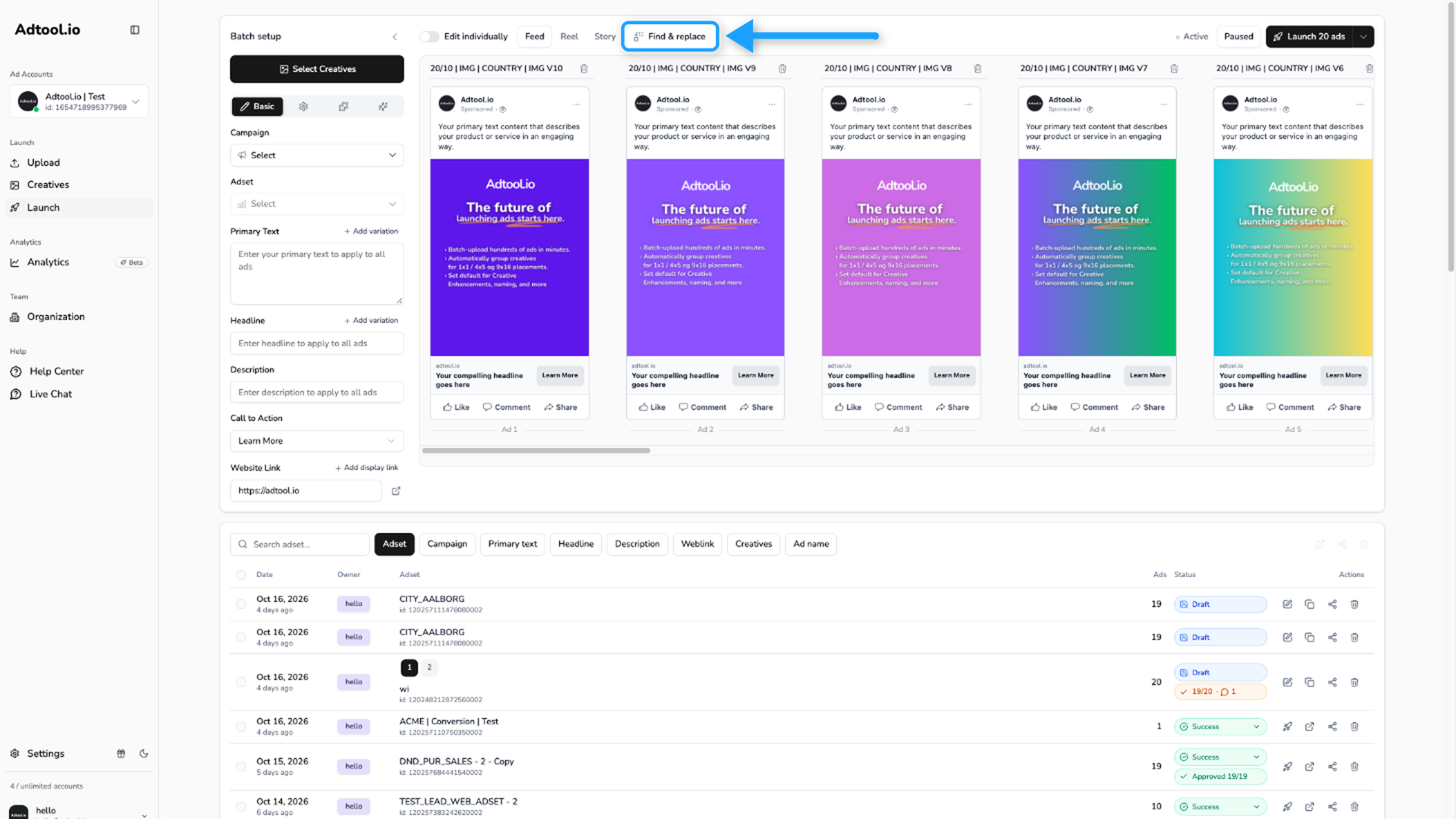
Go to Launch and click Find & replace
Add your creatives to the batch first. The Find & replace button is in the toolbar above the ad previews. It stays greyed out until the batch has at least one ad.
Pick the field you want to change
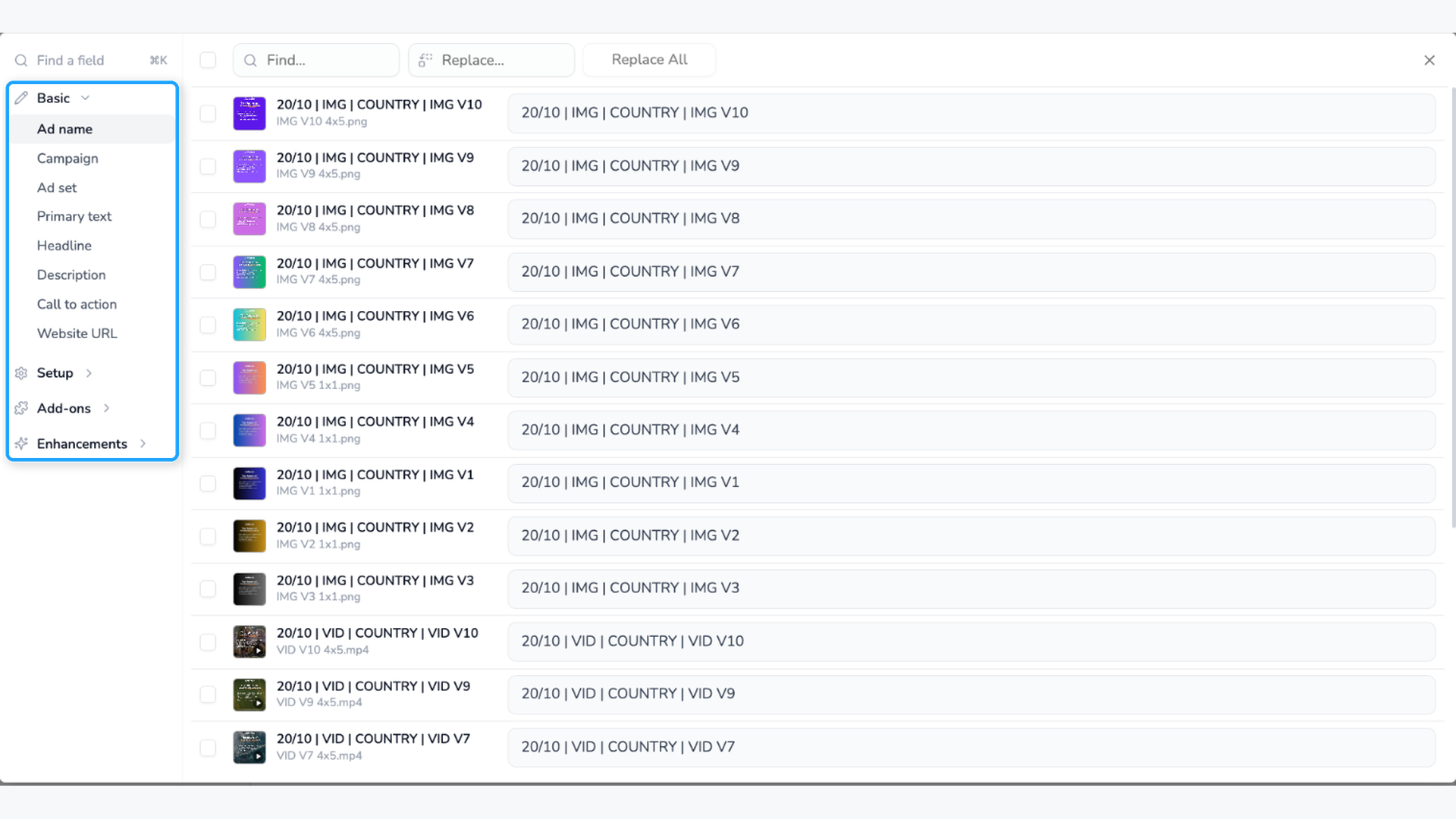
The list on the left has the same groups as the launch form: Basic, Setup, Add-ons and Enhancements. Click a field to see its value on every ad, with one row per ad. To jump to a field by name, type it in Find a field at the top (Cmd+K). Fields that no ad in the batch uses are not in the list.
Find and replace text
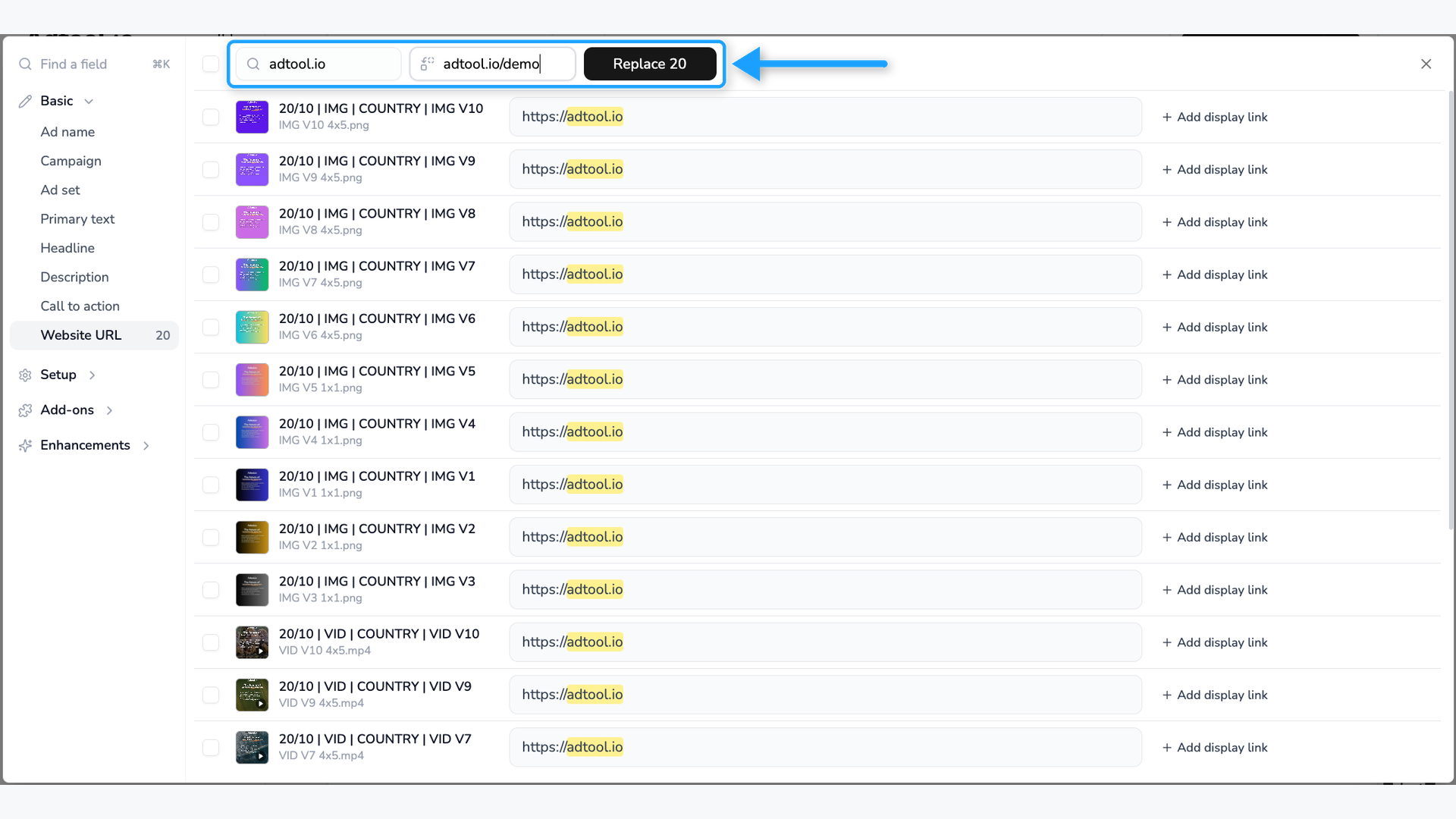
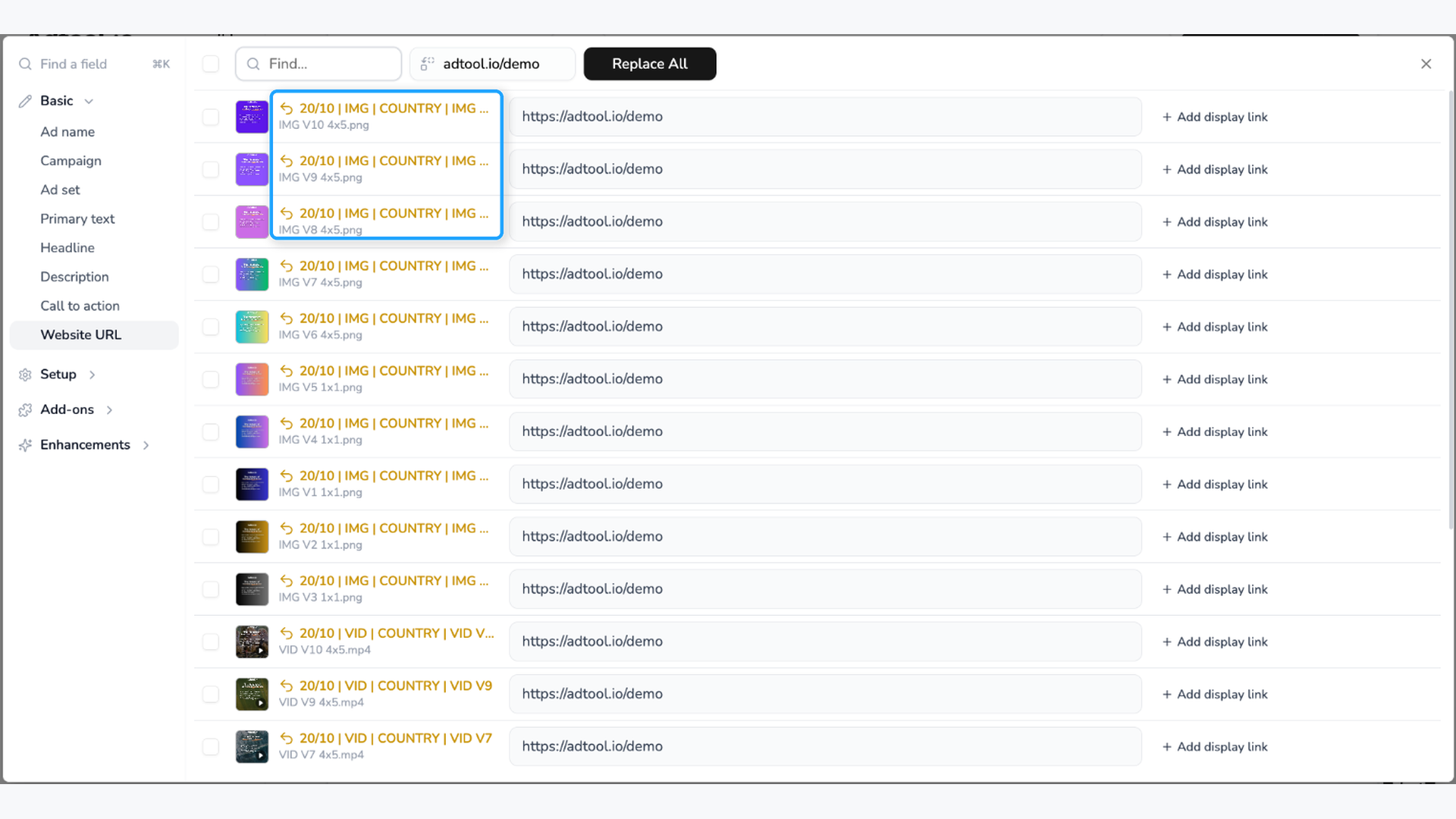
For a text field, such as Ad name, Primary text, Headline, Description, Website URL or UTM parameters, type the text you want to change in Find... and the new text in Replace.... Adtool highlights every match, and the button shows how many it found, for example Replace 9. Click the button to change all matches.
The search does not care about upper or lower case. If you leave Find... empty, the button reads Replace All and puts your text in the field on every ad.
Change only some of the ads
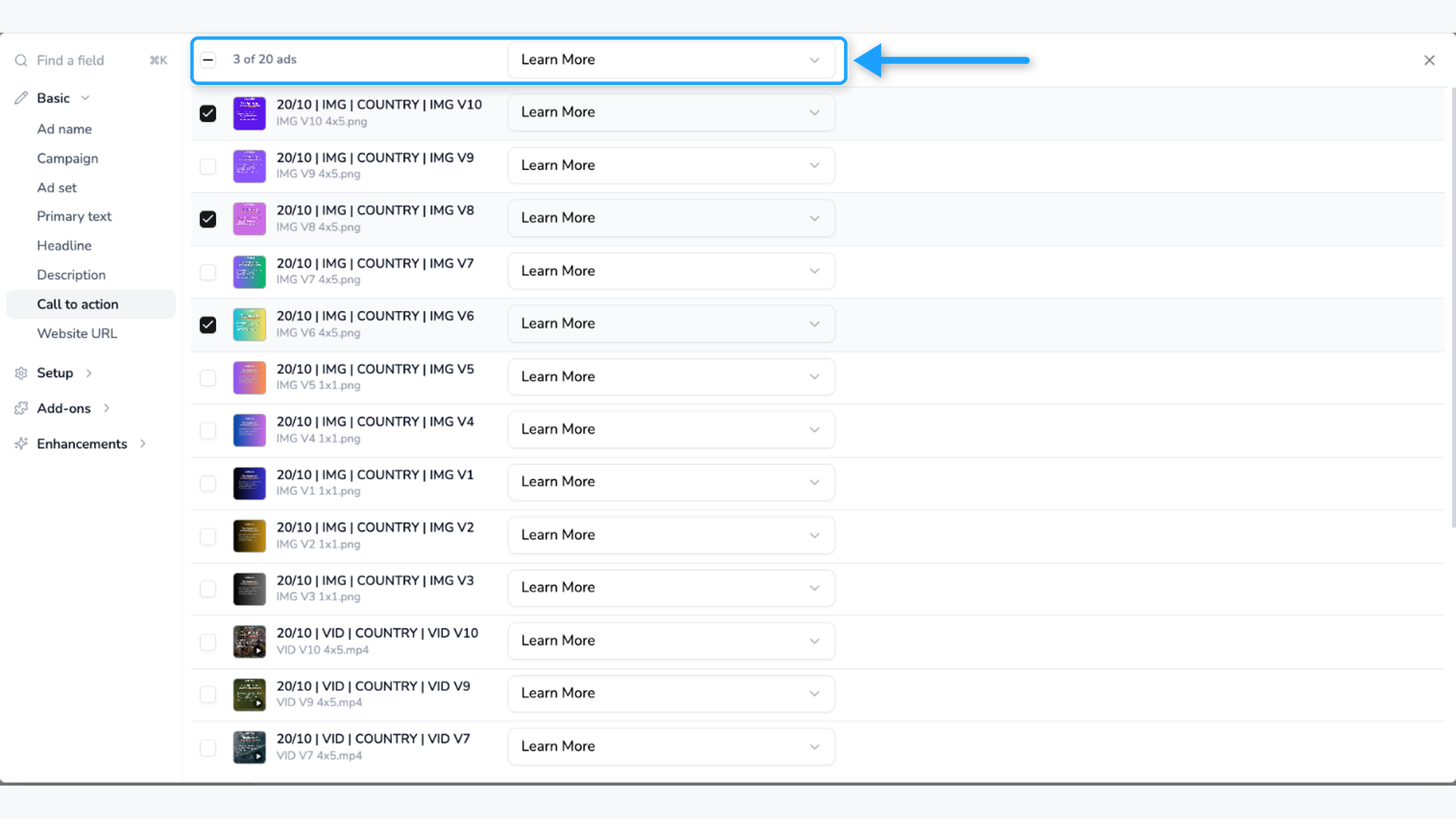
Tick the ads you want to change in the left column. Find... and Replace... then work on the ticked ads only.
For a field with a dropdown or a switch, such as Call to action, Ad set, Facebook page, Facebook Pixel or Schedule ads, tick the ads and pick the value in the row above them. Adtool sets the value on all ticked ads at once. To change one ad, use the control in its own row.
Check your changes and close
An ad you changed shows its name in yellow, the same as when you edit an ad individually. Click the yellow name to return that field to the value from the main form. Press Cmd+Z (Ctrl+Z on Windows) to undo a change, and Shift+Cmd+Z to redo it. Close the editor with the X and launch as usual.
Paste a list into many ads
Copy a list with one value per line, for example a column of ad names in Google Sheets. Click the box of the first ad you want to fill and paste. Adtool puts one line in each ad, from that ad down. This works in the one-line fields: Ad name, UTM parameters, Deep link and Phone number. In Primary text, Headline and Description, a paste goes into one box only, because those boxes hold text on several lines.
Press Enter to move to the next ad. Press Option+Up or Option+Down (Alt on Windows) to switch to the field above or below.
Find & replace changes the ads in your batch before launch. It does not edit ads that are already live in Meta. Fields that cannot change show a lock, for example the texts on an ad that reuses an existing post.
Was this helpful?
Still need help? Ask the team