Missing Facebook or Instagram Page
Find and connect a missing Facebook Page or Instagram account for the selected ad account in Adtool.
Use this guide when a Facebook Page or Instagram account is missing from Adtool while you set up or launch ads. In most cases the Page or account is not connected to the selected ad account in Adtool, or Adtool needs its Meta permissions refreshed.
Check the selected ad account
Open
Settingsin Adtool.Select the ad account you are working from in the left-hand list.
Confirm this is the same ad account you want to use for the launch.
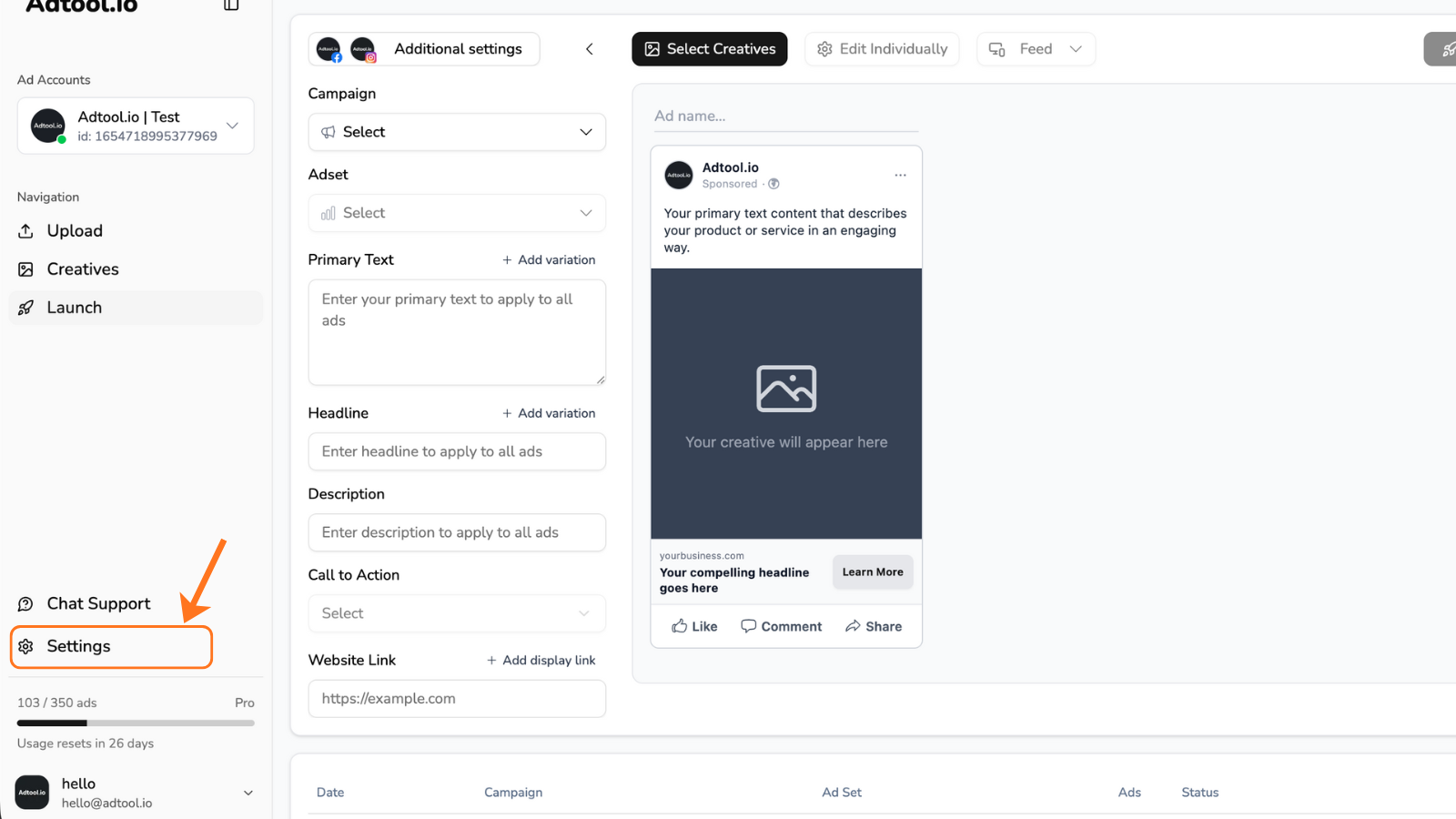
Show and connect missing Pages or Instagram accounts
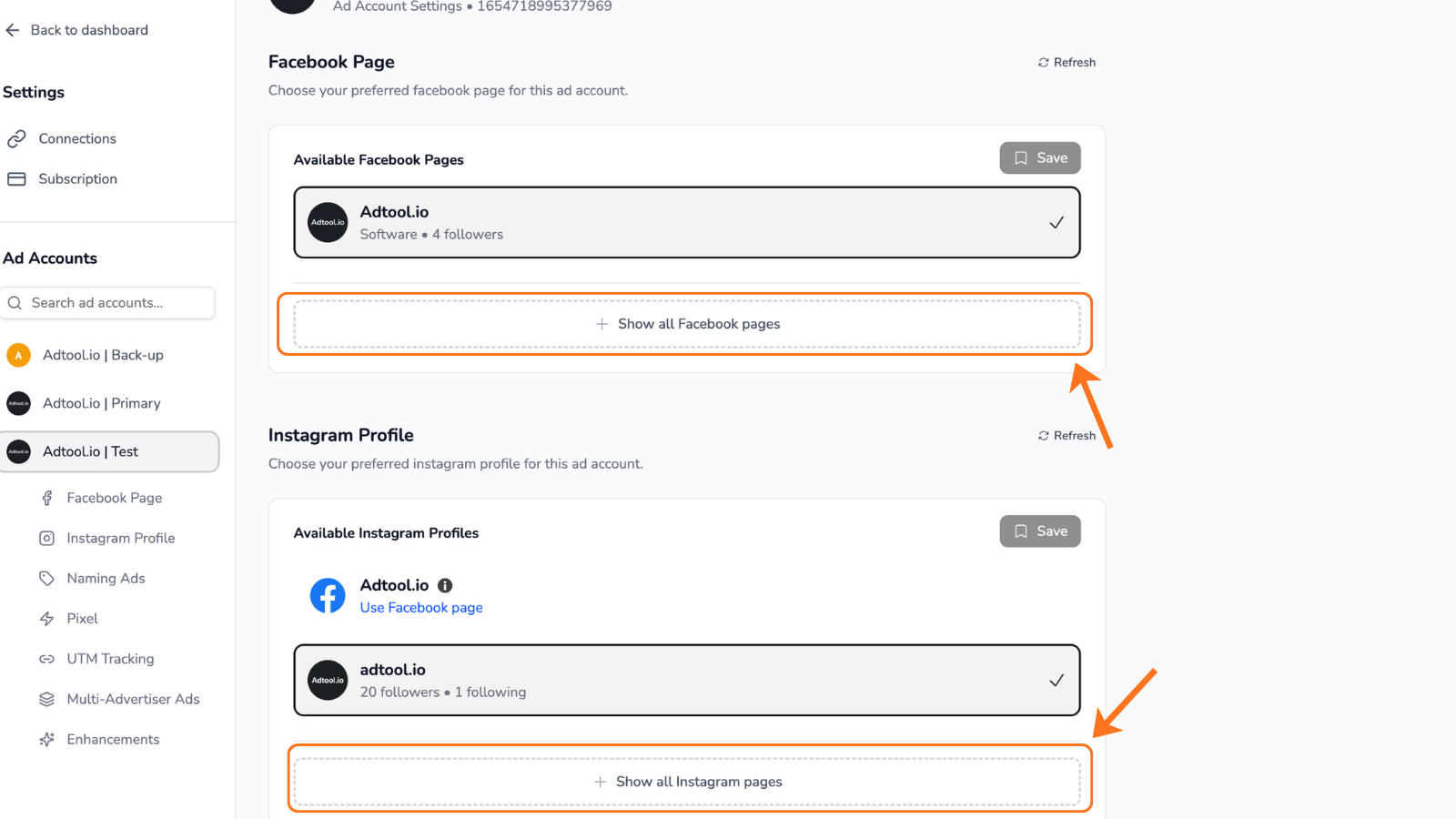
With the correct ad account selected, open the Facebook Page or Instagram account connection area.
Select
Show all Facebook pagesif a Facebook Page is missing.Select
Show all Instagram pagesif an Instagram account is missing.Find the missing Page or Instagram account and connect it.
If the Page or Instagram account is still missing
If the asset does not appear after checking the selected ad account and showing all available Pages or Instagram accounts, reconnect Meta to refresh the permissions Adtool reads from your Meta login.
Follow the Reconnect Meta guide, then return here and check the same ad account again.
Reconnecting Meta refreshes Adtool access. It does not grant new permissions inside Meta, so your Meta user still needs access to the missing Page or Instagram account in Meta Business Manager.
If you still have issues after following this guide, contact support and include:
The selected ad account in Adtool
The missing Facebook Page or Instagram account name
Confirmation that your Meta user has access to the asset in Meta Business Manager
Whether you reconnected Meta after checking the selected ad account
Was this helpful?
Still need help? Ask the team