Manage ad accounts
Choose which Meta ad accounts your team can launch with, and remove the ones you no longer use.
Your workspace has its own set of connected ad accounts. Only those accounts appear in the ad account selector, so connecting an account is what makes it available to launch with.
Where you manage ad accounts
Step-by-step guide
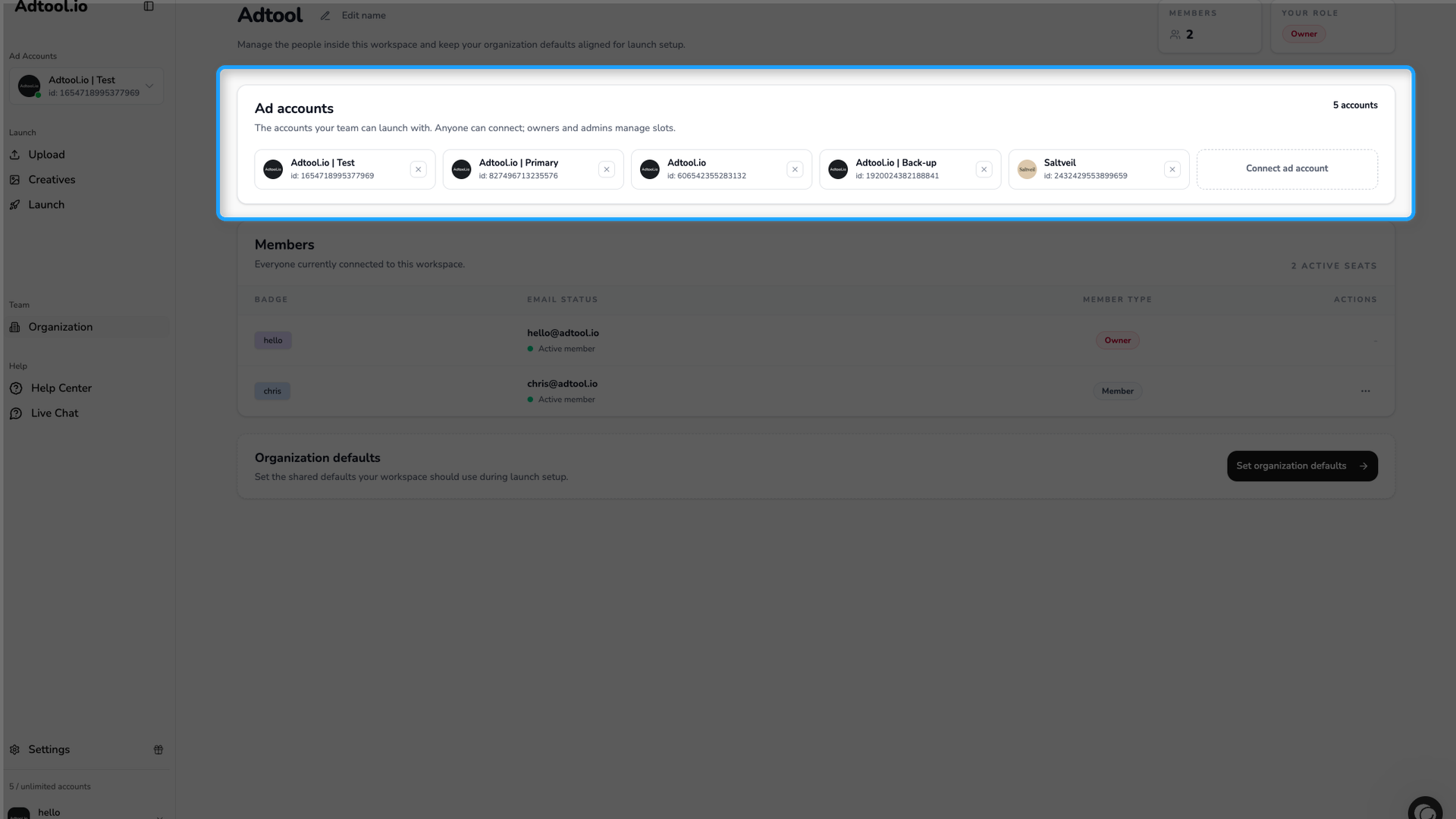
Open Organization
Go to Organization in the left-hand navigation. The Ad accounts section shows every account your team can currently launch with.
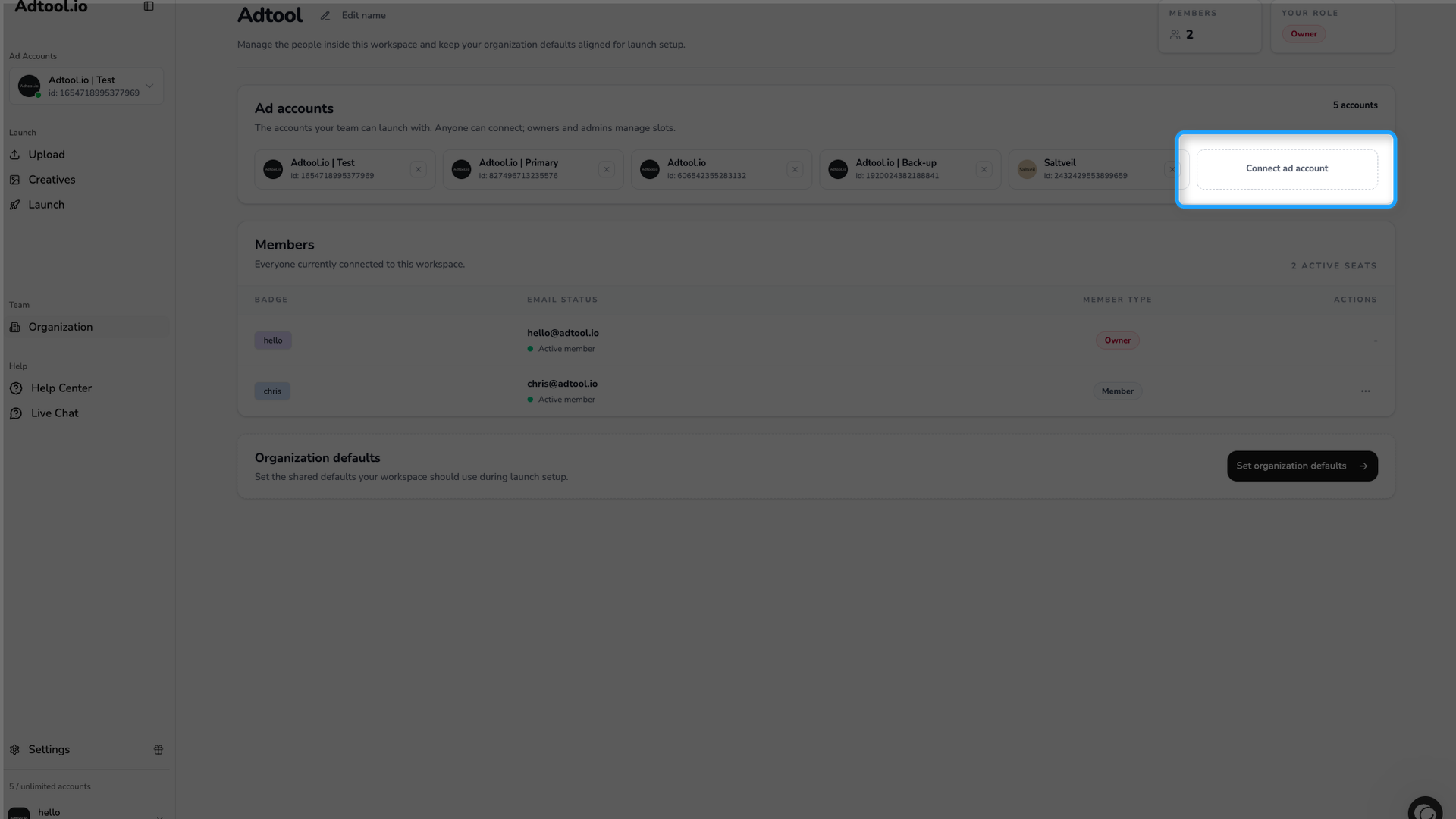
Click Connect ad account
The tile sits at the end of your connected accounts. It opens the list of ad accounts your Meta user can access.
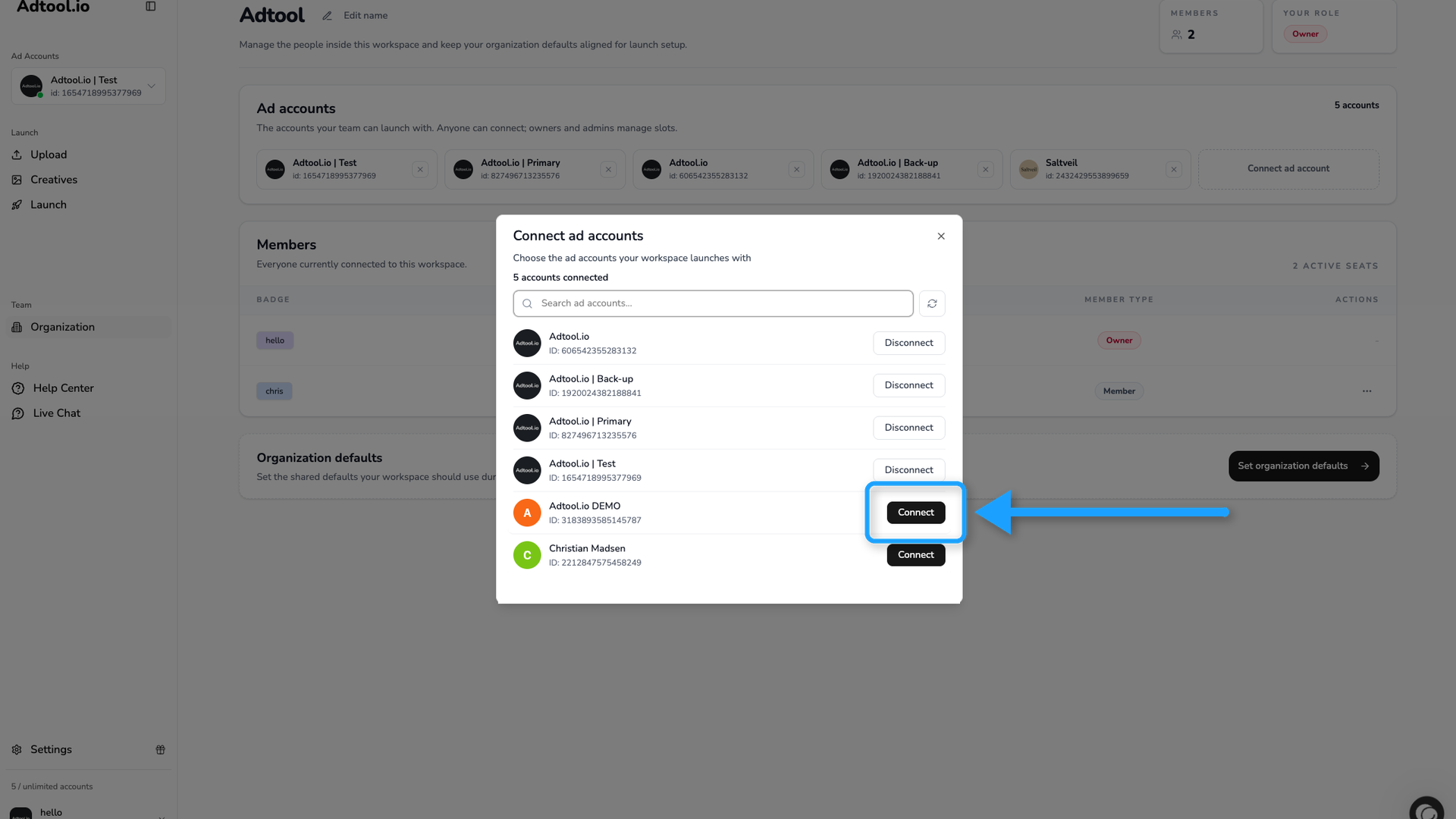
Connect the accounts you need
Click Connect next to each account your team should be able to launch with. Use the search field if the list is long. Connected accounts appear in the ad account selector straight away.
Who can connect ad accounts
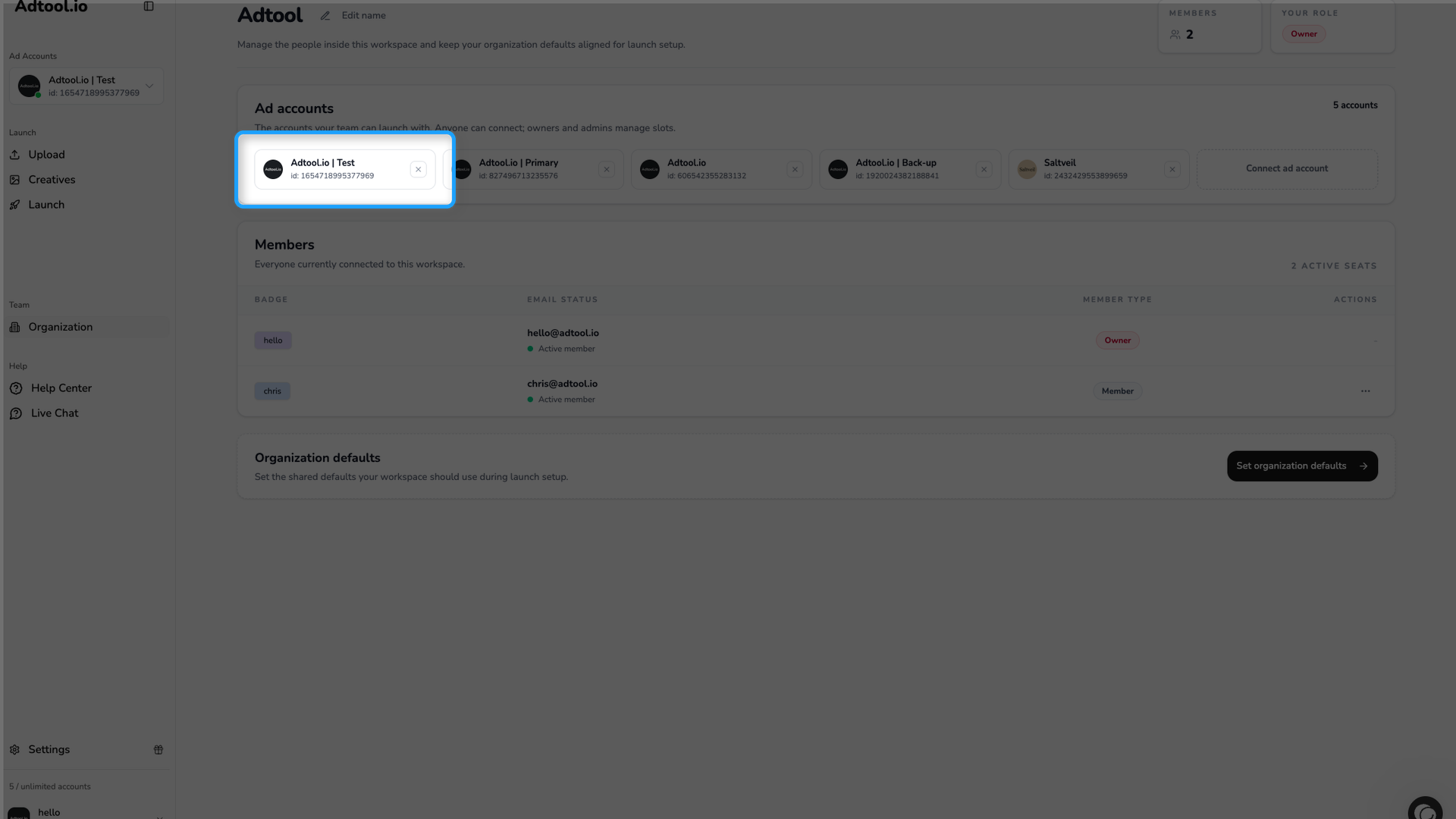
Anyone in the workspace can connect and disconnect ad accounts. Owners and admins manage how many accounts the workspace can have connected at once.
If an ad account is missing, or you cannot remove one:
Ad accounts you do not have access to in Meta stay in the list but are greyed out. They become selectable on their own once an admin gives your Meta user access.
If an account you just got access to is not listed, use the refresh button next to the search field to re-check your Meta access.
Ad accounts your team launched to in the last 60 days were connected for you automatically.
An account you have launched to recently can be locked, and cannot be disconnected until your billing period ends.
If no ad accounts appear at all, the Meta connection itself may need refreshing. See Manage connections.
Was this helpful?
Still need help? Ask the team