Carousel ads
Learn how to select, group, customize, and launch carousel ads in Adtool.
Use carousel ads when one ad should contain multiple cards that customers can swipe through. In Adtool, carousel launches use the same creative selection flow, then a carousel-specific grouping step where you build the card order and placement versions.
Step-by-step guide
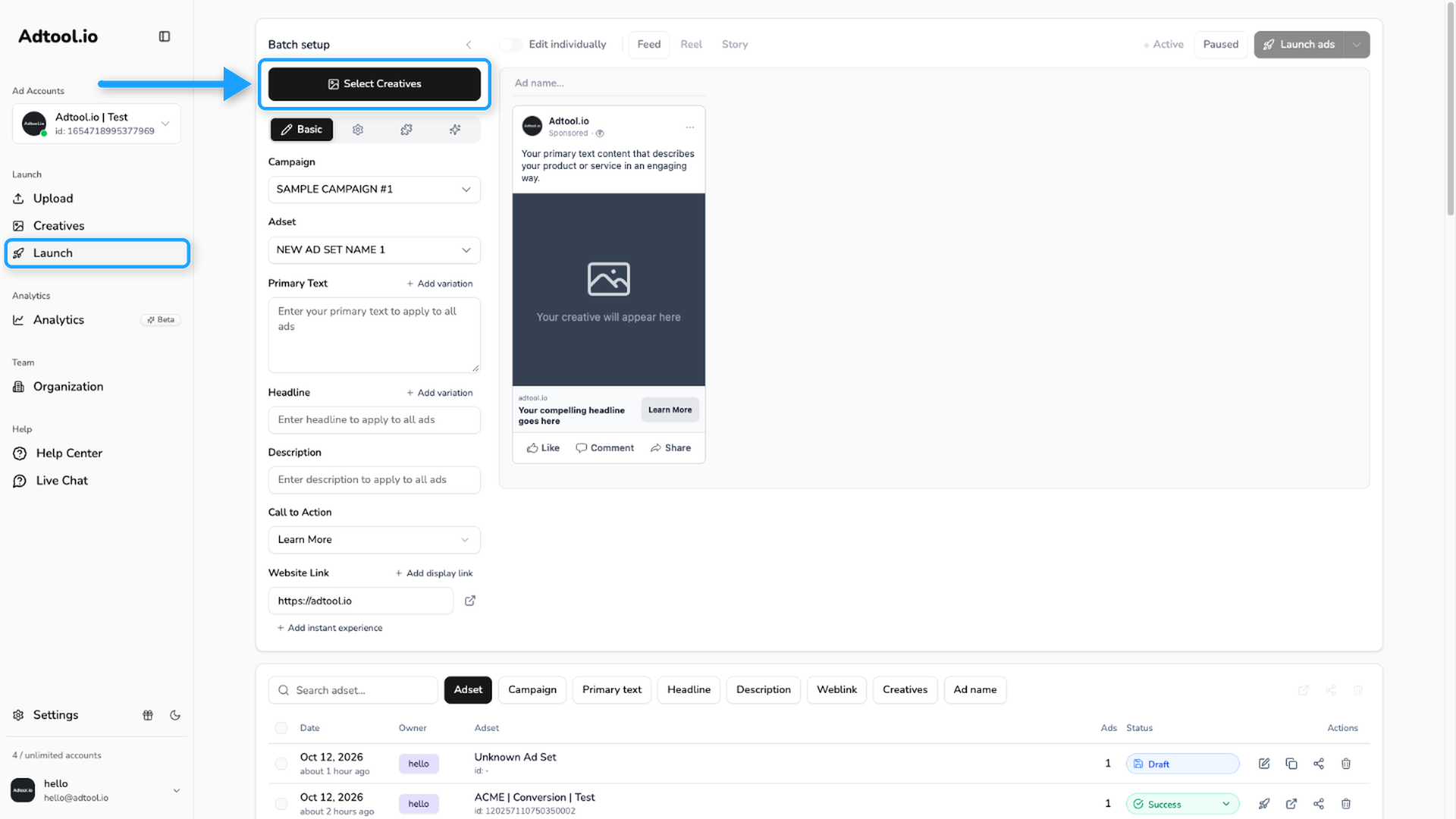
Select the creatives for the carousel
Select the creatives you want to use as carousel cards, then click Continue.
Use filters, Select all, or click and drag to select several creatives faster.
Group the carousel cards
Adtool builds your selected creatives into carousel cards on the grouping screen. You can group them automatically with file naming or manually by hand.
Automatic grouping: When your file names include a card marker such as card 1, card 2, card 3, Adtool groups the cards as soon as you reach the grouping screen. Each card can hold a story (9x16) and a feed (1x1, 4x5) version, a carousel supports 2 to 10 cards, and every card must be the same media type, all images or all videos. To build several carousels in one batch, give each its own base name, like summer_sale_card_1 and winter_sale_card_1.
Manual grouping: If your files are not named with card markers, click Carousel Ad in the Groups panel to create a carousel group, then drag each card into it in the order it should appear. Click Remove All Groups first if you want to redo an automatic grouping.
For the full rules and examples, see Carousel grouping.
Add carousel ad details
Click Confirm, then fill out the remaining ad information, including primary text, headline, description, CTA, and any other required launch settings.
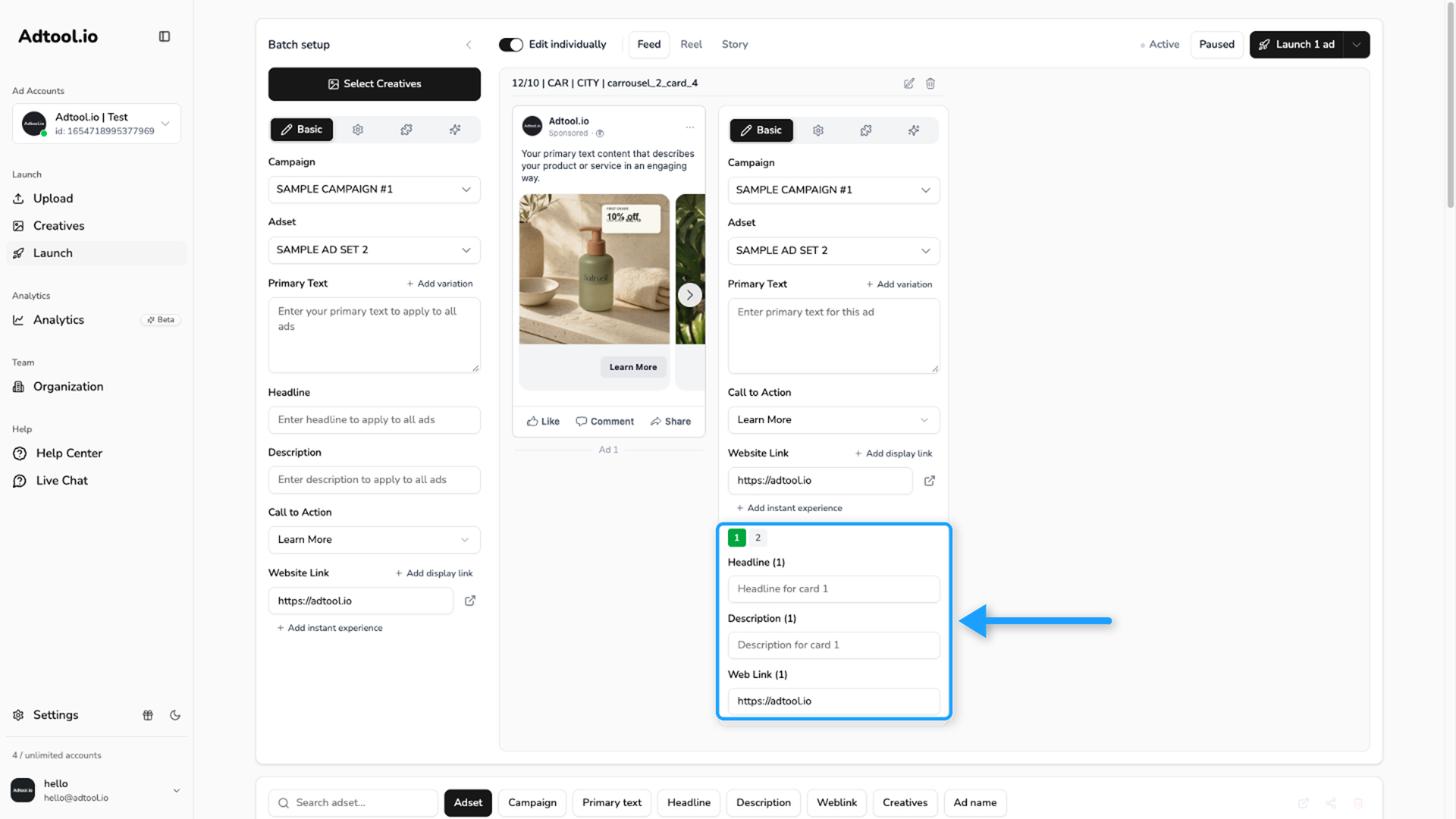
To give each card its own headline, description, or web link, turn on Edit individually. On the ad card's Basic tab, select the card number and fill in the fields for that card. The call to action is the same for all cards in the ad.
Video guide
Was this helpful?
Still need help? Ask the team