Invite teammates
Add the people you work with to your workspace so they share the same ad accounts, creatives and launch history.
Your workspace is shared. Invite the people you work with and they get access to the same ad accounts, creatives and launch history, without anyone sharing a login.
Step-by-step guide
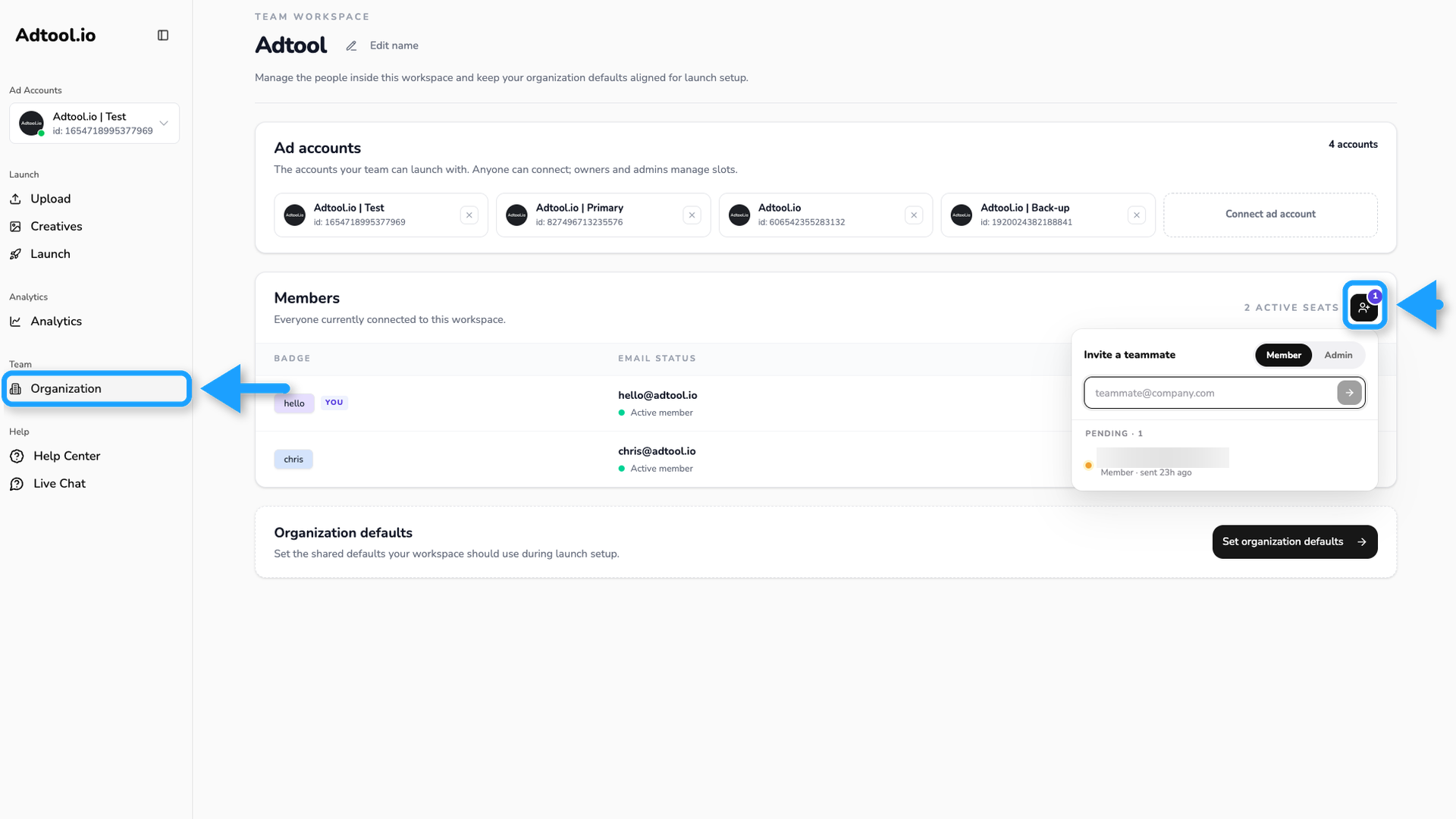
Open Organization and click the invite button
Go to Organization in the left-hand navigation. The members section lists everyone in the workspace, along with any invites still waiting to be accepted. Click the invite button, the person icon next to the seat count at the top of the members section, to open the invite popover.
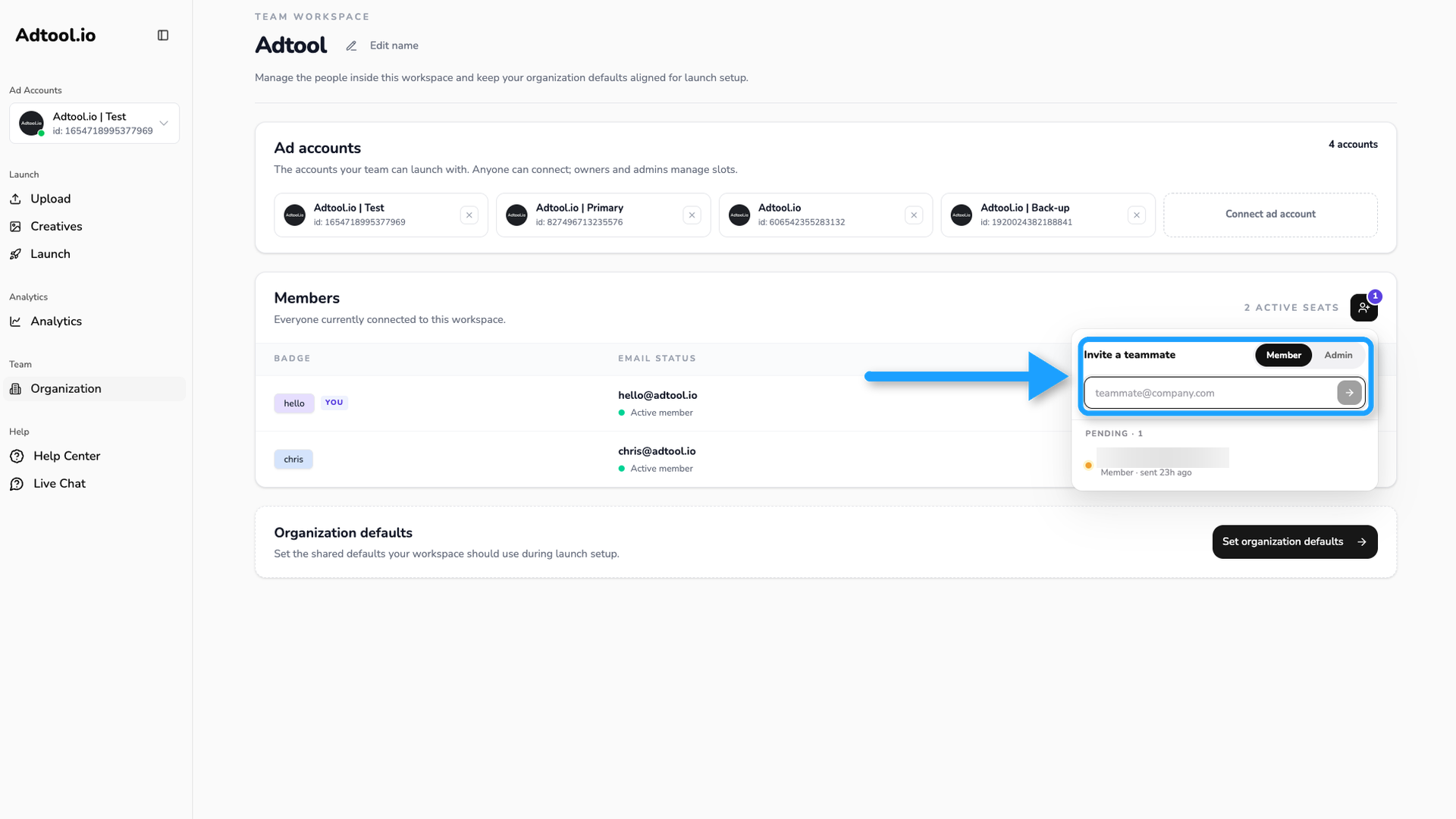
Enter the email address and pick a role
Type the work email address of the person you want to add, choose Member or Admin, and press the arrow button to send it. They receive an email with a link that takes them into your workspace.
What each role can do
Owners and admins are equal on everything except ownership. Only an owner can hand the workspace to someone else, and an owner cannot be removed or have their role changed by anyone.
Was this helpful?
Still need help? Ask the team