Use ad copy from Google Sheets
Paste several primary texts or headlines from a spreadsheet in one go, with each cell as its own variation.
Many teams write and approve their ad copy in Google Sheets before they launch. Instead of copying one text at a time and clicking Add variation for each, you can copy all the cells at once and paste them into Adtool.
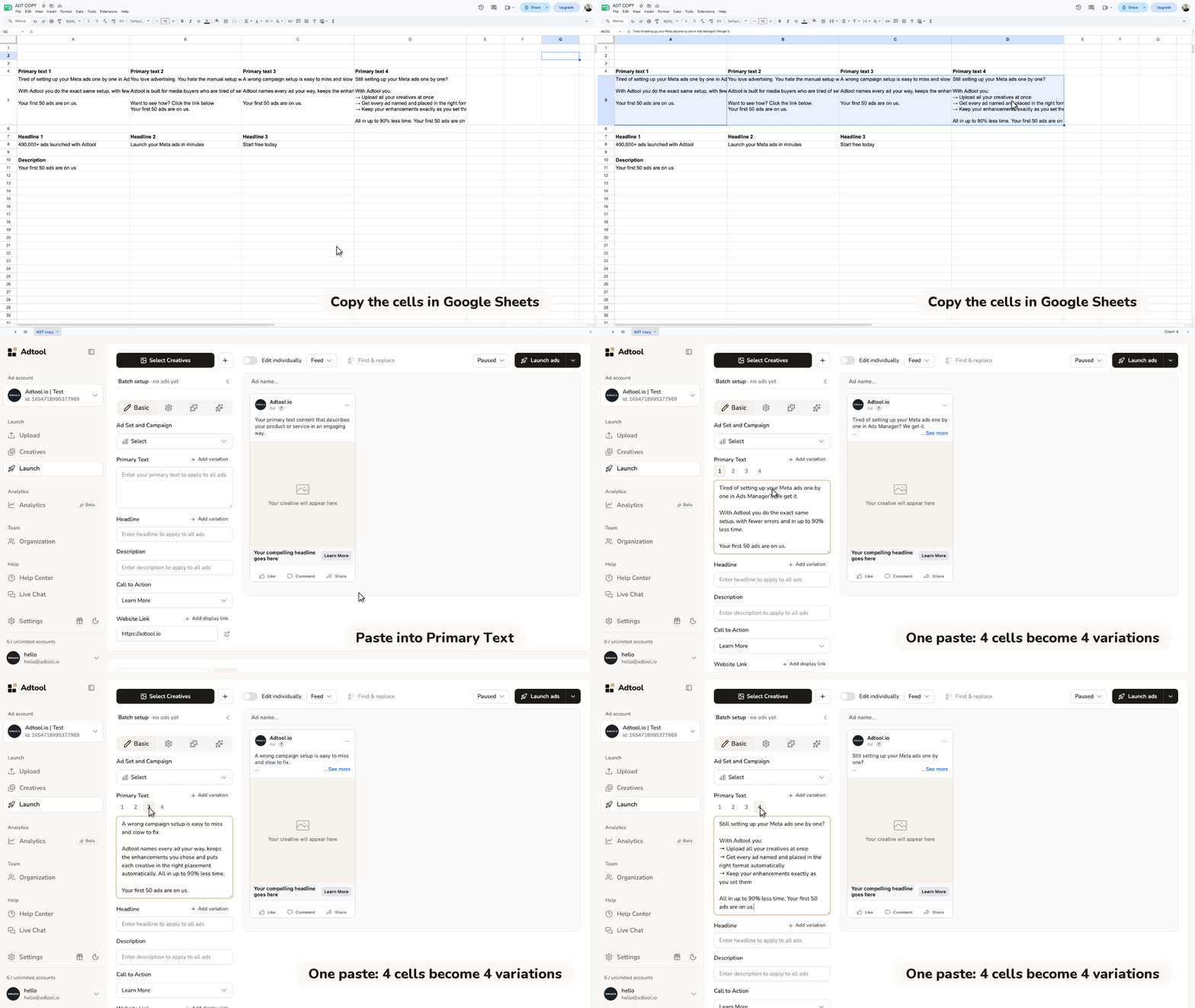
Step-by-step guide
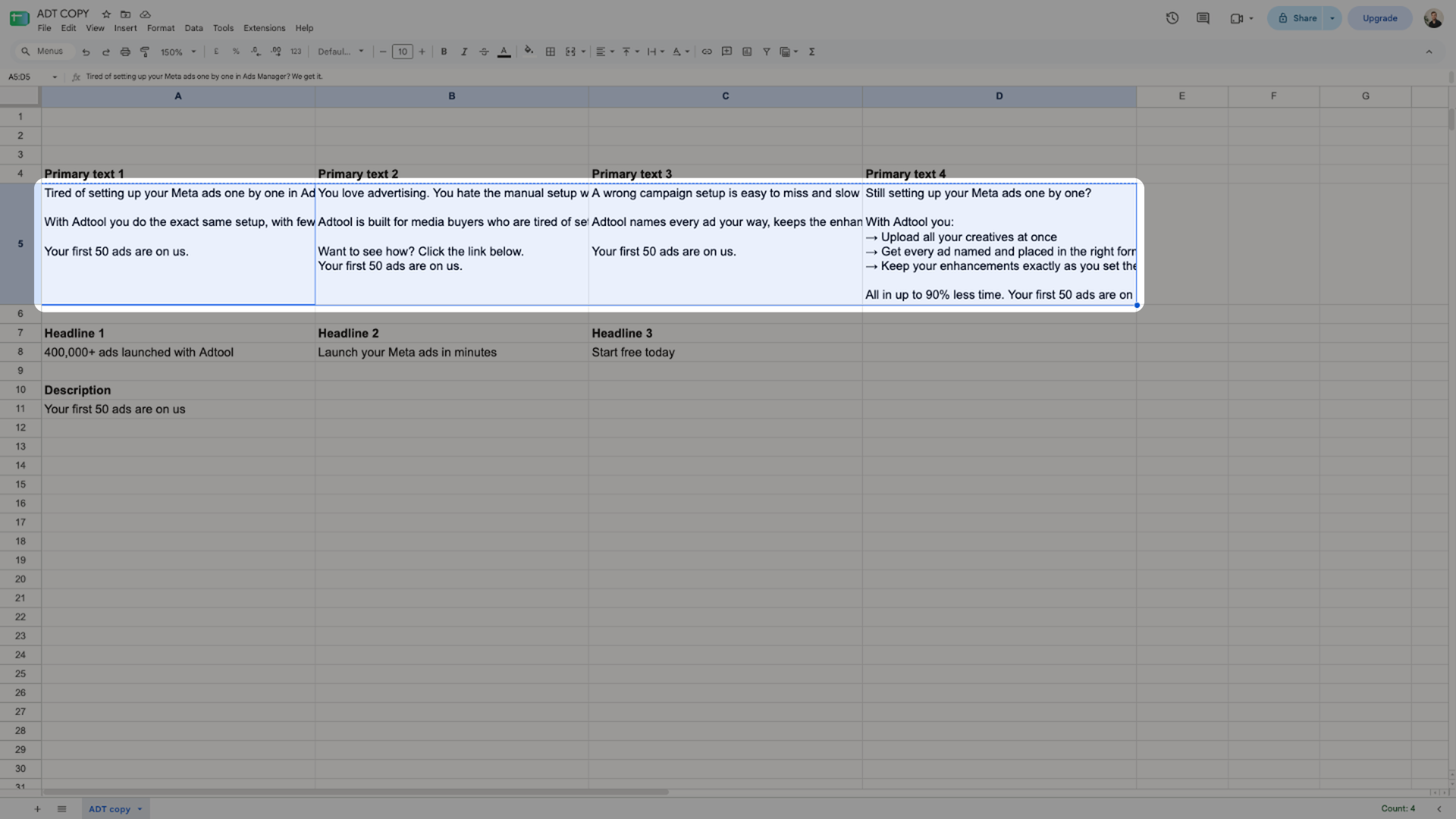
Copy the cells with your ad copy
In Google Sheets, select the cells with your primary texts, in a row or a column, and copy them with Cmd+C (Ctrl+C on Windows). Leave out the header cells, so they do not become texts of their own. Empty cells are skipped.
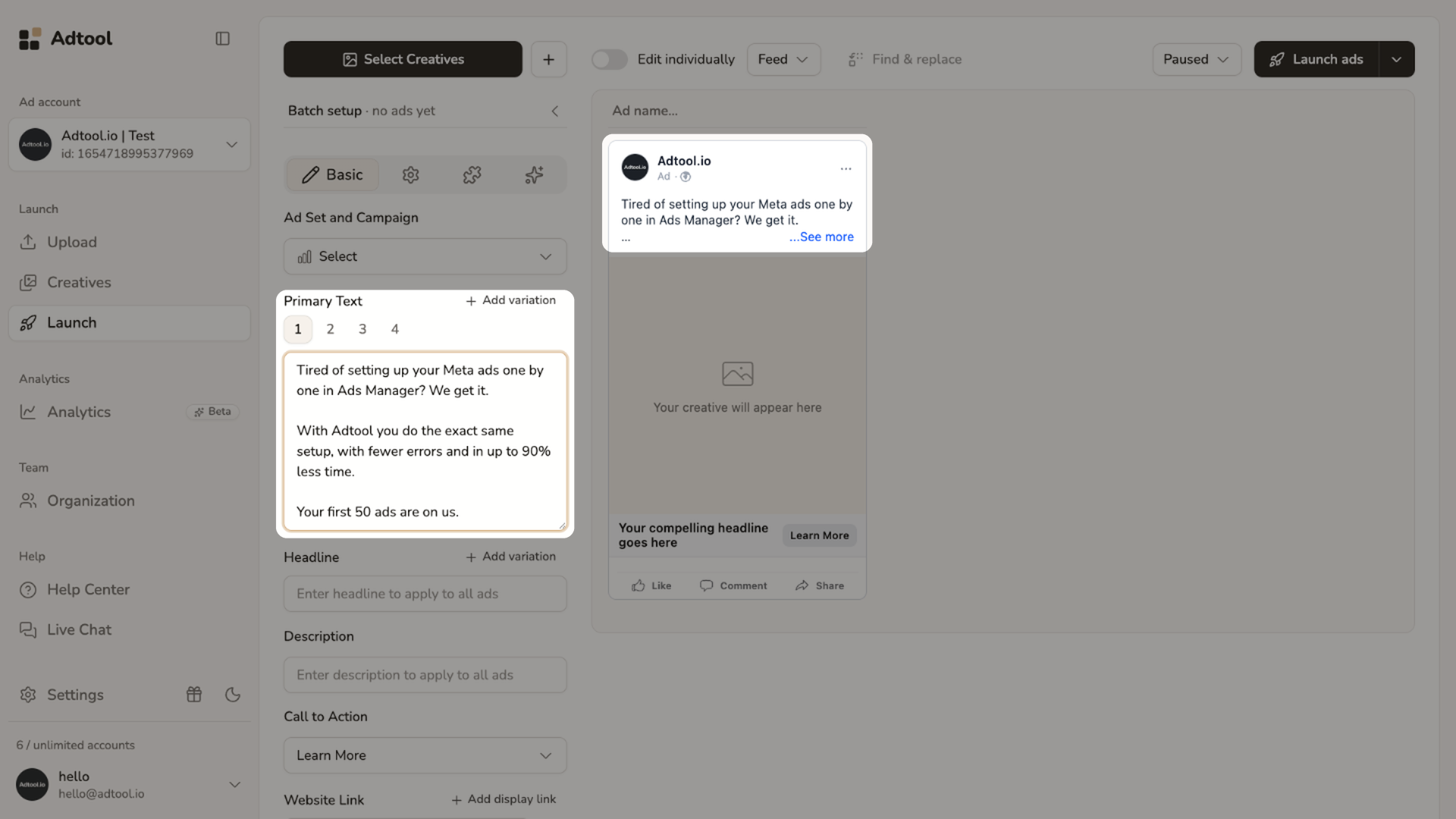
Paste into Primary Text or Headline
Go to Launch, click in the Primary Text field and paste with Cmd+V (Ctrl+V on Windows). Each cell becomes its own variation, so 4 cells give you 4 primary texts. Do the same for your headlines in the Headline field.
Line breaks inside a cell are kept in Primary Text. In Headline they become spaces, because a headline is one line.
Was this helpful?
Still need help? Ask the team