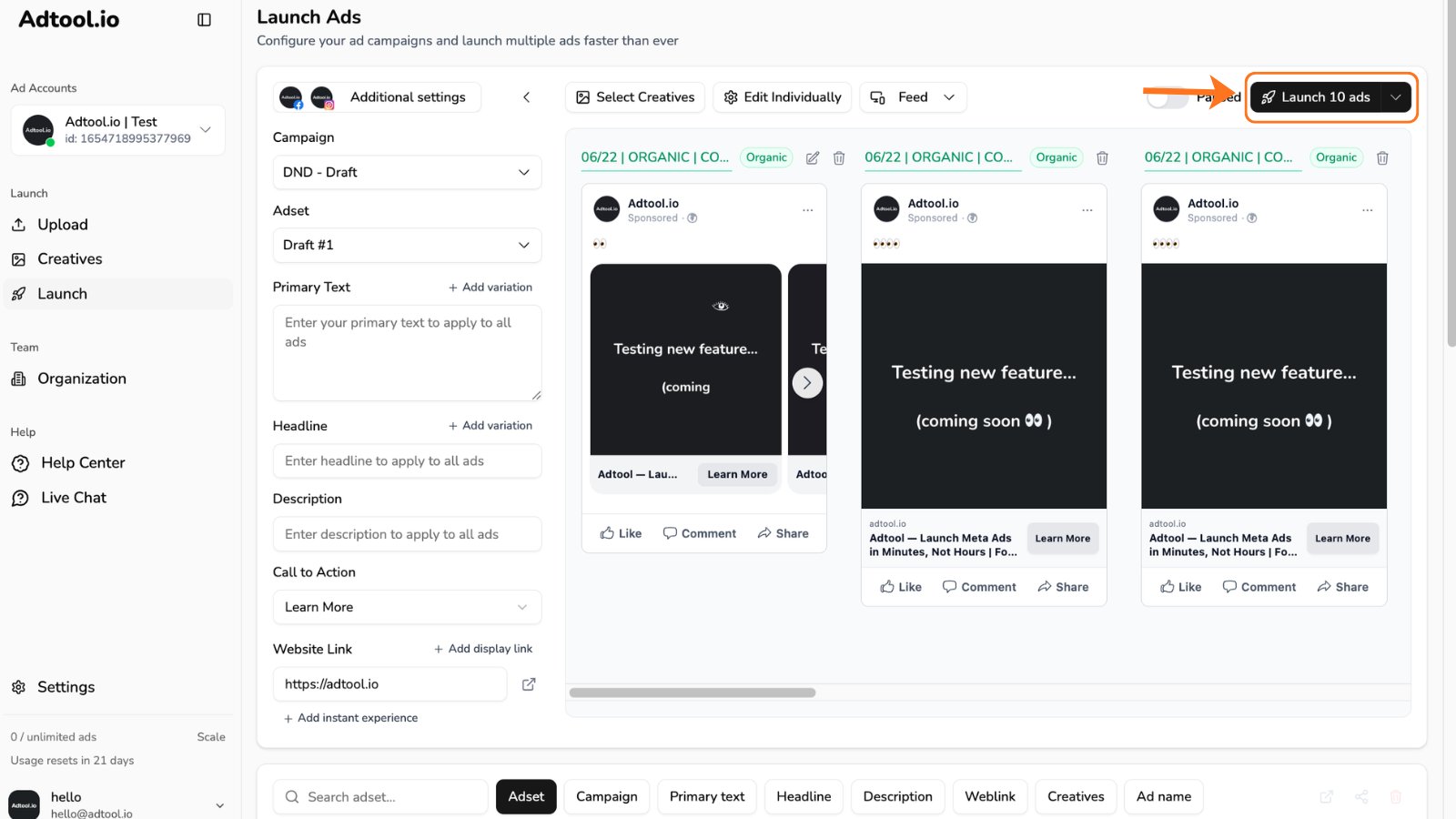
When to use organic posts
Use organic posts when you want to boost an existing post, keep the original organic creative and social post, or launch that post through the ad account structure you are already setting up in Adtool.What to know before selecting posts
| Area | What it means |
|---|---|
| Organic Posts tab | Organic posts are selected from the Organic Posts tab inside Select Creatives. |
| Filters | You can filter organic posts by post type, date, and page. |
| Page selection | The organic posts shown depend on the page selected for the batch in Additional settings . |
| Adding to batch | Selected organic posts are added to the batch after you click Continue. |
Step-by-step guide
Open Launch and select creatives
Go to 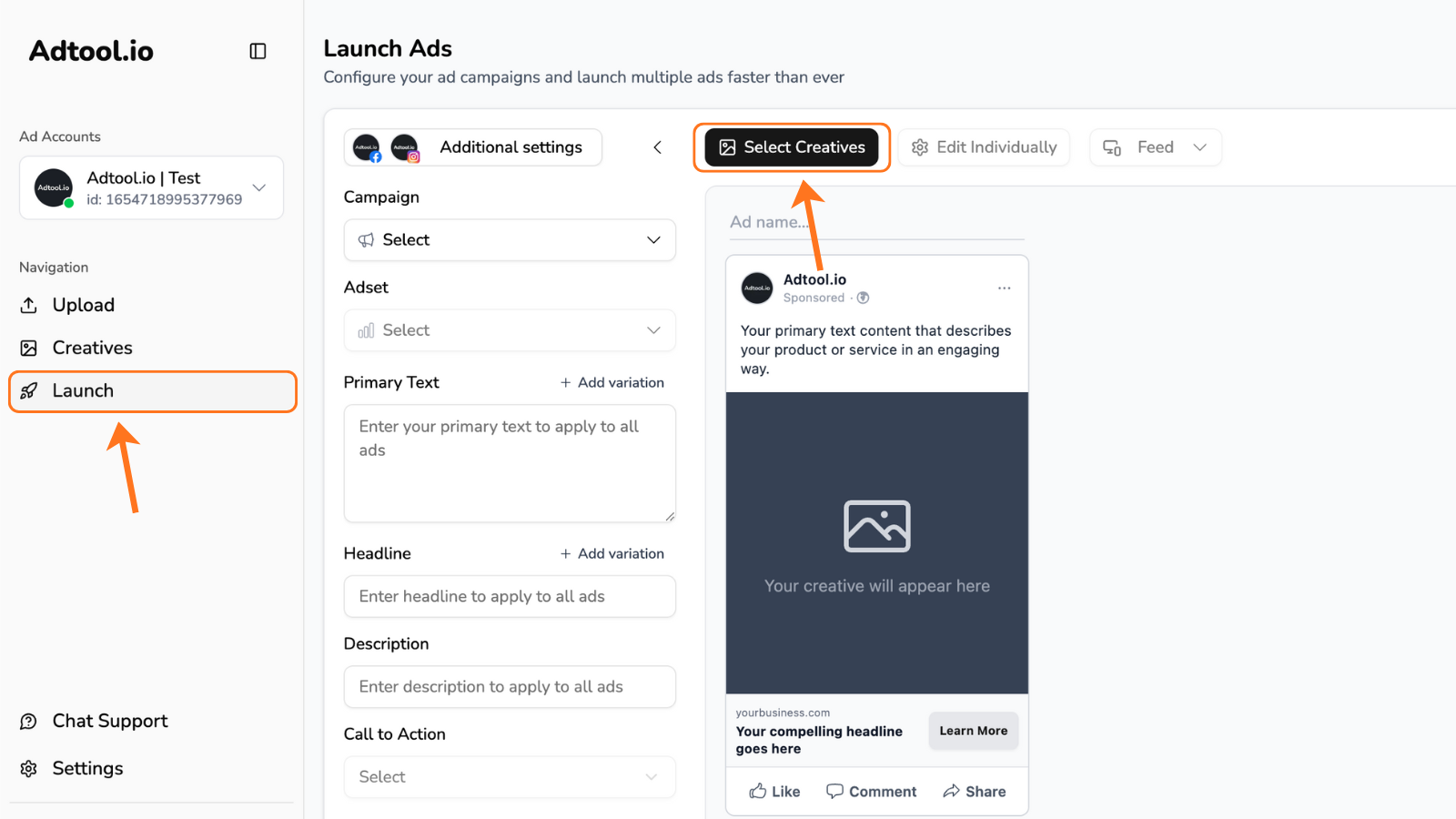
Launch in the left navigation, then click Select Creatives to open the creative selection view for the batch.Select organic posts
Open the 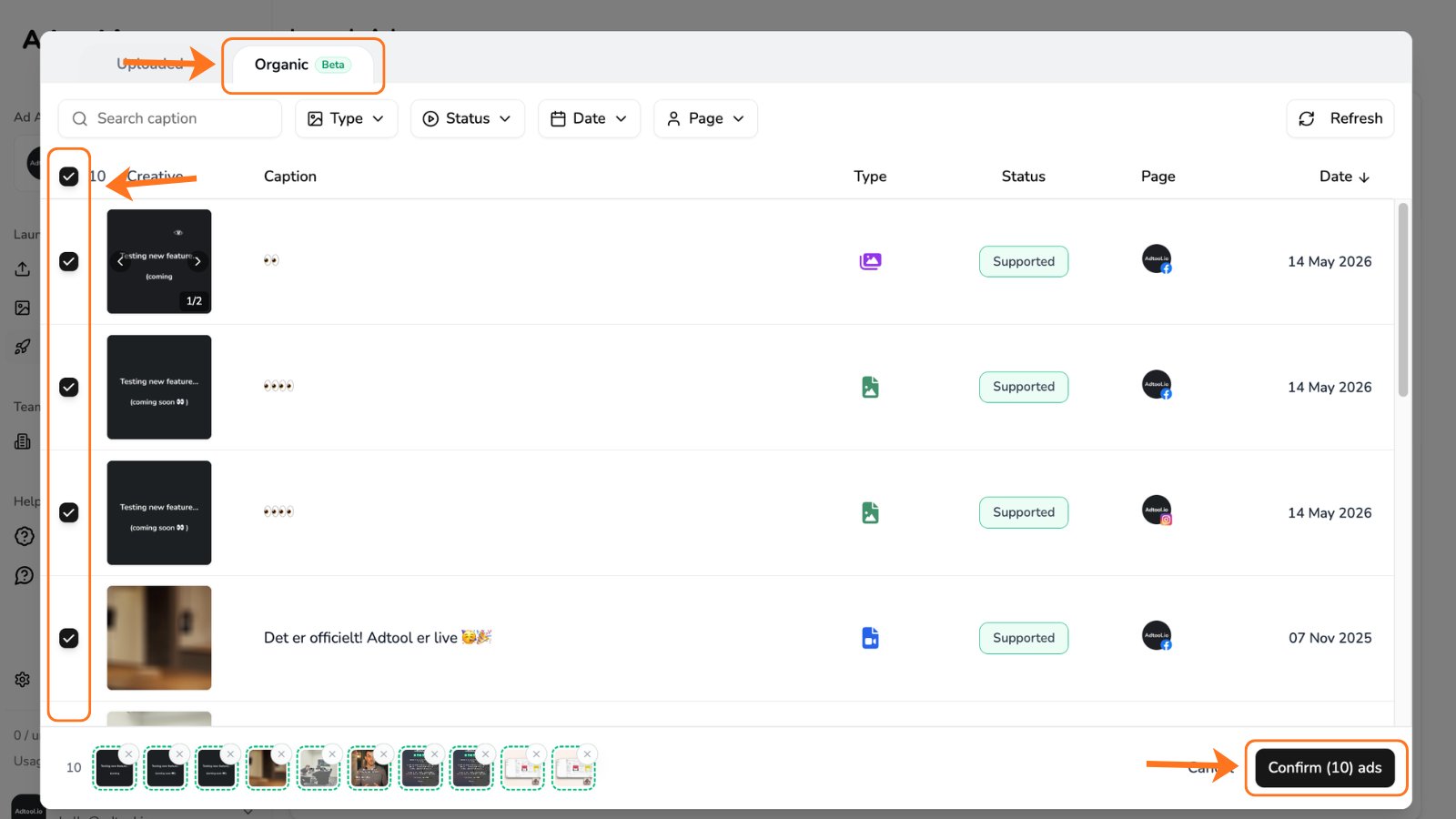
Organic Posts tab. Use the filters if needed, select the organic posts you want to launch as ads, then click Continue. The selected organic posts are added to the launch batch.